

Mountain Duck 5.3.2 — Mac version
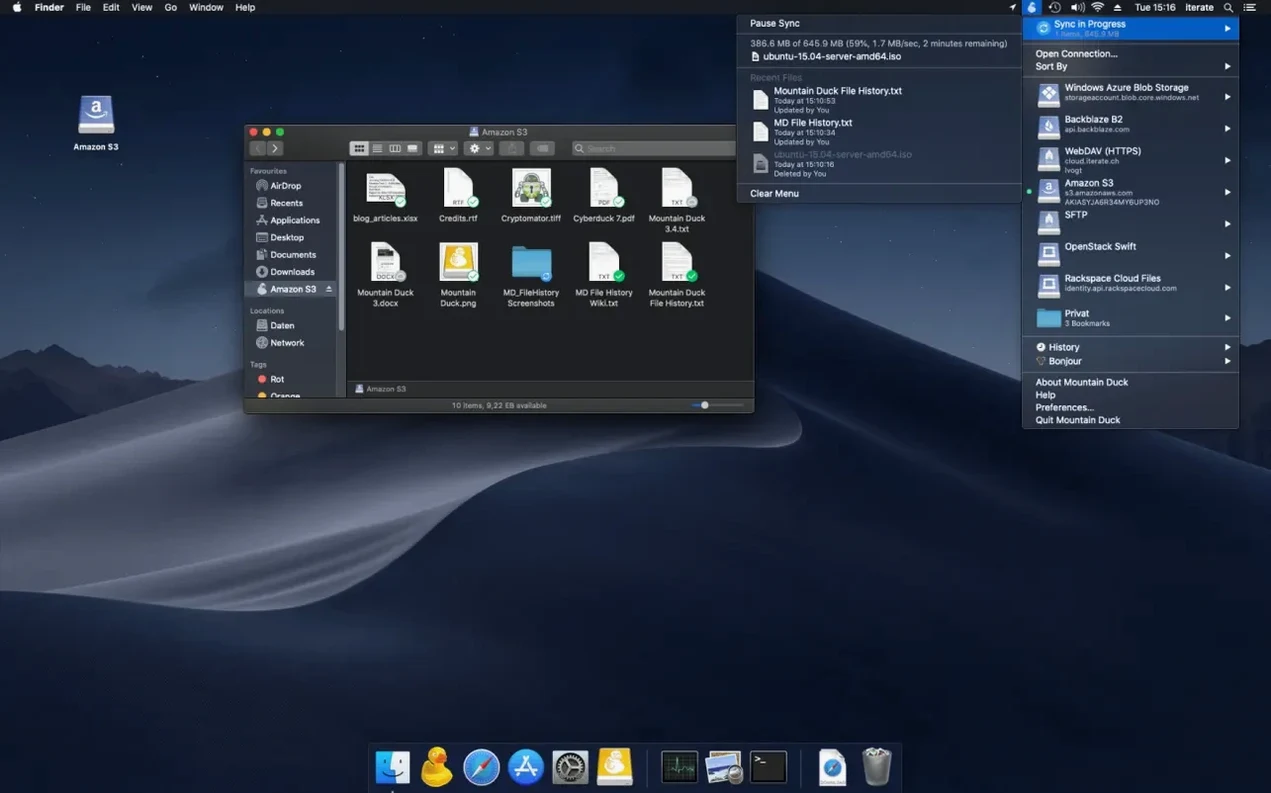
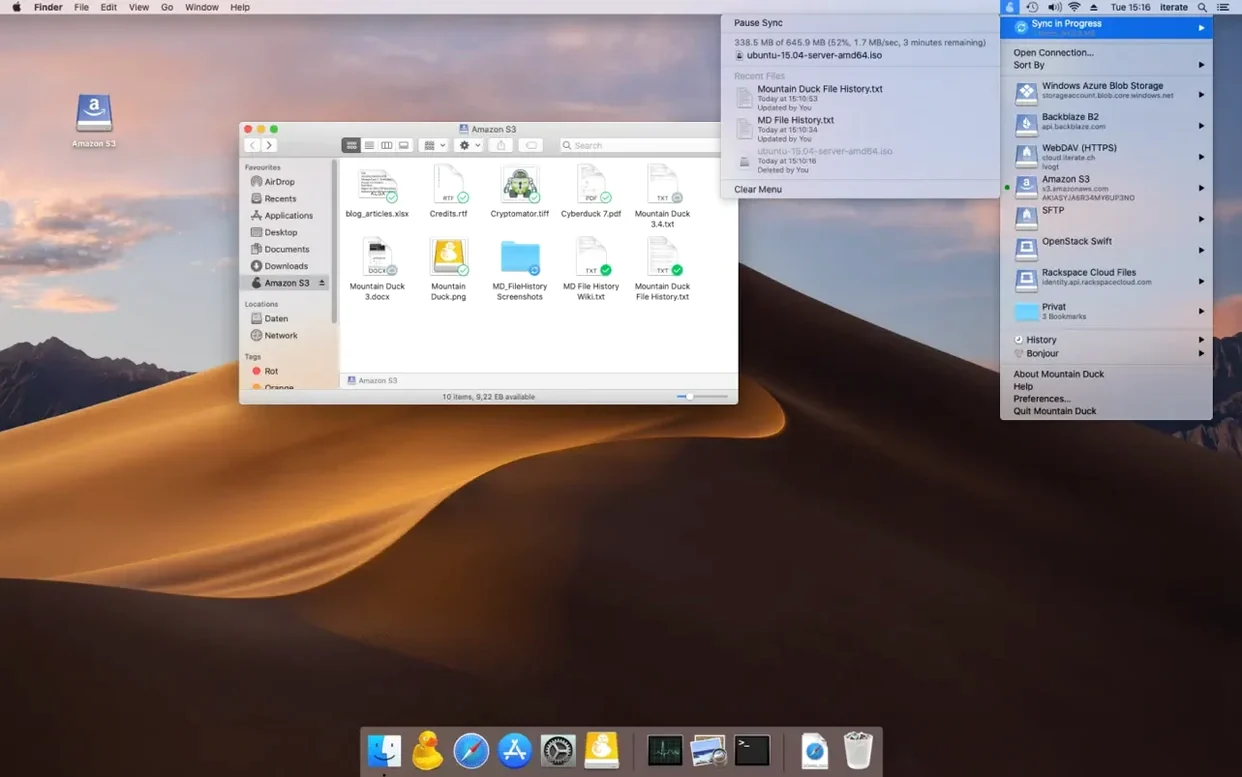
Smart Synchronization is the bit you'll lean on most. It keeps your Mac's drive from filling up by only downloading files when you actually open them. The rest stay as placeholders until you need them. For the power user, there are a few more dials to twiddle under the bonnet.
- Offline files. You can mark specific files and folders to stay stored on your Mac, even when you're away from Wi-Fi. Good for a train journey or a patchy connection.
- Shared bookmarks. If you have Cyberduck installed, Mountain Duck reads the same bookmark file. Set up a connection once and it appears in both apps.
- Finder-first, not app-first. There is no main window to keep open. Each remote volume appears as a plain disk on your desktop and in Finder sidebar. Drag, copy and save to it like any USB stick.
- Native on both chips. Runs on Apple Silicon and Intel 64-bit Macs without Rosetta fuss.
- Broad language set. The interface ships in over thirty languages, from Estonian to Tamil. Handy if your repair-café visitors switch between systems in different tongues.
It is very much Cyberduck's quieter sibling — same developer, same connection smarts, just aimed at making remote storage feel boring and local. And boring is exactly what you want from a file system.
Spotlight can search filenames you've already cached
Mountain Duck works best when you stop thinking about it. Once a volume is mounted, macOS treats it like any other disk. That means Spotlight can index the filenames you've already cached, so a quick Cmd+Space search finds that invoice you saved to S3 last Tuesday. Time Machine won't back the volume up by default — it sees it as an ejectable disk — but you can drag anything you want kept long‑term onto your local drive and let Time Machine do its thing from there.
The app also gets on well with Finder tags. Tag a file on a mounted SFTP share and the tag sticks, visible on any Mac that mounts the same volume. If you use Cyberduck alongside it, the shared bookmarks file means zero double-entry. Set up a new WebDAV connection in Cyberduck's bookmark window, and Mountain Duck picks it up next time you right‑click the menu bar icon. The two tools split the job neatly: Cyberduck for quick transfers and browsing, Mountain Duck for when you need to live inside those files all afternoon.
Grabbing photos from a Backblaze B2 bucket for a poster
Imagine you're pulling together a poster for the bike library's next repair event. The photos live on the group's Backblaze B2 bucket. Here's one way through it:
- Mount the bucket. Click the menu bar icon, pick the B2 bookmark you set up last month. A disk pops onto the desktop.
- Browse and cache. Open the disk in Finder, find the
photos‑2024folder. Thumbnails won't load instantly — B2 isn't your local SSD — but a quickCmd+Aselect and a tap of the Space bar to Quick Look marks each file for download in the background. - Pull what you need. Drag the three best shots to a folder on your Mac's desktop. They copy across without you needing to open a browser, log in, or click a single download button.
- Work offline. Jump on the bus to the print shop. Mountain Duck has those three files cached. Open them in Preview or Affinity Photo as normal. The rest of the B2 bucket still shows in Finder as greyed‑out placeholders, so you know what's there even without a connection.
- Push changes back. At the café, tweak a caption in one image and save. Mountain Duck queues the upload silently. Next time Wi‑Fi connects, the revised file lands back in the bucket with the same path.
Rookie slip‑ups worth avoiding
The commonest stumble is treating a mounted volume like a synced folder. It isn't. If you delete a file in Finder, that deletion goes straight through to the remote server — there's no recycle‑bin safety net unless the server itself provides versioning. Before you drag something to the Trash on an S3 or FTP volume, be certain.
Another one: people chase mountain duck mac search results and grab a version off a torrent, then wonder why Finder integration breaks on newer macOS builds. The real thing ships as a plain disk image. You open it, drag the app to Applications, done. No installer wizard, no kernel extensions to approve separately — though the first launch will ask for permission to access files and folders, and you need to say yes or nothing mounts.
On flaky Wi‑Fi, a large cached file can sit half‑written on disk. Mountain Duck retries by design, but if you disconnect before it finishes, that file won't open until the next complete sync. A quick fix: toggle the connection off and on from the menu bar, then re‑open the file. A practical habit is to pin anything mission‑critical as an offline file before you leave the network, not after.
- macOS 13 or later
- Apple Silicon or Intel 64-bit Mac
Questions from the bench
Does Mountain Duck store files on my Mac?
Only the ones you open, thanks to Smart Synchronization. You can also mark chosen files and folders to stay stored offline.
What is the oldest macOS Mountain Duck needs?
It requires macOS 13 (Ventura) or later.








 Back up
Bench talk (0)
Sign in or get a library card to pin up a note.
Nobody has chimed in on this card. If you have used it on an old Mac, say which one.