

Squash 3.3.0 — Mac version
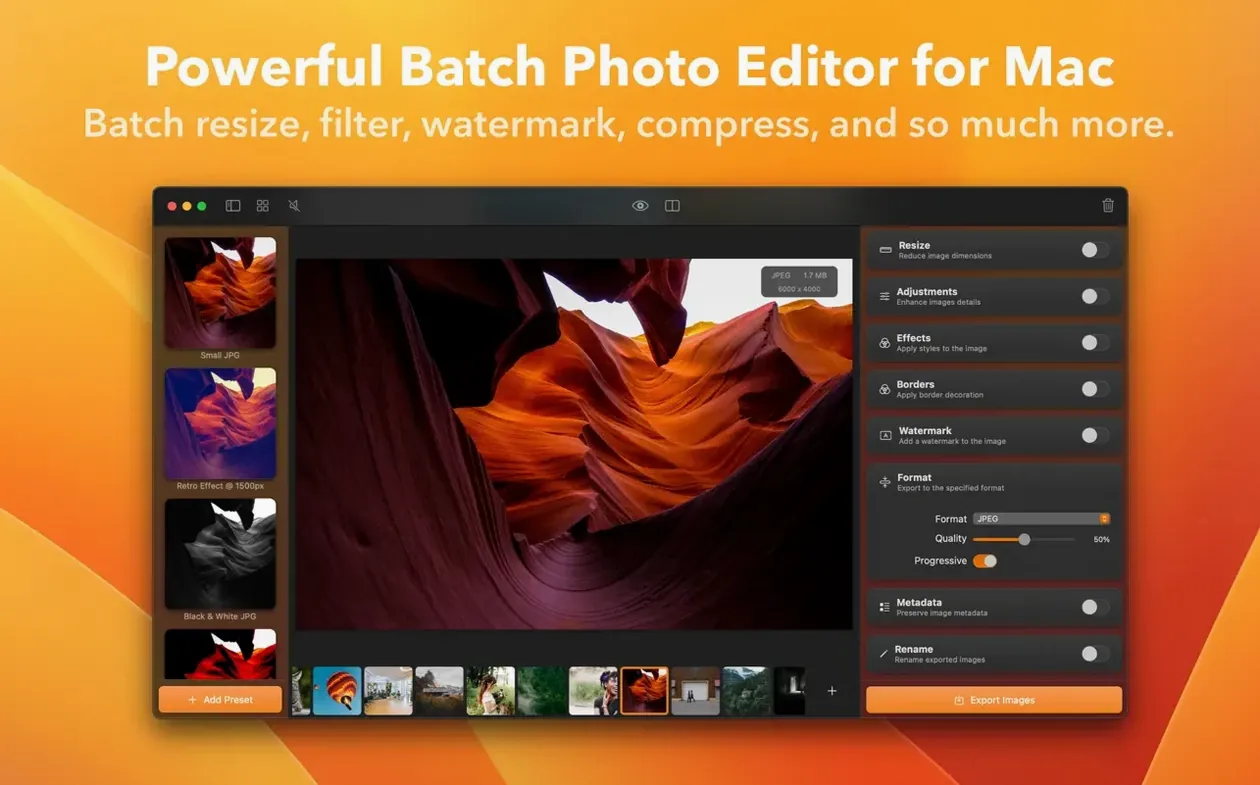
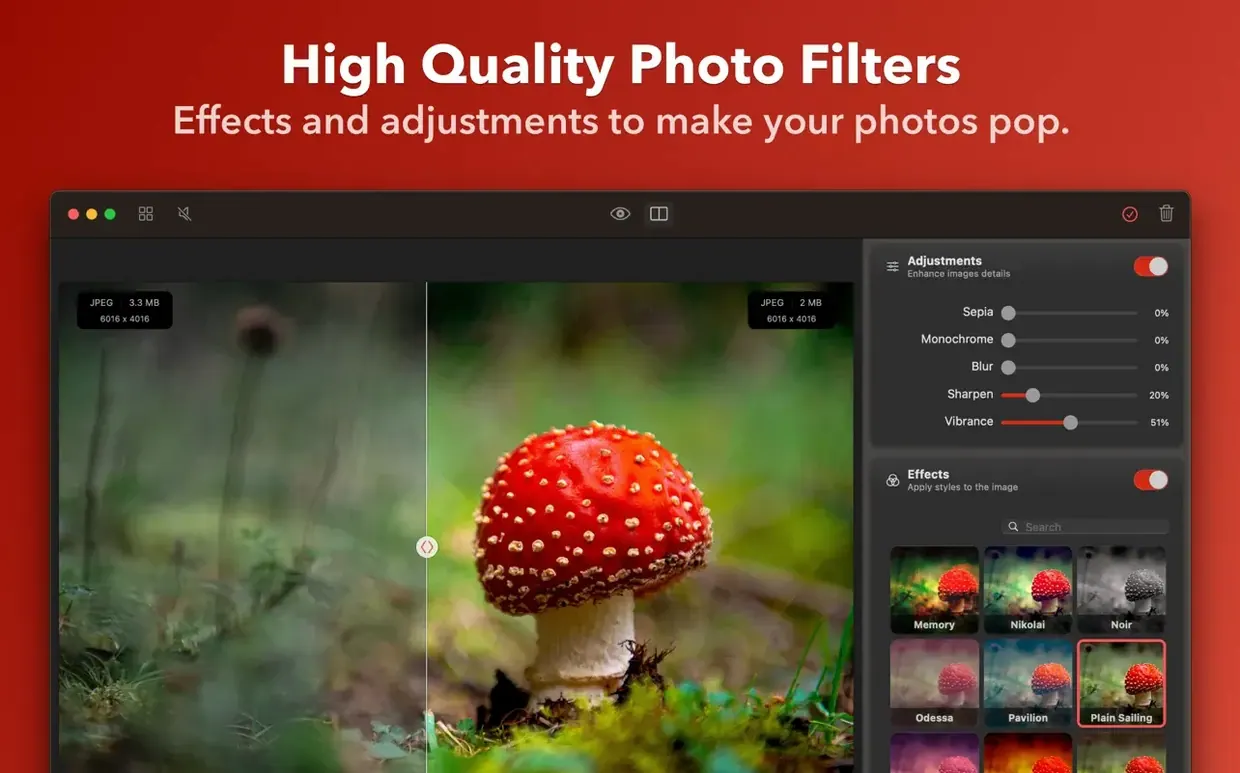
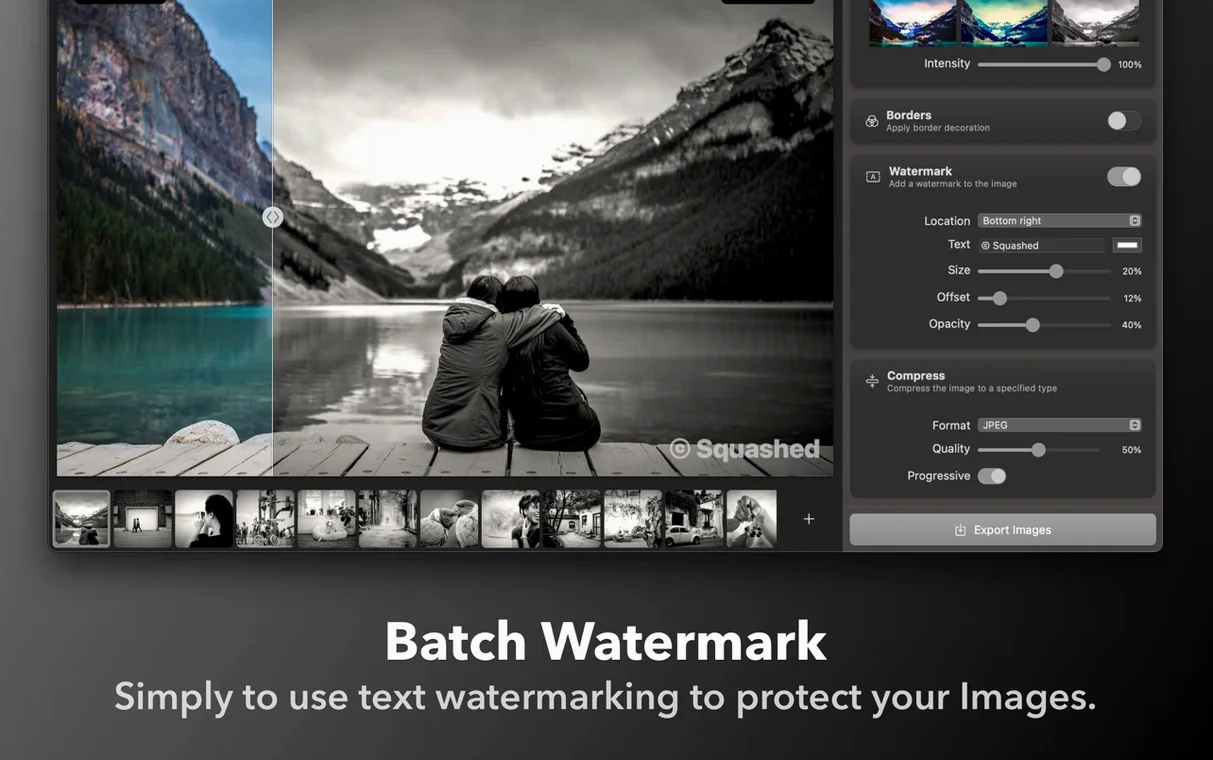
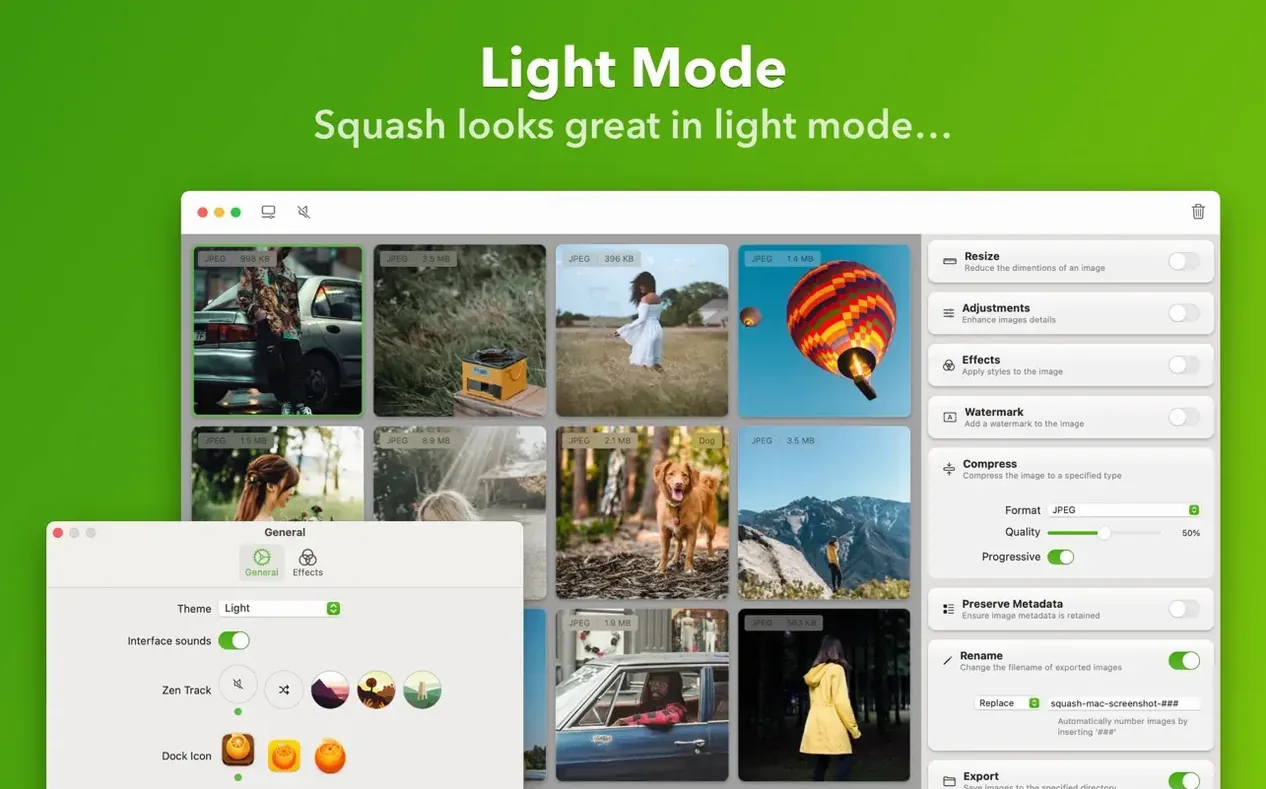
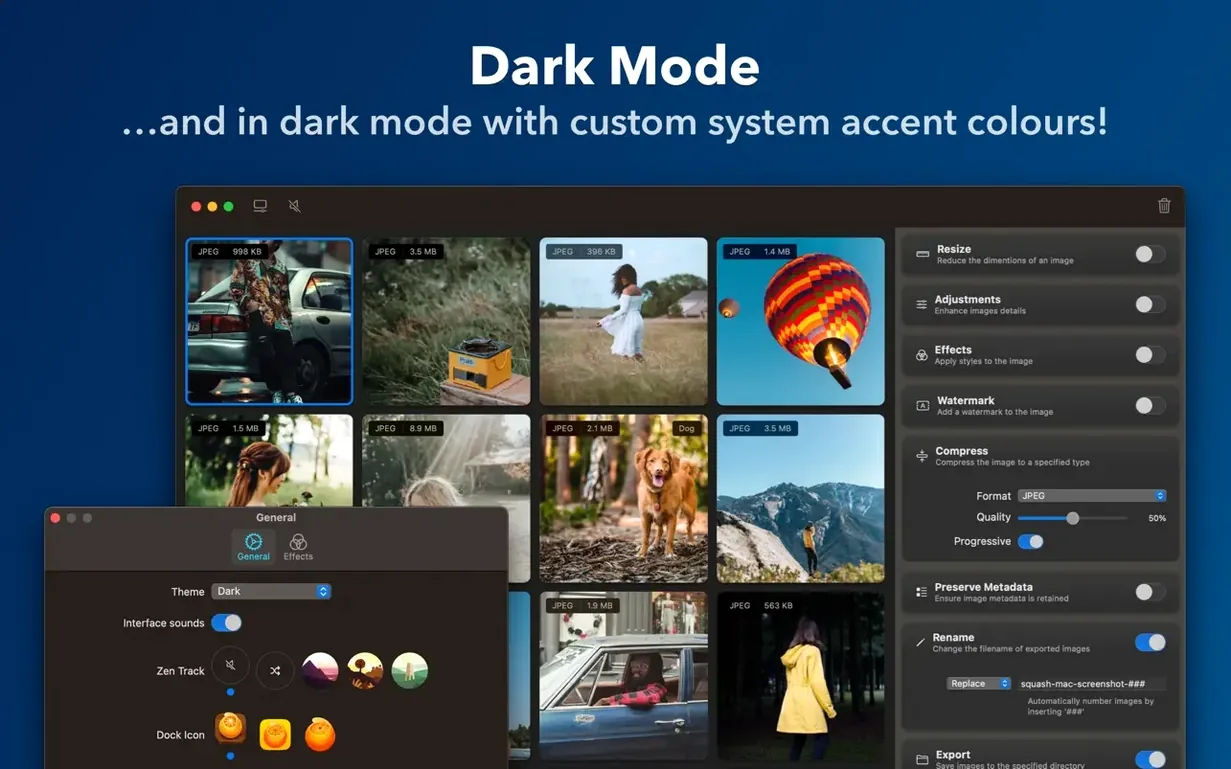
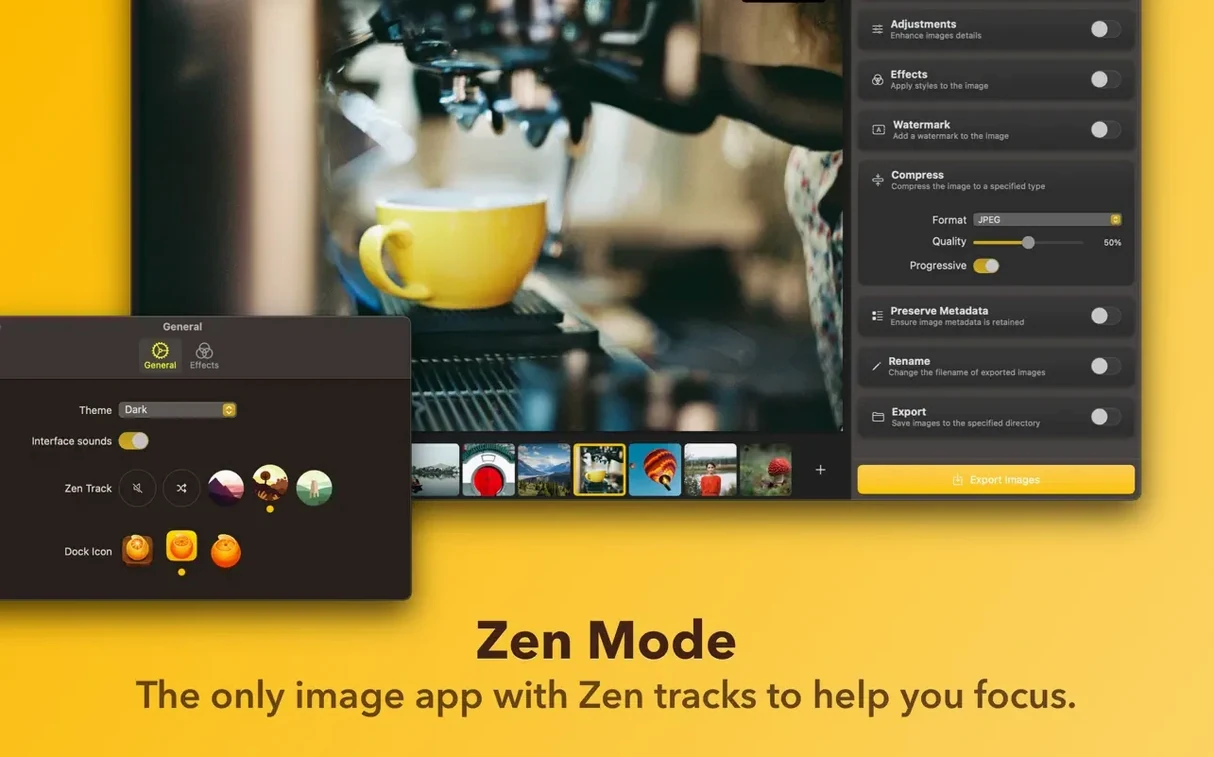
Version 3.3.0 is light on new features — it's mostly about staying solid on current Macs. You get improved compatibility with macOS Sequoia, a handful of bug fixes, and general performance bumps that keep batch jobs snappy. No flash, just maintenance from Realmac Software.
Compress a batch of photos
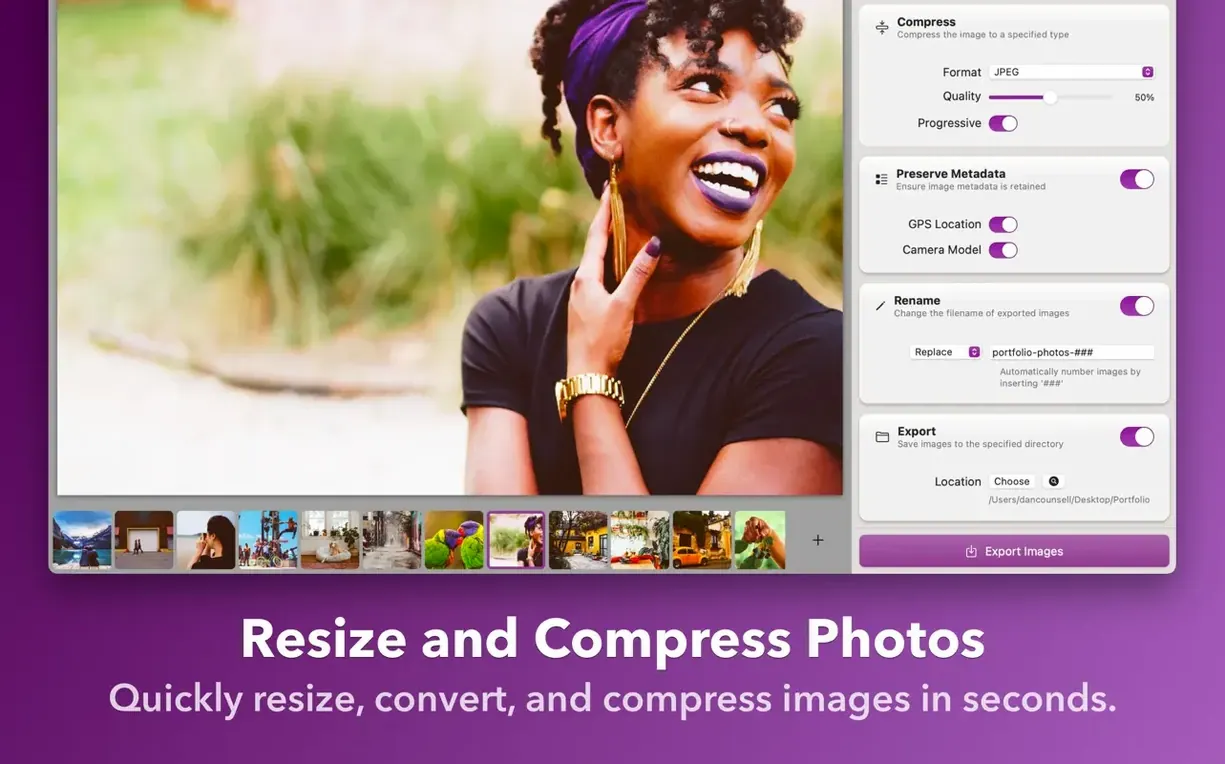
Drag a folder of hefty images in and Squash crunches them down without wrecking how they look.
Convert formats in one go
Got a mix of PNGs and TIFFs? Set your output format and let it churn through the lot.
Shrink from the Finder
Head into the preferences and flip on JPEGmini integration if you have a copy installed. Squash picks it up automatically and the difference in final JPEG size can be substantial. While you are there, set your default output format to something sensible for your day-to-day work — WebP is a good shout if your sites and platforms support it, saving you one extra click every time.
Handy shortcuts you might overlook
Most people drag images onto the window and stop there. A few extra moves speed things up:
- Paste from clipboard. Copy an image in Finder or another app, then hit Cmd‑V inside Squash. It drops straight into the queue, no file dialogue needed.
- Re-run the last compression. The Cmd‑R shortcut grabs the most recent file (or files) and runs them through the same settings again. Perfect when a client sends a revised version of the same photo.
- QuickLook in the queue. Select one or more items and tap the spacebar. You get a full preview of the original right there, so you can check you have the right file before shrinking it.
- Right-click the dock icon. The dock menu lets you start a new compression or open recent files without bringing the full window forward. Surprisingly useful when you are bouncing between apps.
The Finder extension deserves a proper poke too. Enable it in System Settings under Extensions > Finder, then right-click any image. The Squash menu item shows current format and estimated size before you commit. It is easy to install and then forget, but it saves a trip to the app for one-off jobs.
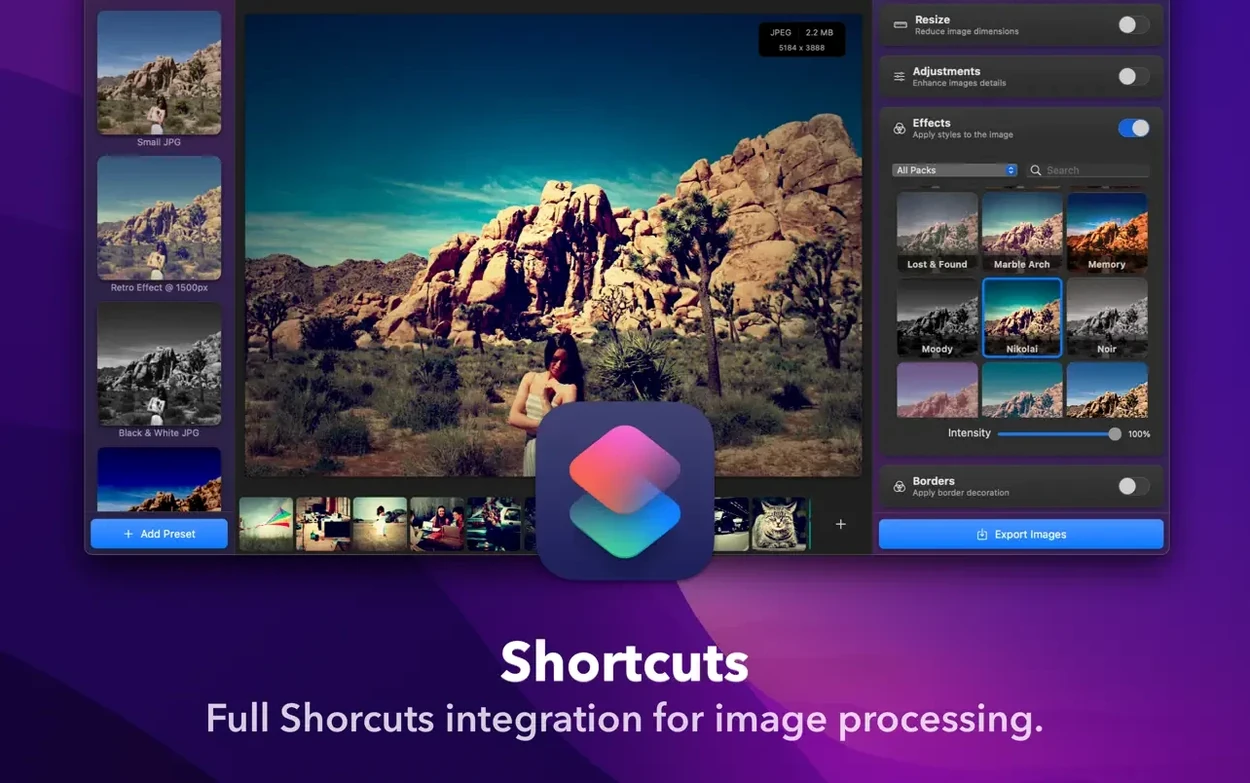
Hook it into Apple Shortcuts or the Finder extension and you can slim down images without even opening the main window.
- Improved compatibility with macOS Sequoia
- Bug fixes
- Performance improvements
- macOS 12 (Monterey) or later, including macOS Sequoia
- Intel or Apple Silicon Mac








 Back up
Bench talk (0)
Sign in or get a library card to pin up a note.
Nobody has chimed in on this card. If you have used it on an old Mac, say which one.