
Alcove 1.7.9 — Mac version
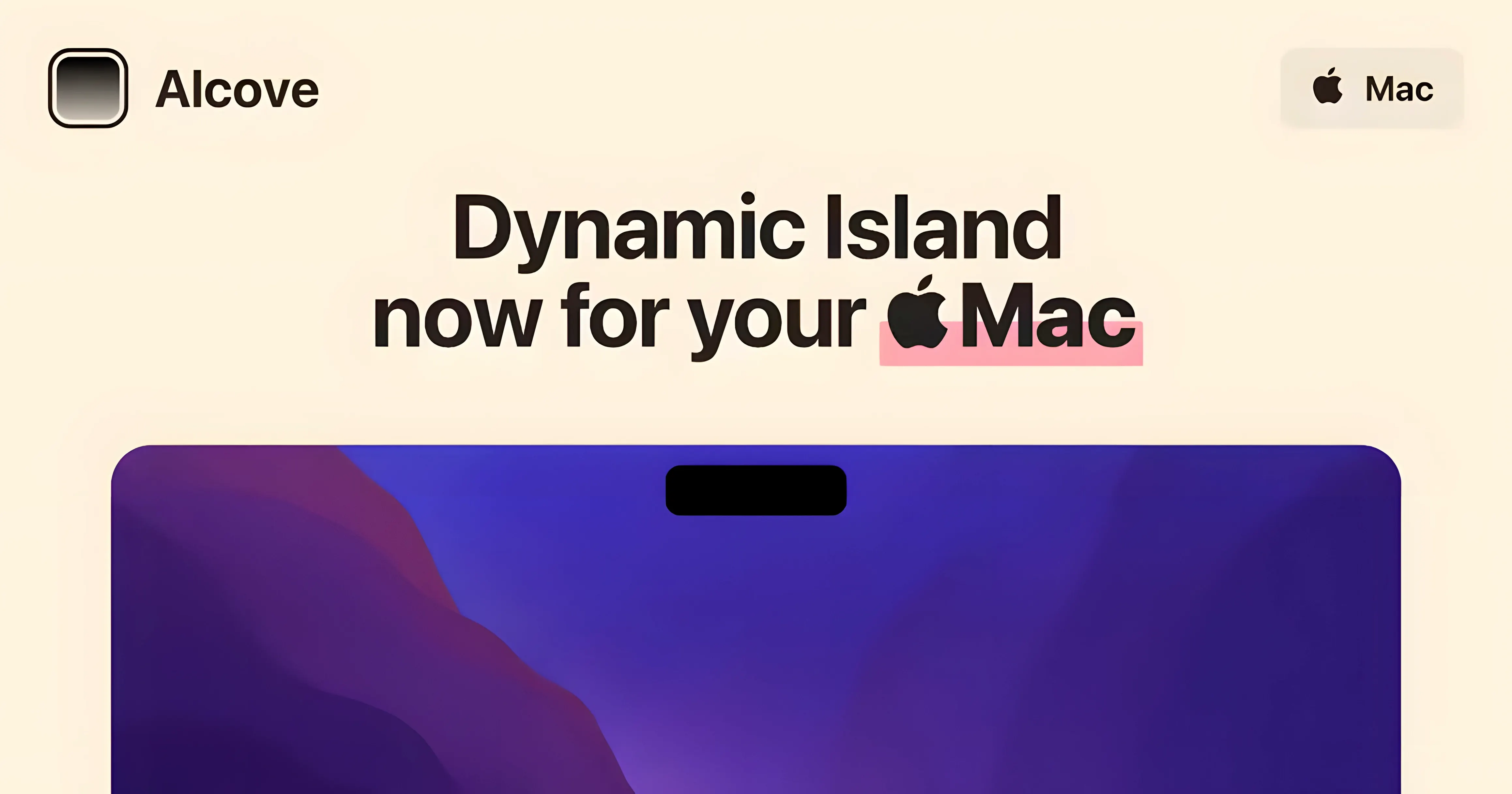
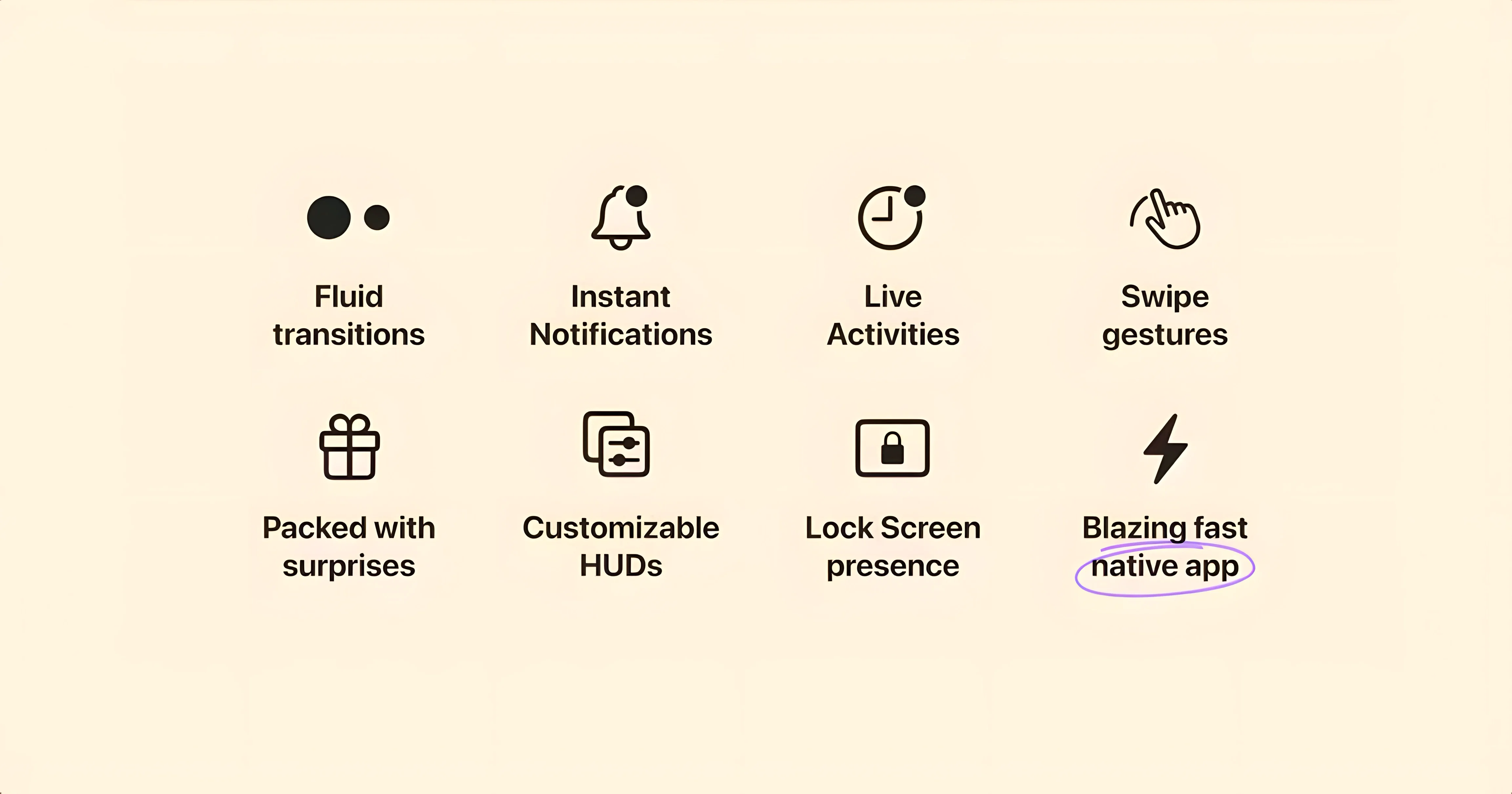
The notch just sits there on most Macs. Alcove gives it something to do, turning that dead strip into a small control centre with Dynamic Island-style actions. If you've ever squinted at the stock volume HUD, this is aimed at you.
Making the notch useful
Alcove adds interactive actions to the notch area, so playback and other quick controls live where you're already looking. It replaces the system volume and brightness HUDs with custom ones.
Fitting in with your current setup
It's a small utility, not a full workspace takeover. It runs alongside whatever launchers, menu bar tools and window managers you already use, needs macOS 14 or later, and works on both ARM and x86 64-bit Macs.
Booting up without an icon to click
Swapping the default capsules in five minutes
Out of the box Alcove works, but a couple of tweaks make it feel less like a demo and more like your own. The defaults are sensible, yet you'll want to spend five minutes in preferences.
First stop: which capsules show up. By default Alcove grabs media playback, volume, brightness and notifications. If you already use a menu bar player like Sleeve or a custom HUD through BetterTouchTool, you'll get duplicate pop-ups. Untick what you don't need. I keep media and volume on, notifications off — the notch isn't where I want calendar alerts fighting for attention.
Next, capsule size and position. On a MacBook Air the notch is smaller than on a 14-inch Pro, and the default capsule can feel cramped. There's a slider for horizontal padding — bump it up a notch (sorry) and everything breathes better. You can also shift the capsule a few pixels left or right if your eyes tell you it's slightly off-centre.
Turn off "Animate on hover" if the pop-out effect distracts you during focused work. The capsule still expands on click, but it won't jump every time your cursor drifts past. On a multi-monitor setup, set Alcove to active display only unless you want a capsule on every screen.
Lastly, check startup behaviour. The app can launch at login, and it should — it's the sort of utility you want always on, not something you remember to open. Toggle that on, then forget about it.
Why the notch shares a bridge with Control Centre
Alcove doesn't fight the system; it layers on top. That means some things work together, some need a nudge.
With Now Playing and media apps: Alcove's playback capsule talks to the same media bridge that feeds the Control Centre widget and the Touch Bar on older Macs. Spotify, Apple Music, QuickTime, even YouTube in Safari — if it shows up in Now Playing, Alcove sees it. The scrubber is basic but functional; skip forward and back are more reliable than reaching for a keyboard shortcut when you're leaned back.
Volume and brightness HUDs: When Alcove replaces these, the system ones vanish. This is the whole point, but know that any other app also replacing HUDs — like MonitorControl or Lunar — will clash. Pick one. I kept Alcove for the unified look and let MonitorControl handle external brightness syncing without its HUD.
Notifications and Live Activities: The capsule treats these as fleeting — they pop up, linger a few seconds, then collapse. If you rely on persistent notification banners (say, for home automation alerts), you'll miss them here. This isn't a bug; it's a design choice. Notifications in the notch are glanced at, not studied.
macOS Screen Recording permission: Alcove needs this to draw overlays. The prompt appears on first launch and it's legitimate — no screen data leaves your machine. Without it, the capsules can't render.
Podcast in Safari wakes the notch
Here's how Alcove weaves into an ordinary morning at the desk.
You sit down, wake the Mac. Alcove is already running from login — no icon to click. You open Safari and hit play on a podcast. The notch expands gently: album art on the left, a waveform in the middle, a pause button and a skip-forward arrow. You tap the keyboard brightness key by muscle memory; instead of the blocky system HUD, a slim capsule slides down with the brightness level, then retracts.
An email notification arrives. It slides into the notch, shows the sender and subject line for maybe four seconds, then tucks away. You didn't reach for the mouse, didn't lose focus — you just registered it and kept typing.
Mid-morning, you're in a video call. You need to tweak the volume, but you don't want the massive system overlay in your screen recording. Alcove's capsule is smaller, less intrusive, and it doesn't show up in captures if you've set it to bypass in your recording app's window-picker.
You finish the call, switch to Music, and tap the capsule. It expands into a mini player with a scrubber. You drag back thirty seconds to catch a lyric you missed. The capsule respects your click — no fumbling for the app window.
By lunch, you haven't opened a single menu or Control Centre panel for basic media or sound. That's the idea. Alcove isn't a revolution; it's a small, quiet reclaiming of dead screen space that you stop noticing — until you use a Mac without it.
Mount the disk image, drag the app into Applications, then switch off automatic updates so it stays on the version you installed.
- macOS 14 or later
- ARM and x86 64-bit Macs
- Interface language: English
Questions from the bench
Which Macs can run Alcove?
Any Mac on macOS 14 or later, including both ARM and x86 64-bit machines.
Does Alcove replace the standard volume and brightness HUDs?
Yes, the stock system HUDs are replaced with custom ones.
Should I keep automatic updates on?
No — the install instructions say to turn automatic updates off.







 Back up
Bench talk (0)
Sign in or get a library card to pin up a note.
Nobody has chimed in on this card. If you have used it on an old Mac, say which one.