
MacWhisper 15.3 — Mac version
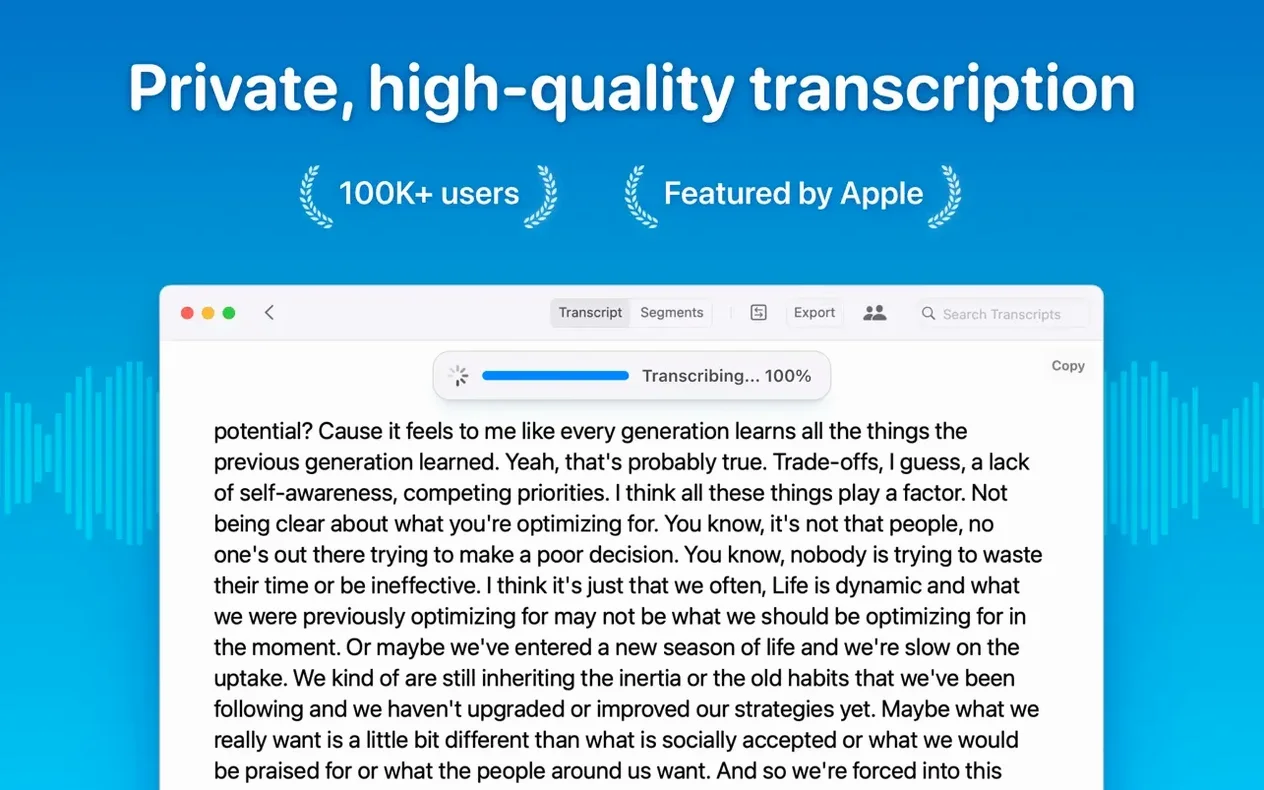
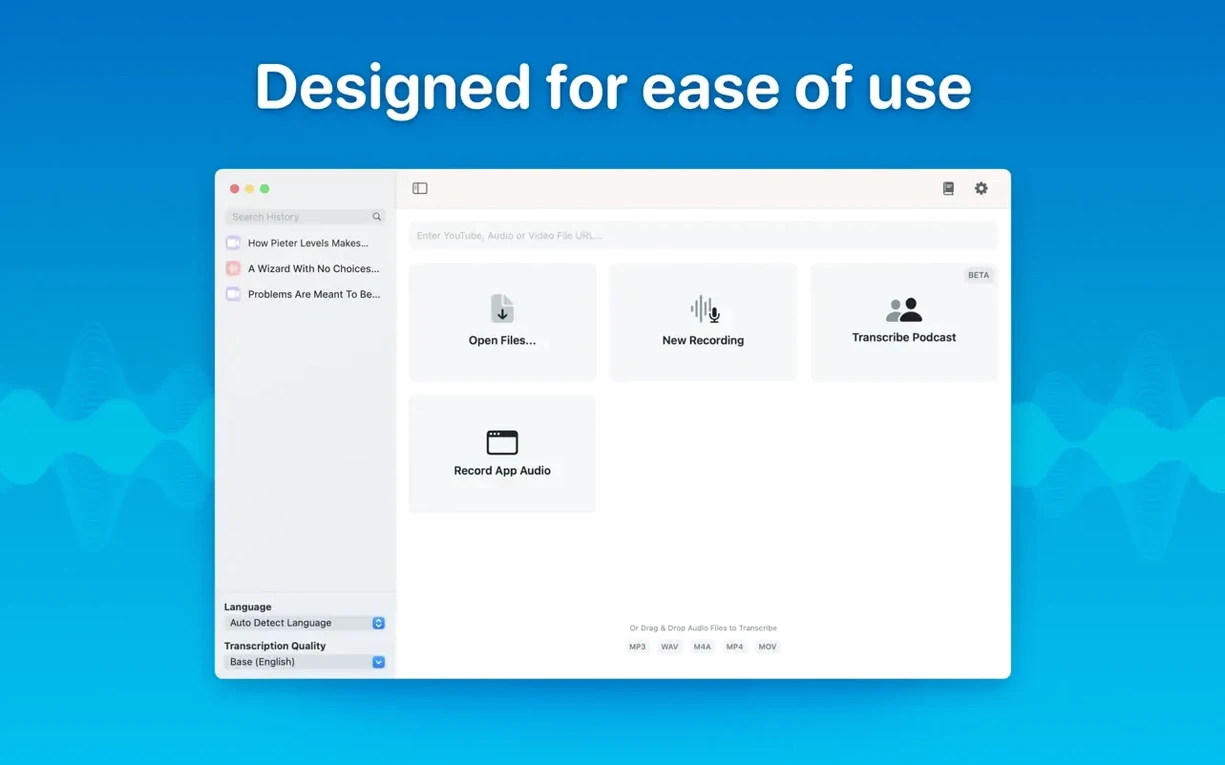
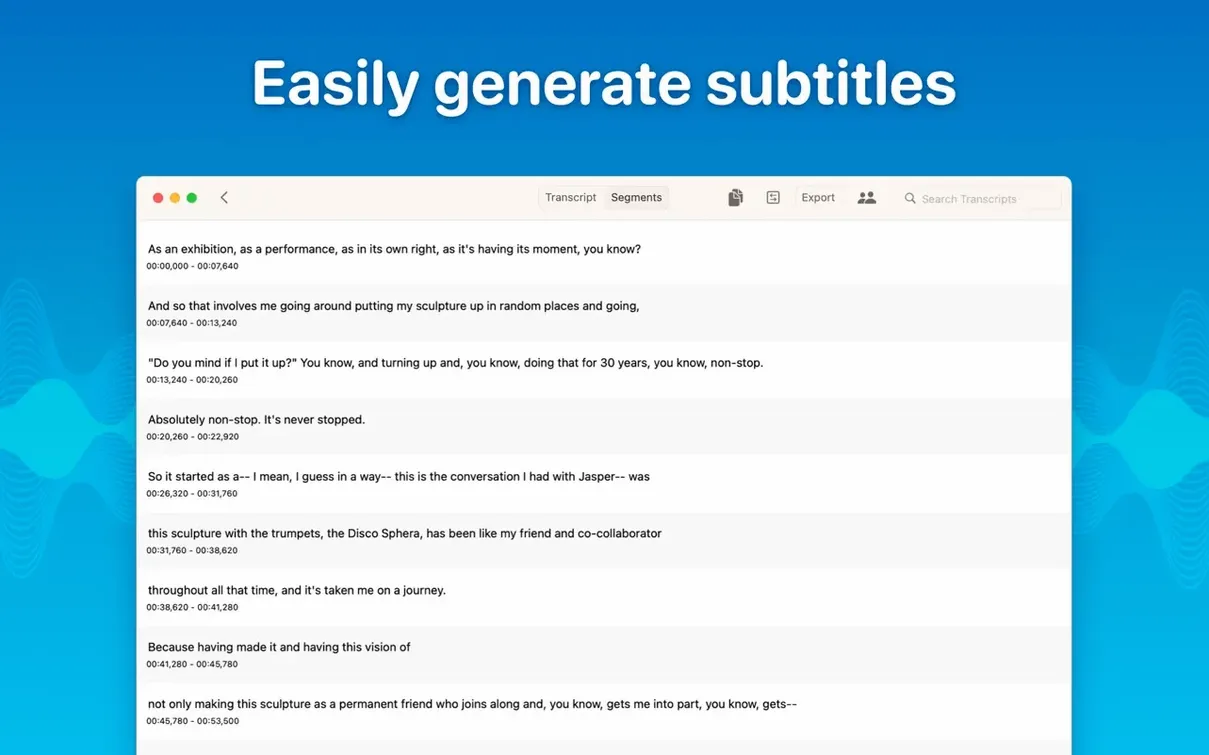
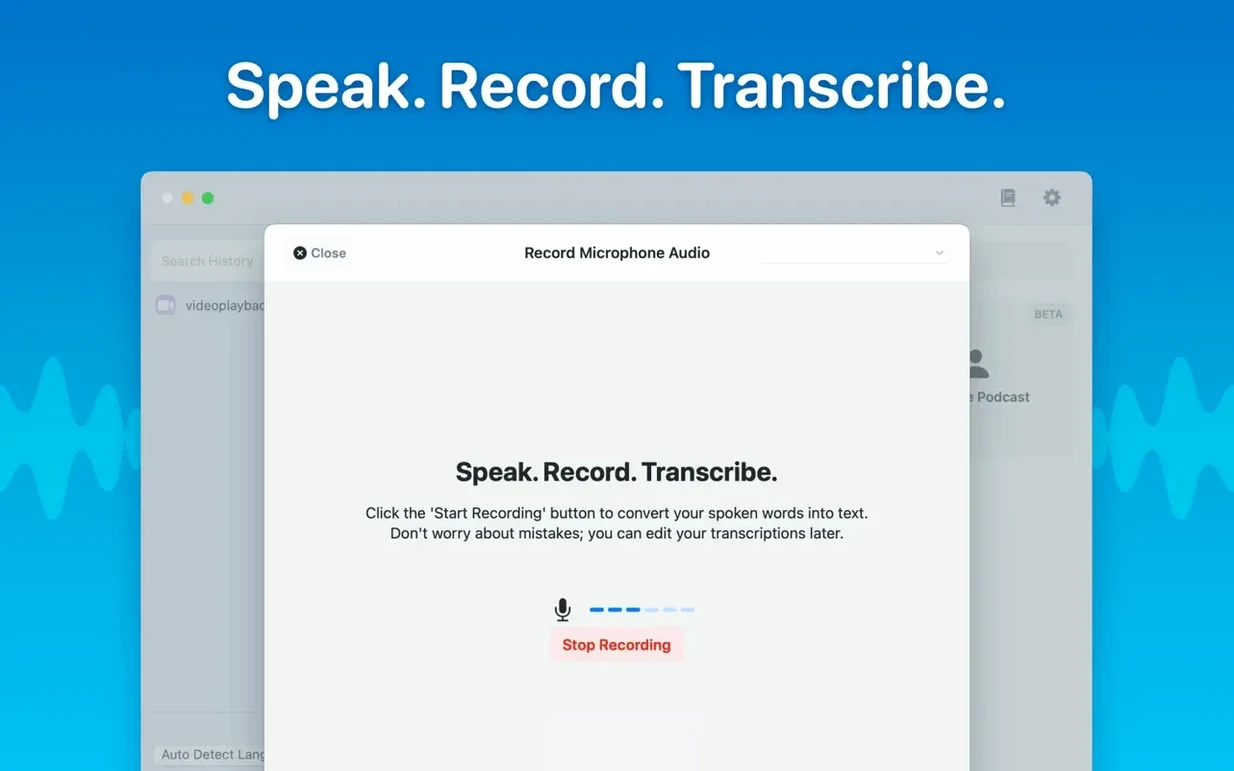
Speaker labels and real-time transcripts arrive
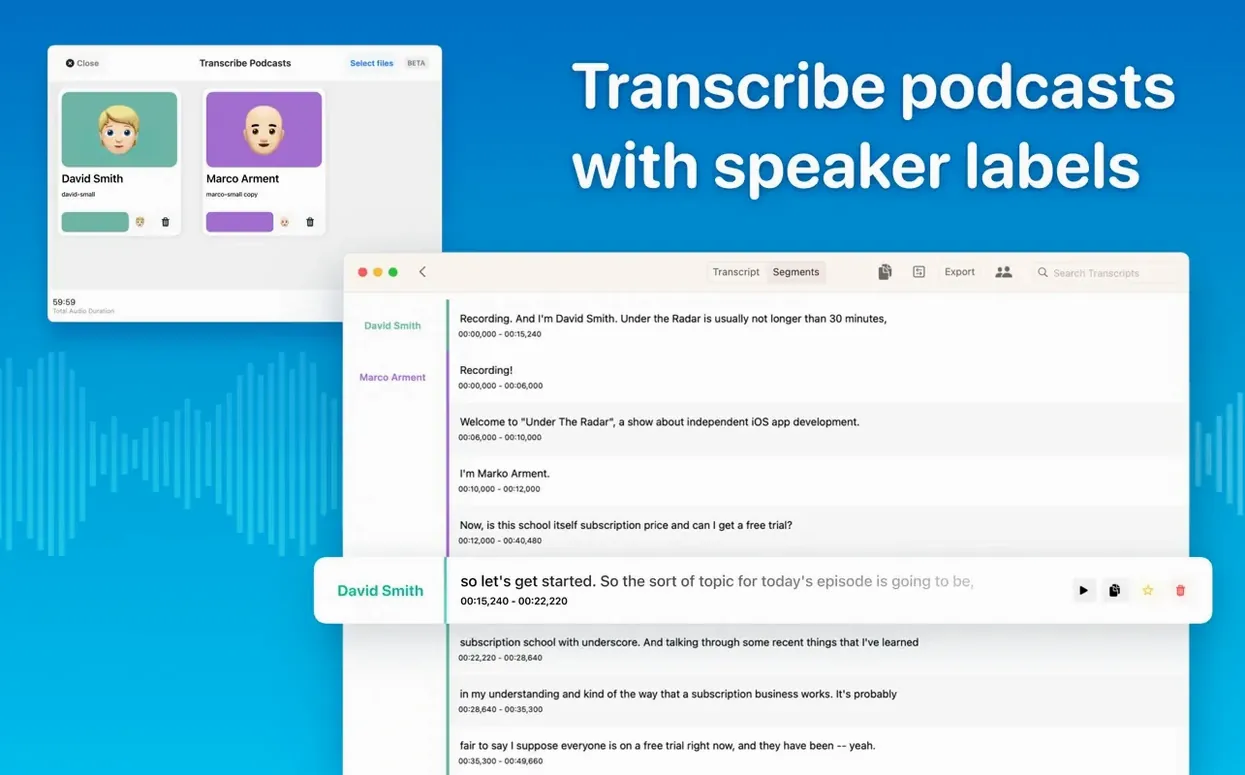
Speaker recognition got sharper thanks to a new diarization model. You can now get real-time meeting transcripts as people talk, and keep things tidy with folders for organising your transcripts and meetings.
Questions before you dive in
- Does it work offline? Yes. All the transcription happens on your Mac. Your audio files never leave the machine.
- What files can I drop in? mp3, wav, m4a, mp4, mov, ogg and opus are all fair game. Just drag a file onto the window and it starts working.
- Which languages does it handle? About 100. You can pick one yourself or let the app guess with automatic detection.
- Can I fix bits it got wrong? Absolutely. You can edit or delete any segment of the transcript right there in the app.
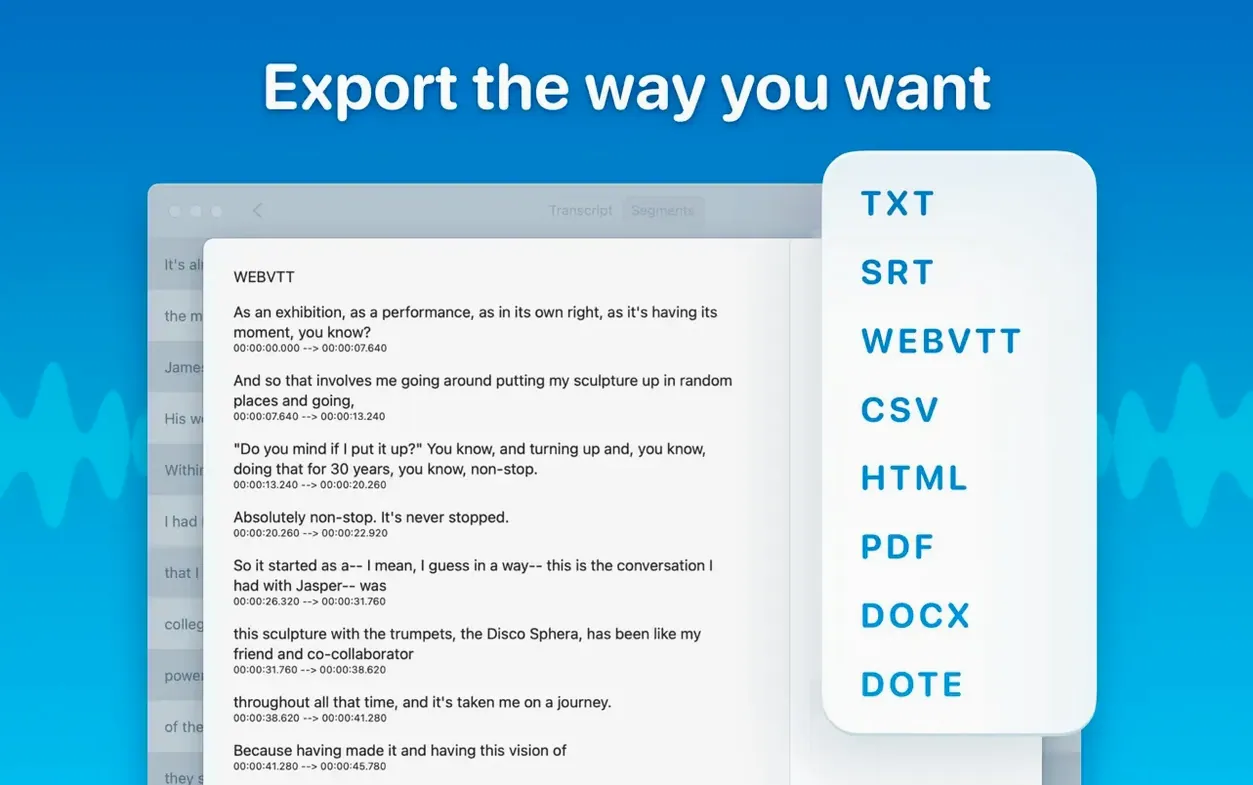
- What do I get at the end? Export your transcript as a Word doc, a PDF or an HTML file.
- Which models are available? Tiny, Small, Base, Medium, Large-V2 and Large-V3. Pick one that suits your Mac's horsepower.
You'll also notice a cleaner Local Models list with a new Qwen provider icon, and the app hides categories your Mac can't run. Just remember, Qwen3-ASR no longer works on M1-series machines.
When the model won't download
Nothing's more frustrating than dropping a file in and staring at a spinner. Here are the ones I see most often at the repair café.
The model won't download. MacWhisper grabs models on first use, and the bigger ones (Large‑V3 especially) can take ages on a slow connection. Give it ten minutes before you panic. If it fails completely, quit the app, trash any half‑finished model in ~/Library/Application Support/MacWhisper/Models, and relaunch. That nudges it to start fresh.
Transcription just sits there doing nothing. Nine times out of ten the audio track is silent or nearly silent. Open the file in QuickTime Player and check the waveform. No waveform, no words to transcribe. The other culprit is a corrupted file — re‑export it from your recorder and try again.
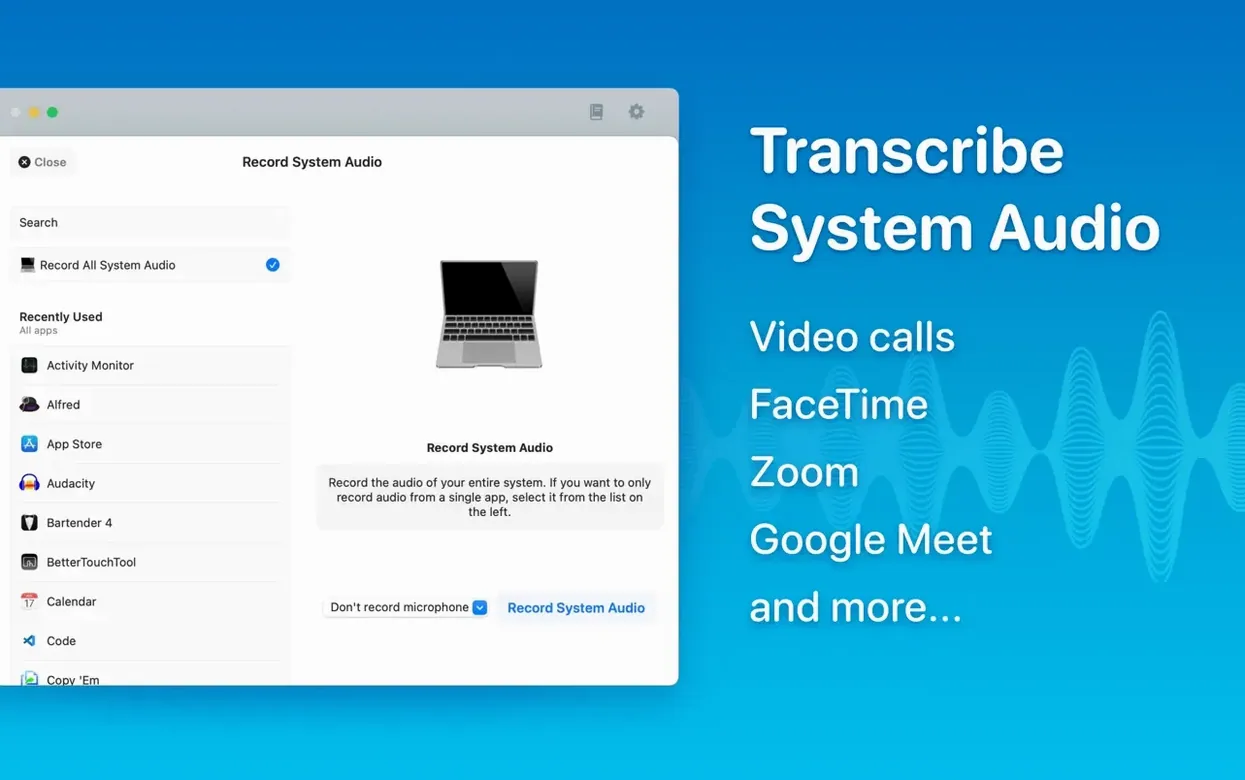
System audio recording is greyed out. MacWhisper needs screen‑recording permission to capture system audio. Head to System Settings → Privacy & Security → Screen Recording and toggle MacWhisper on. You'll need to quit and relaunch afterwards.
Speaker separation comes out messy. The diarization model is clever but not magic. It struggles when people talk over each other or when the mic is too far from the speakers. For cleaner results, feed it a recording where each voice is distinct and pauses between turns are obvious.
A quick tip: if you're hunting for a macwhisper torrent and the app feels sluggish after installing, check that you've given it Full Disk Access in System Settings. Some repackaged versions need you to manually grant permissions that the official build handles automatically.
Transcription quality on older Mac hardware
I've tinkered with a few transcription tools on ageing Macs, and MacWhisper holds its own in good company.
MacWhisper versus Buzz
Buzz is open‑source and also runs Whisper locally. It's lighter on system resources and works on older macOS versions, which makes it a favourite for folks nursing a 2015 MacBook Pro. But Buzz feels like a developer tool. MacWhisper puts a friendlier face on things — drag‑and‑drop is simpler, the reading mode is genuinely useful, and the export options (Word, PDF, HTML) are more varied. If you want a polished experience without fiddling with settings files, MacWhisper wins. If you're on a tight‑budget machine and don't mind a rougher interface, Buzz gets the job done.
MacWhisper versus Otter.ai
Otter lives in the cloud. It transcribes fast and the search is excellent, but your audio leaves the building. For a community group taking minutes where confidentiality matters, that's a deal‑breaker. MacWhisper keeps everything on your Mac. The trade‑off is speed on older hardware — Otter's servers are always faster than a ten‑year‑old Intel chip crunching a Large‑V3 model. If you care about privacy more than instant results, MacWhisper is the obvious pick.
MacWhisper versus Aiko
Aiko is another on‑device Whisper app, built with Shortcuts integration in mind. It's great for automating repetitive transcription jobs. MacWhisper counters with meeting‑specific features: real‑time transcripts and folder organisation that Aiko doesn't offer. For batch work chained into an automation workflow, Aiko shines. For sitting in a meeting and watching the transcript appear as people talk, MacWhisper is the one you want.
Grabbing the biggest model straight away
I see the same stumbles at the repair café whenever someone picks up MacWhisper for the first time.
Grabbing the biggest model straight away. Large‑V3 is tempting, but it'll hammer an older Mac. Start with Medium for most jobs. The accuracy bump from Medium to Large‑V3 is real, but it's small enough that you won't notice it on a clear voice recording. Save the heavyweight model for noisy audio or thick accents.
Forgetting to set the language. Automatic detection works well for the common ones, but it fumbles with closely related languages — Czech and Slovak trip it up constantly. If you know the language ahead of time, pick it manually from the menu. You'll get fewer garbled sentences.
Not trimming dead air before transcribing. A forty‑minute lecture with ten minutes of shuffling and throat‑clearing at the start wastes processing time and confuses speaker separation. Chop the fat in QuickTime or Audacity first. Your Mac will thank you.
Expecting perfect punctuation. Whisper is remarkable, but it doesn't always nail commas and full stops. The reading mode helps you proofread quickly — use it. A two‑minute tidy‑up before exporting saves embarrassment later.
One last thing: if you've grabbed a macwhisper pro crack from somewhere, speaker separation or real‑time transcripts might need a little extra setup. Those features lean on components that cracked builds sometimes don't activate by default, so double‑check your audio input settings and model downloads are in place.
- macOS 14 or later
- Apple Silicon or Intel 64-bit Mac






 Back up
Bench talk (0)
Sign in or get a library card to pin up a note.
Nobody has chimed in on this card. If you have used it on an old Mac, say which one.