

Mp3tag 1.14.1 — Mac version
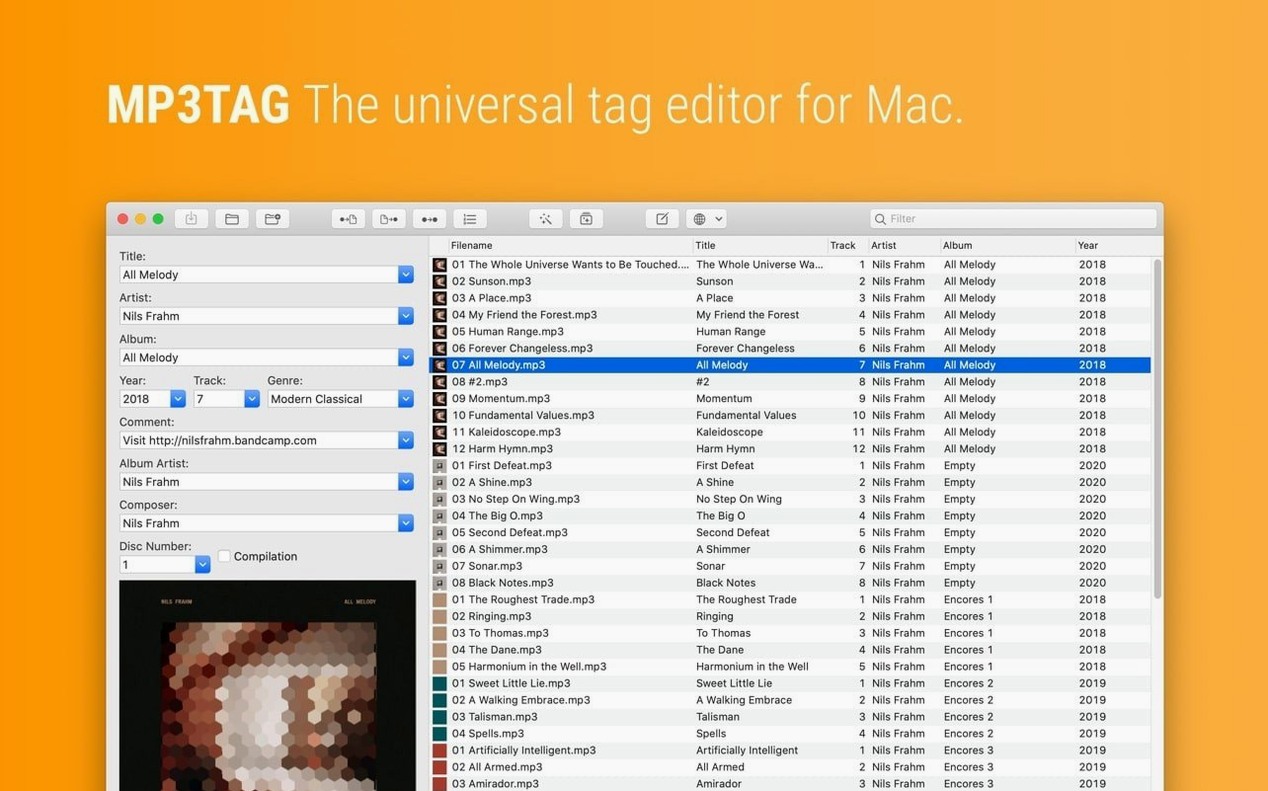
The current version, 1.14.1, landed on 23 September 2026 with four targeted fixes and a welcome bit of stability. If you tried earlier builds and hit odd crashes or edits that vanished before you hit save, this one irons those out. The core of the app — fast batch tagging, Discogs and MusicBrainz lookups, and ten supported formats — hasn't budged.
Tag a whole album in one go
Select a folder of MP3, FLAC, OGG, or WAV files and fill artist, album, and year across all of them at once — no clicking track by track.
Pull cover art from the web
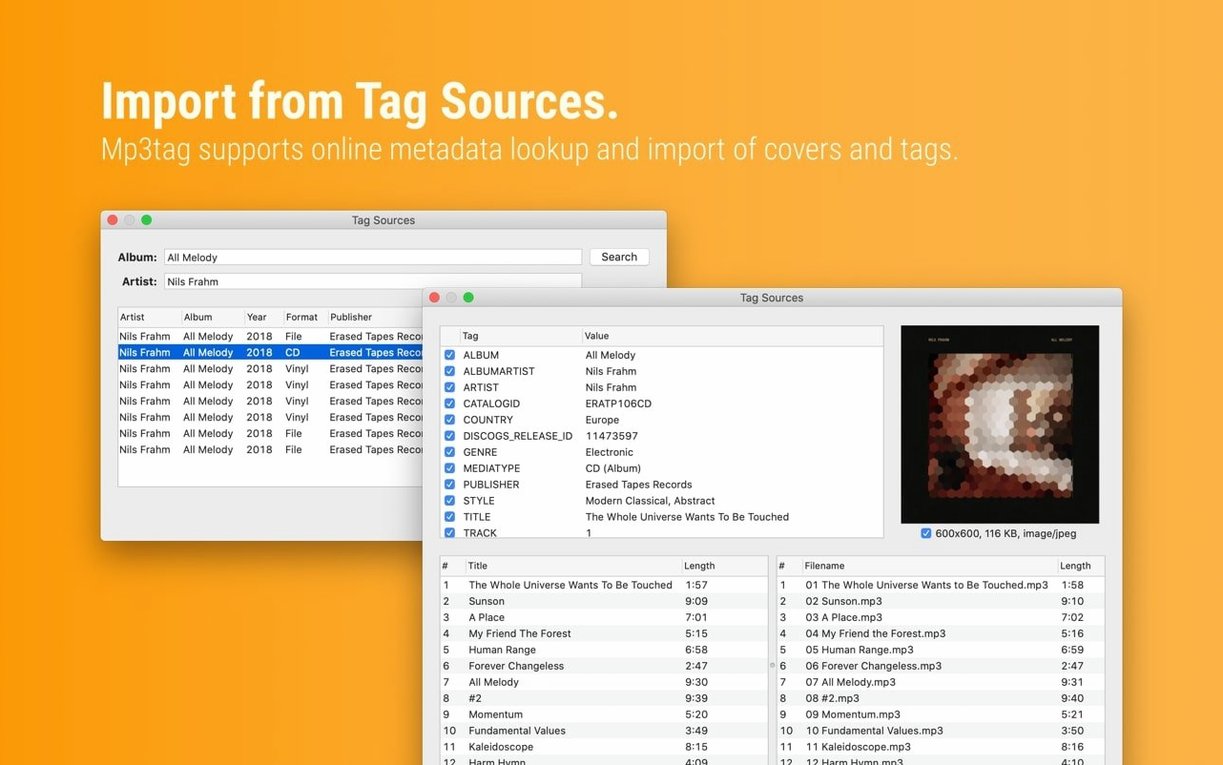
Search Discogs or MusicBrainz right from the app. Mp3tag grabs the image and embeds it into every file you've selected.
Clean up messy filenames
Swap underscores for spaces, strip out stray numbers, or rebuild a filename from the tags inside the file — the character-replace tools handle it in seconds.
Workflow: turning a folder of radio recordings into a tidy library
Say you’ve recorded a few hours of broadcast audio and now you have a folder full of files named REC-2026-09-23-145632.mp3 and similar. The tags are empty, the cover art is missing, and you want them to sit neatly in a music player. Here’s how I’d sort that in Mp3tag.
- Load the folder. Open Mp3tag and drag the folder in. The file list fills up with every track at once.
- Fill the common tags. Select all tracks (Cmd-A). In the Tag Panel on the left, type the programme name in Album, the presenter in Artist, and the broadcast date in Year. Check the small box beside each field and hit Save — those values land on every file.
- Number the tracks. Go to Convert → Auto-numbering wizard. Set the start at 1 and step by 1, writing into the Track field. Now each file knows where it sits in the running order.
- Rename the files. Open Convert → Tag – Filename. Use a format string like
%track% – %title%. Mp3tag renames every file based on the tags you’ve just filled, soREC-2026-09-23-145632.mp3becomes01 – Introduction.mp3. - Fetch cover art. Select all tracks again, then choose Tag Sources → MusicBrainz. Search for the album name you used; Mp3tag offers matching covers. Pick one and it embeds the image into every file in one step.
- Run an action group to finish. Under Actions → Action Groups, build a group that replaces underscores with spaces in filenames, strips leading numbers, and sets the genre to “Radio”. Save it, then run it on the folder. Every file gets the same tidy treatment without you repeating a thing.
The whole job — tagging, renaming, cover art, and clean-up — takes about two minutes for a folder of fifty files. Next time you dump a recording, you can reuse the same action group and just vary the album and artist.
Scanning your entire drive without choking
Does it handle big libraries, or just single folders? Mp3tag works on whatever you throw at it — a single file, a folder, or a drive full of subdirectories. When you drag a parent folder in, it can scan every subfolder and show the whole lot in one list. There’s no size limit built in; the bottleneck is your disk speed and how patient you are watching a spinner. People routinely load tens of thousands of tracks without trouble.
Will it overwrite tags I didn’t mean to touch? Only if you tell it to. The batch tagging is explicit: you tick a box beside each field you want to write, then click Save. Fields you leave unticked stay exactly as they were. If you’re nervous, you can use File → Export to dump your existing tags to a CSV first, then experiment knowing you’ve got a backup. The undo command (Cmd-Z) also works on most operations, so you can step back if you change your mind.
What happens when MusicBrainz or Discogs returns the wrong album? You get the option to pick a different result. Mp3tag shows a list of matches with title, artist, and year — just scroll until you spot the right one. If nothing fits, you can edit the search terms and try again. The cover art step is separate, so you’re never forced to accept a wrong image just because you fetched the tags from a particular match.
Does it leave the original files alone? Tag edits modify the files in place, but Mp3tag doesn’t touch the audio data itself — only the metadata container wrapped around it. If you’re still uneasy, work on copies first. The app doesn’t create shadow copies or sidecar files unless you explicitly export something.
Where it pulls ahead of Kid3 on large batches
Kid3 is the closest open-source alternative. It handles the same spread of formats and also pulls from MusicBrainz and Discogs. Where Mp3tag pulls ahead is speed on large selections — Kid3 can feel a beat slower when writing tags to a thousand files at once — and the action-group system, which Kid3 doesn’t really match. Kid3 does offer a few import formats Mp3tag skips, like Opus chapters, but for straightforward batch work Mp3tag’s interface is tighter.
Meta (the one from Nightbirdsevolve) goes hard on prettiness. It shows album art big and central, which is nice if you’re tagging a few albums leisurely. But Meta doesn’t touch FLAC, OGG, or WAV — it stays inside the MP4 and MP3 world. If your library mixes lossless and lossy, Meta runs out of road fast. Mp3tag opens them all and gives you the same tools regardless of format.
Yate is the heavyweight for Mac-only tagging. It does everything: scripting, full regex, deep integration with Apple’s own tagging frameworks. That power comes with a steeper learning curve and an interface that throws a lot of panels at you. Mp3tag keeps things simpler — the core jobs are visible immediately, and the action-group system covers a lot of what Yate does with scripts, without you writing a line of code. If you want to automate complex renaming rules fast, Mp3tag gets you there with less reading.
- Fixed a crash on macOS 27 when adding action groups in the Actions Groups window
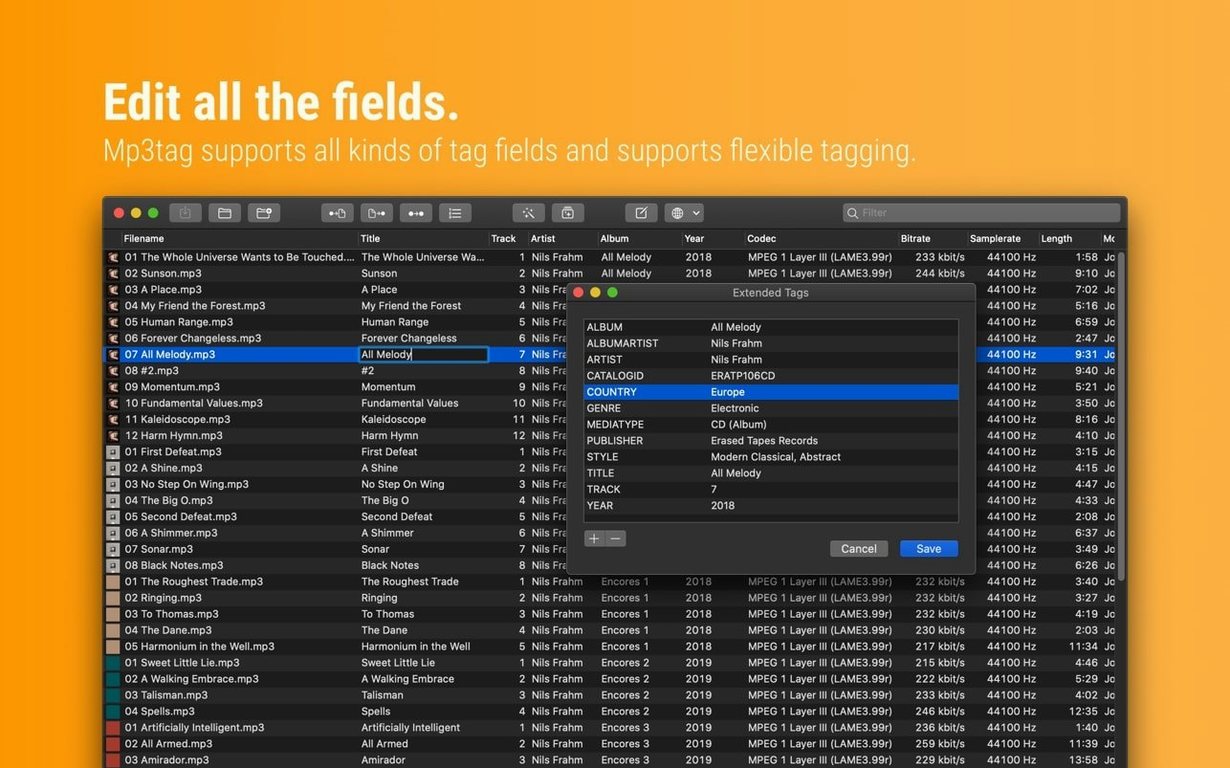
- Cover changes made in the Tag Panel are no longer discarded if you opened Extended Tags before saving
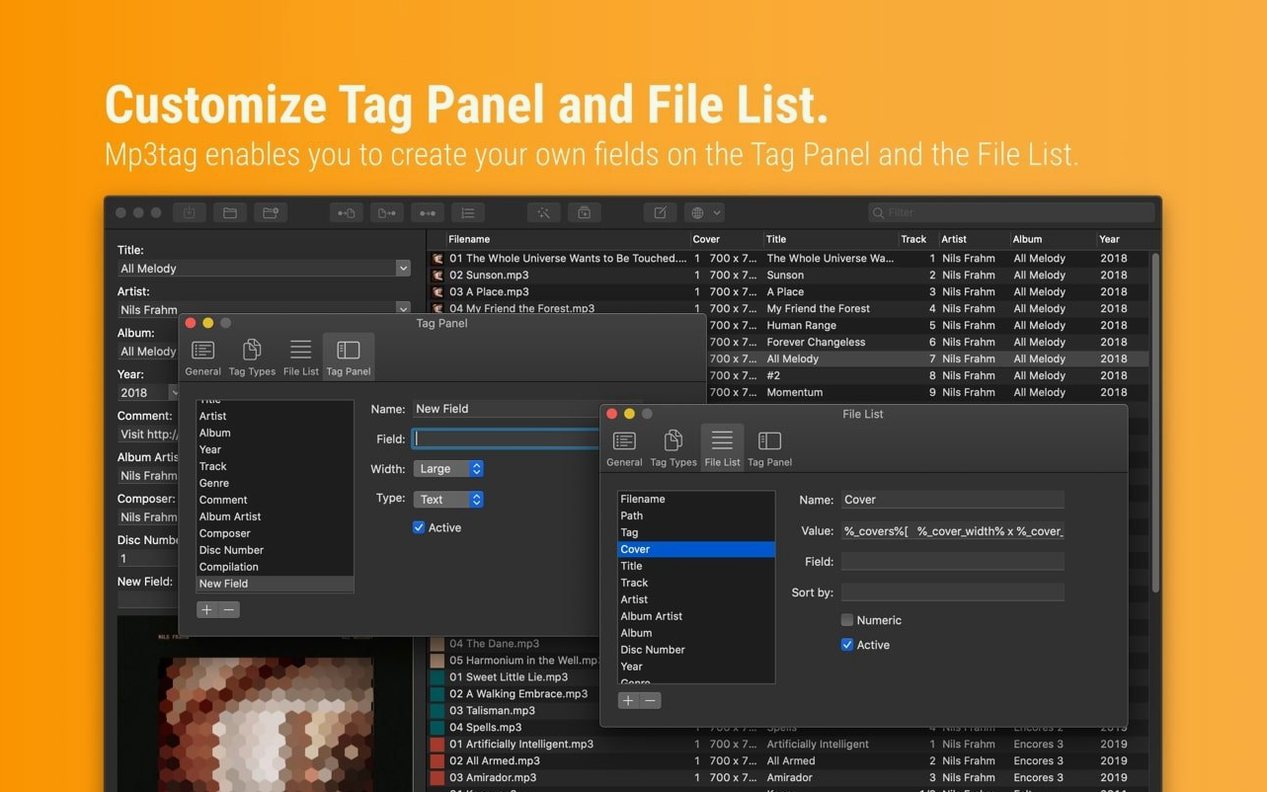
- Unsaved Tag Panel edits now stick when you use Cover Search, Tag Sources, Converters, Auto-Numbering, or Actions before hitting save
- Decimal BPM values now write correctly to MP4 tags instead of being chopped to whole numbers
- macOS 10.14 or later
- Intel 64-bit or Apple Silicon Mac
Questions from the bench
Which audio formats can Mp3tag edit?
It reads and writes tags for MP3, MP4, M4V, FLAC, OGG, OPUS, AIF, DSF, MPC, and WAV files.
Does Mp3tag run on Apple Silicon Macs?
Yes, version 1.14.1 runs natively on both Intel 64-bit and Apple Silicon Macs with macOS 10.14 or newer.
Can I fix tags on many tracks at the same time?
Absolutely — batch editing is built in. Select hundreds of files and apply the same artist, album, genre, or cover art in one move.






 Back up
Bench talk (0)
Sign in or get a library card to pin up a note.
Nobody has chimed in on this card. If you have used it on an old Mac, say which one.