

Transmit 5.11.7 — Mac version
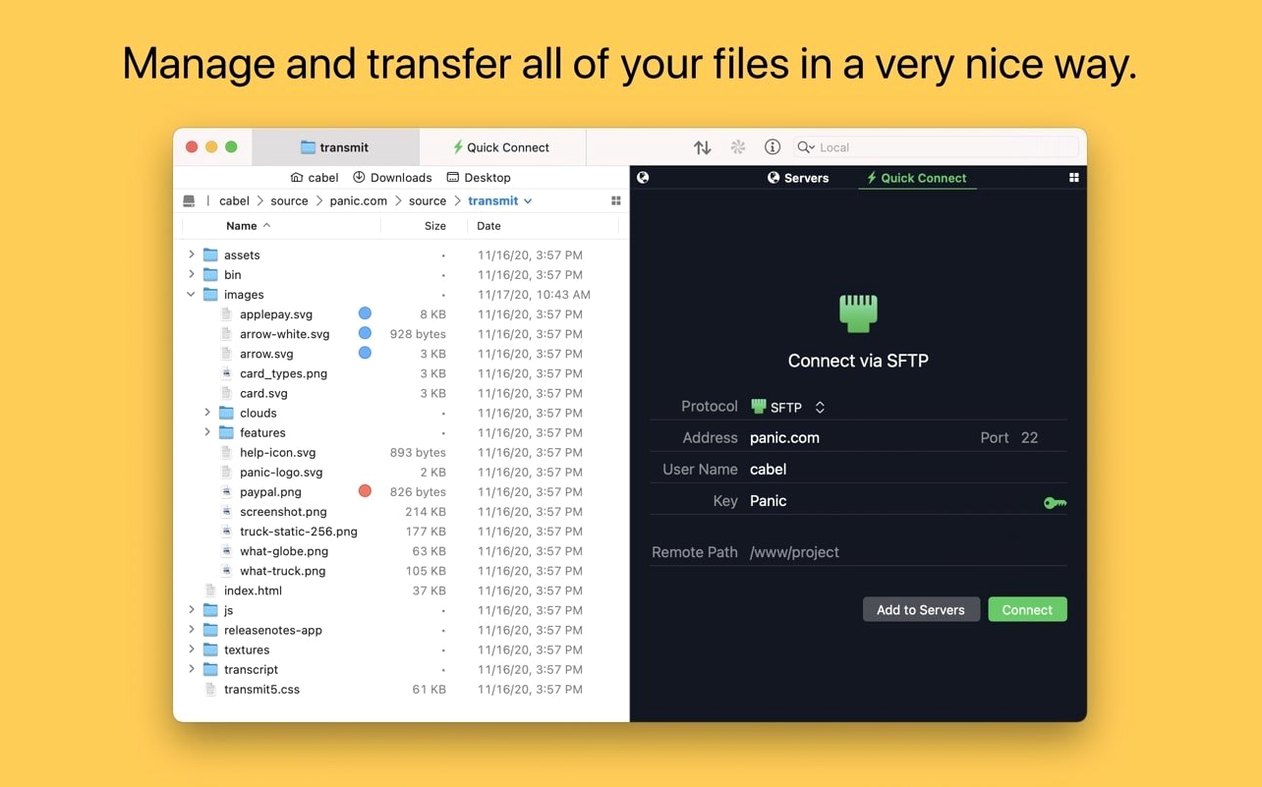
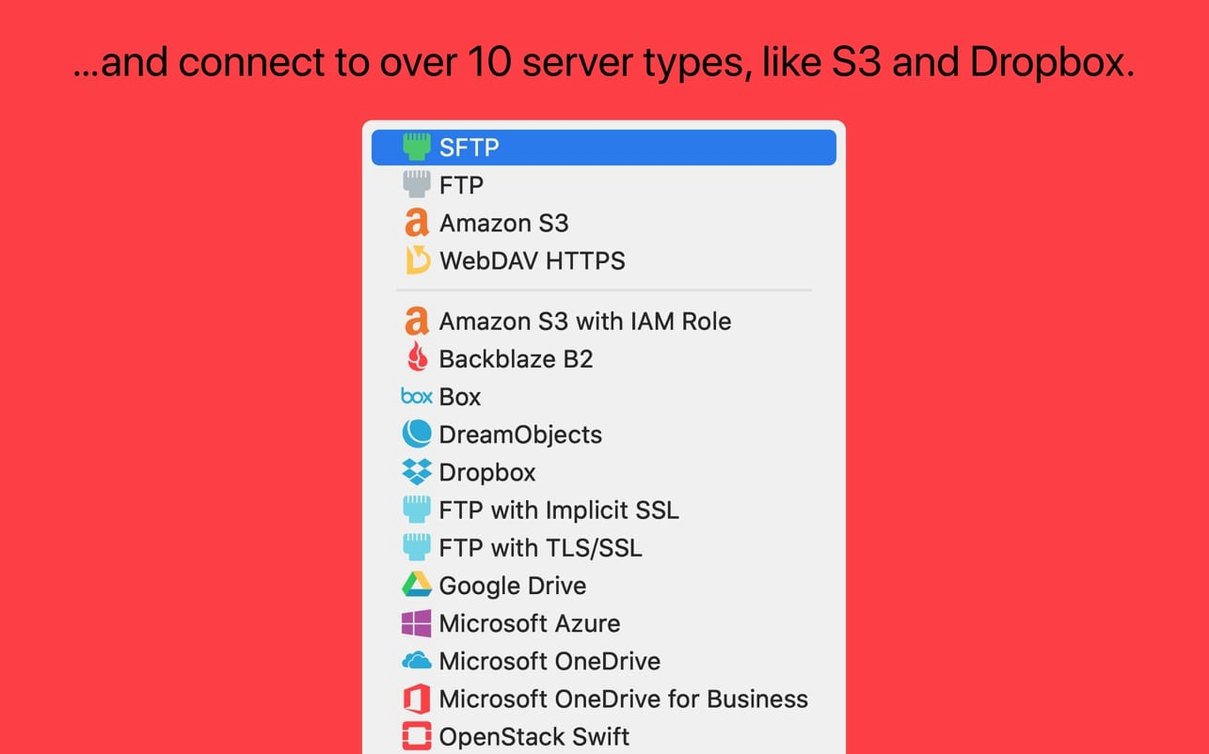
Designers, developers, and anyone who runs a website are the sorts of folk who rely on Transmit. It puts FTP, SFTP, WebDAV, and Amazon S3 into one clean Mac window.
These are the sorts of things people wonder about before they get it running:
- Can it handle my big S3 uploads? It supports very large Amazon S3 files. The latest version even tells you clearly when a file is too large, rather than leaving you guessing.
- Will my logins work? Two-factor authentication is built in, so you won’t get locked out of servers that need that extra step.
- Do my saved sites carry across Macs? Panic Sync keeps your server details and keys in step. Turn it on and your Places Bar favourites follow you.
Once you’re connected, the sidebar and tags make it simple to pick through folders and spot what you need. It’s the sort of tool that stays out of your way until you’re deep in a file tree and realise you’re not fighting the interface.
Common slip-ups when you first use it
People jump in and drag files straight from the desktop into a remote folder without checking where they’re landing. Transmit puts them in whichever pane is active — local or remote — and it’s easy to dump a site backup into your Downloads by mistake. Glance at the highlighted pane before you let go.
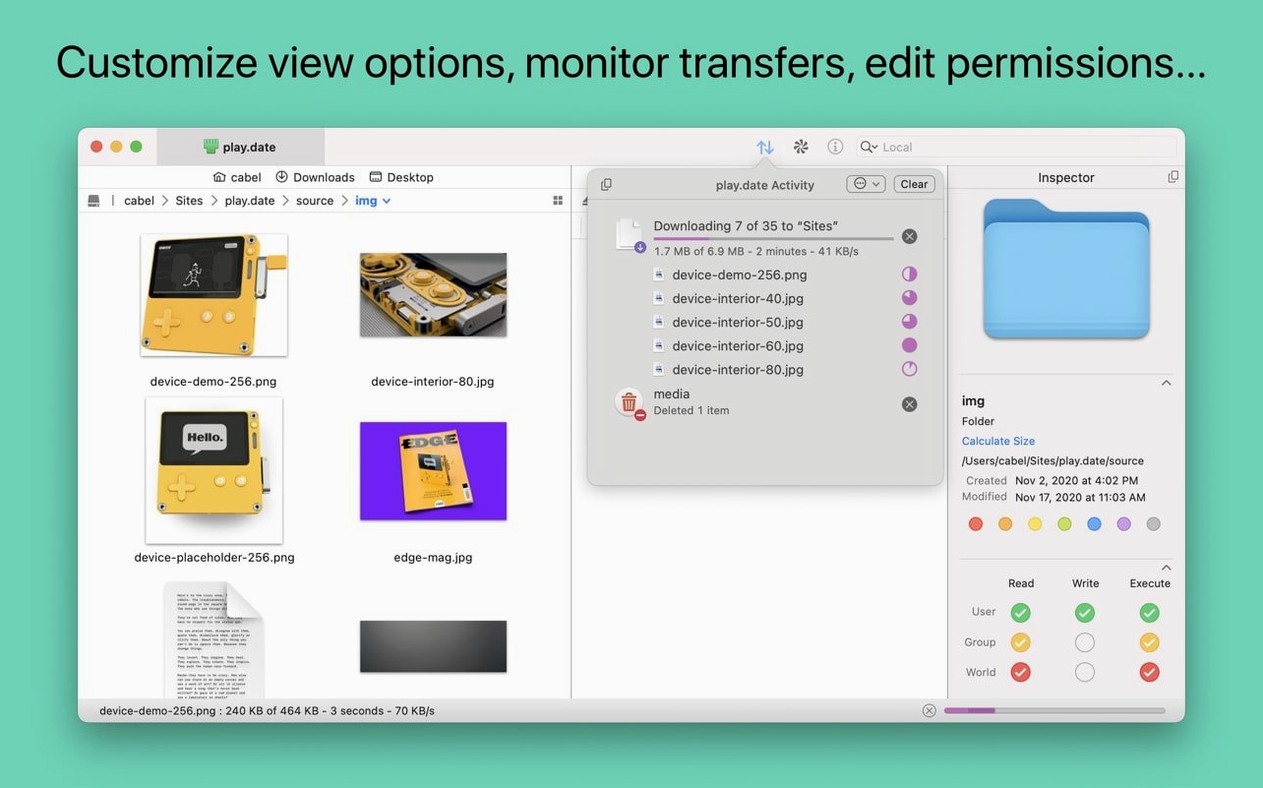
Another one: ignoring the transfer queue. If you fire off five big uploads and then wonder why everything’s sluggish, look at the bottom of the window. The queue shows what’s moving and lets you pause or reorder jobs. Beginners often miss it entirely.
S3 newcomers sometimes add their bucket name twice — once in the server address and again in the remote path field. That gives you a bucketname/bucketname/ folder tree and a lot of confusion. Stick the bucket name in the address field only, and leave the remote path blank unless you want a subfolder.
Uploading a static site to SFTP, start to finish
Say you’ve built a simple site with a few HTML files and a folder of images. Here’s a straight-line workflow that gets it live.
- Add the server once. Hit the plus button in the top-left, pick SFTP, and fill in the hostname, your username, and password. Give the bookmark a name you’ll recognise later — like “Personal site”.
- Test the connection. Double-click the bookmark. If it connects, you’ll see your remote directory. If it fails, check the port (22 is standard) and watch for a two-factor prompt.
- Navigate locally. In the left pane, browse to the folder holding your site files. Keep the right pane on the remote
public_htmlor root directory. - Select everything locally. Click one file, then Command-A. Transmit highlights the whole pile.
- Drag right. Drag the selection onto the remote pane. Transmit queues the lot and works through them. A green tick means done; a red cross means something failed.
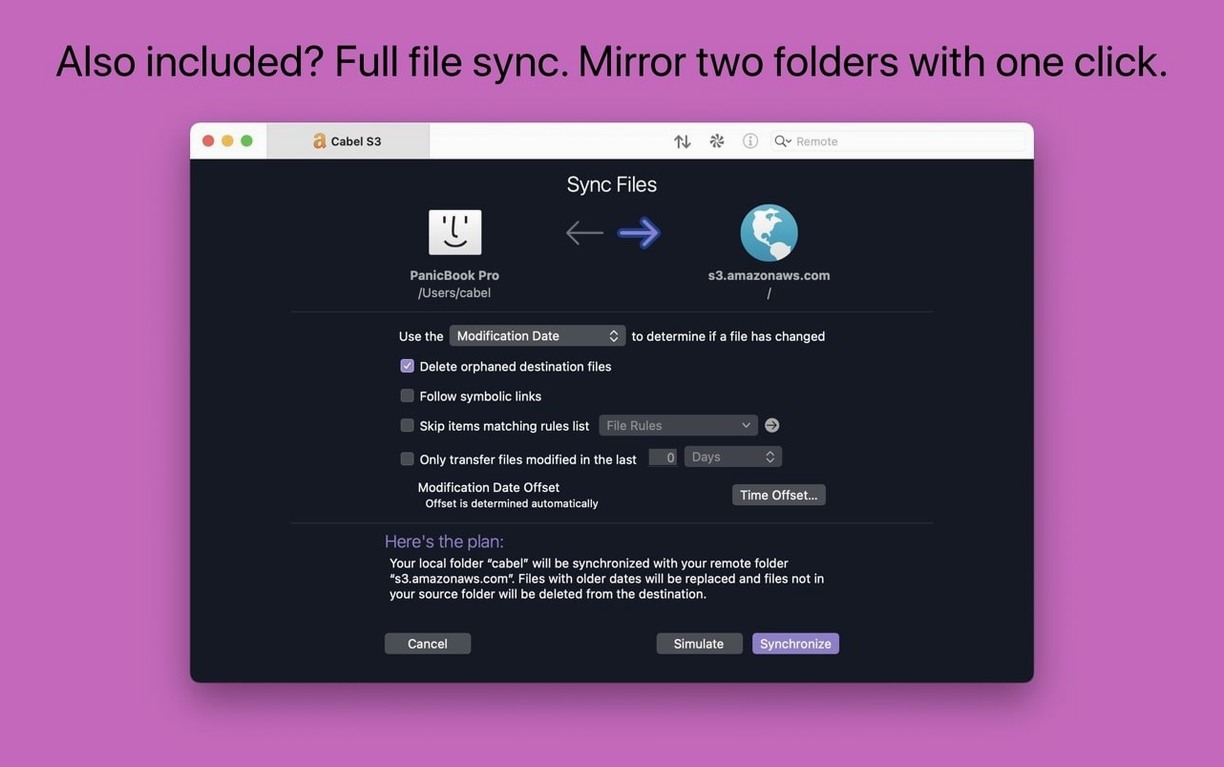
- Check the sync. Compare file counts if you’re nervous. Right-click the remote folder and pick “Get Info” — the sidebar shows the number of items so you can match it to your local folder.
If a file won’t upload, look at the error in the queue. Permissions on the remote folder are the usual culprit — 755 for folders and 644 for files sorts out most shared hosting setups.
Settings to tweak straight away
Out of the box, Transmit works fine, but a few preferences make it feel more like yours.
Default protocol. If you mostly use SFTP, open Preferences > General and set “Default protocol” to SFTP. New bookmark sheets will start there and save you a click every time. S3-heavy users should switch it to S3 instead.
Double-click action. The default double-click on a remote file downloads it. If you’d rather open it directly in your editor, go to Preferences > Files and change “Double-click remote file” to “Open in default editor”. Saves a round trip when you’re tweaking CSS on the fly.
Places Bar shortcuts. Open Preferences > Places and add your project folders. One click from the sidebar then drops you straight into ~/Sites/client-work or wherever you keep things. Beats digging through a folder tree every session.
Transfer rules. In Preferences > Rules, you can tell Transmit to skip hidden files — handy if you don’t want .DS_Store littering your server. Tick “Skip files whose names begin with a dot” and forget about it.
These small changes turn Transmit from a capable client into something that fits the way you actually work. It’s the kind of app that rewards a few minutes of setup with weeks of smoother transfers.
Transmit 5.11.7 brings the developer’s latest round of fixes and small improvements to keep everything ticking over nicely.
- macOS 13 (Ventura) or newer
- Works on both Apple Silicon and Intel Macs








 Back up
Bench talk (0)
Sign in or get a library card to pin up a note.
Nobody has chimed in on this card. If you have used it on an old Mac, say which one.