
OmniGraffle Pro 7.26 — Mac version
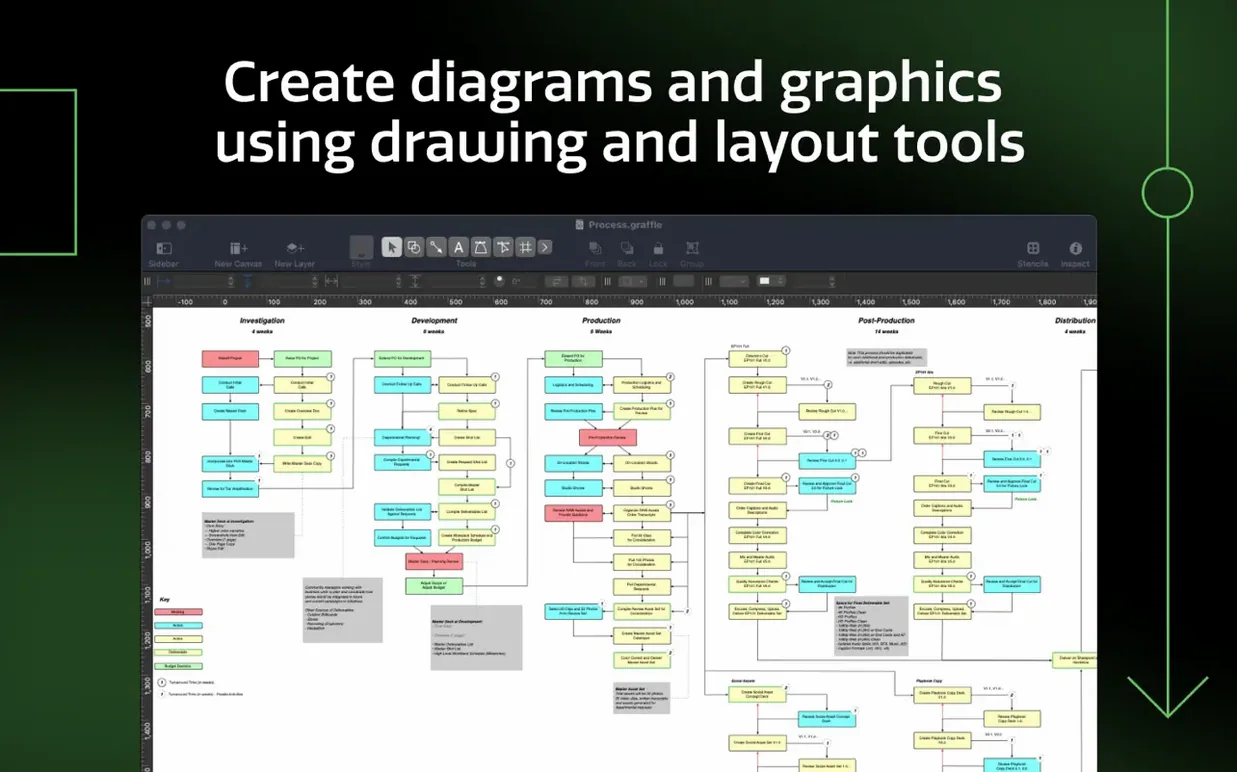
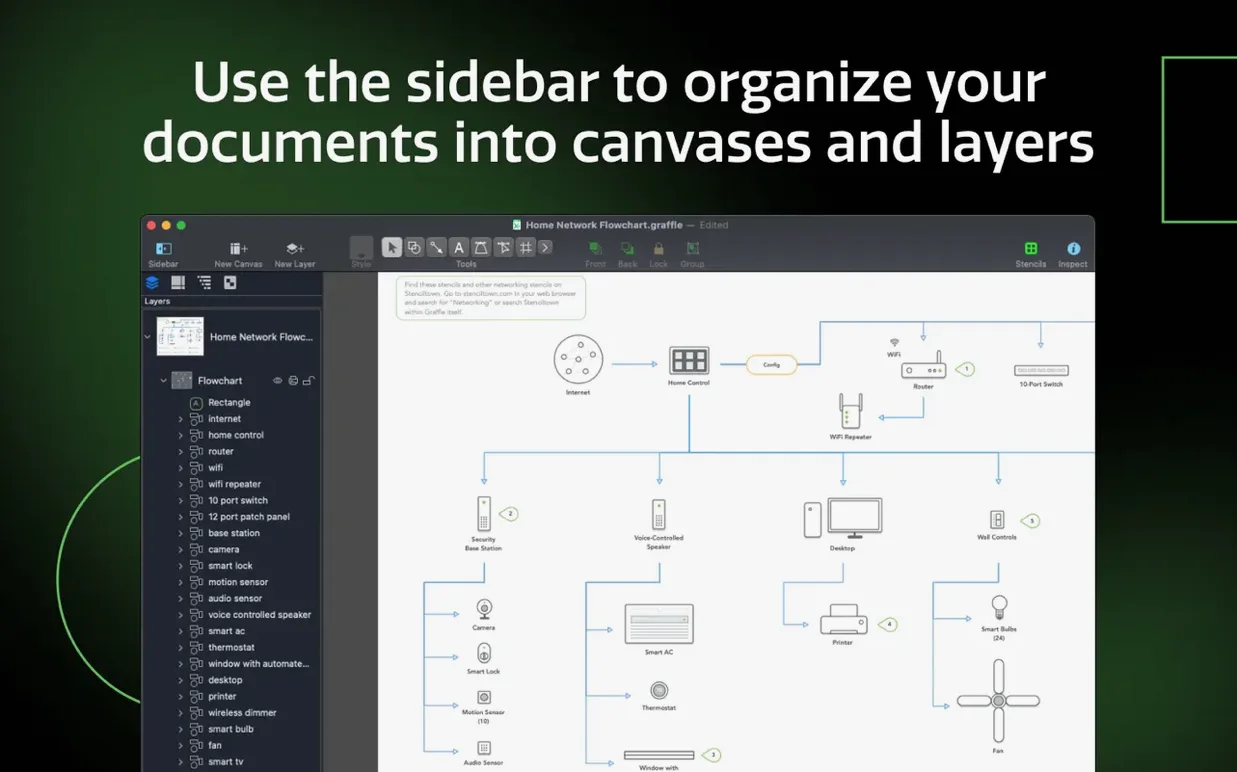
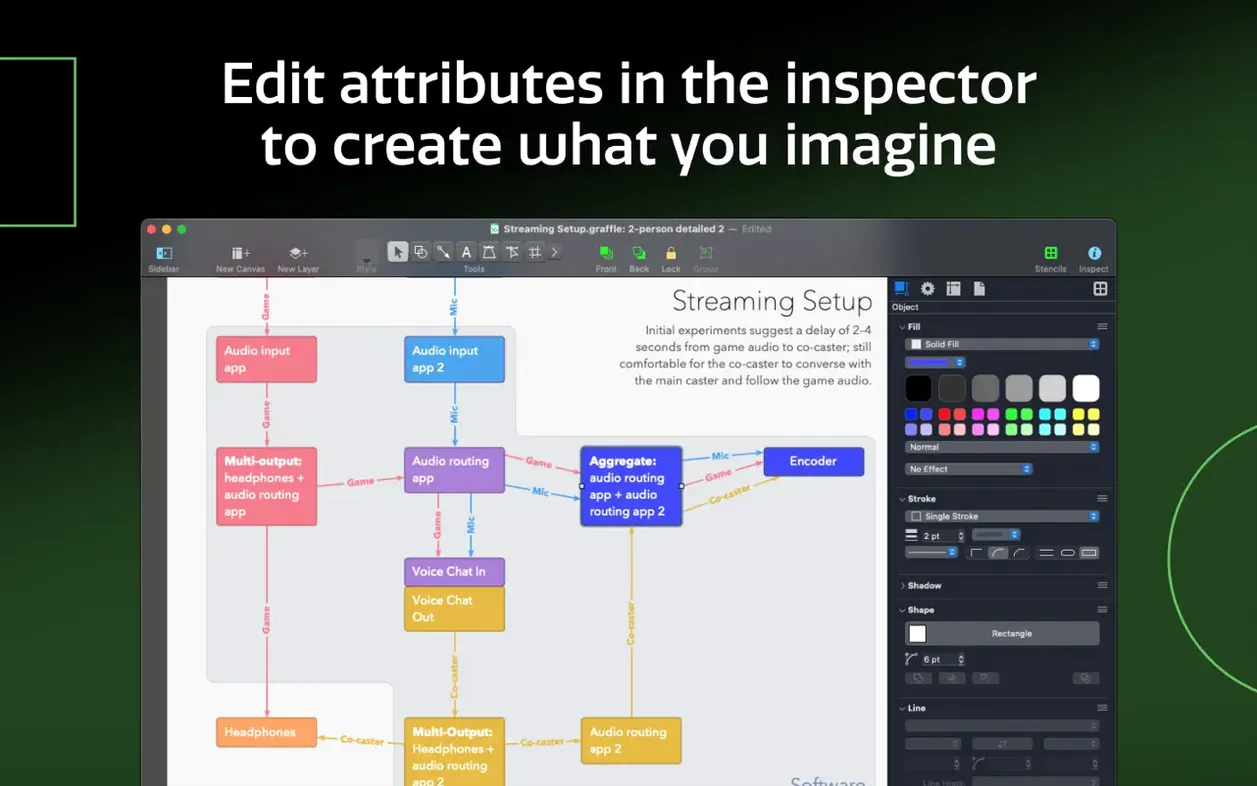
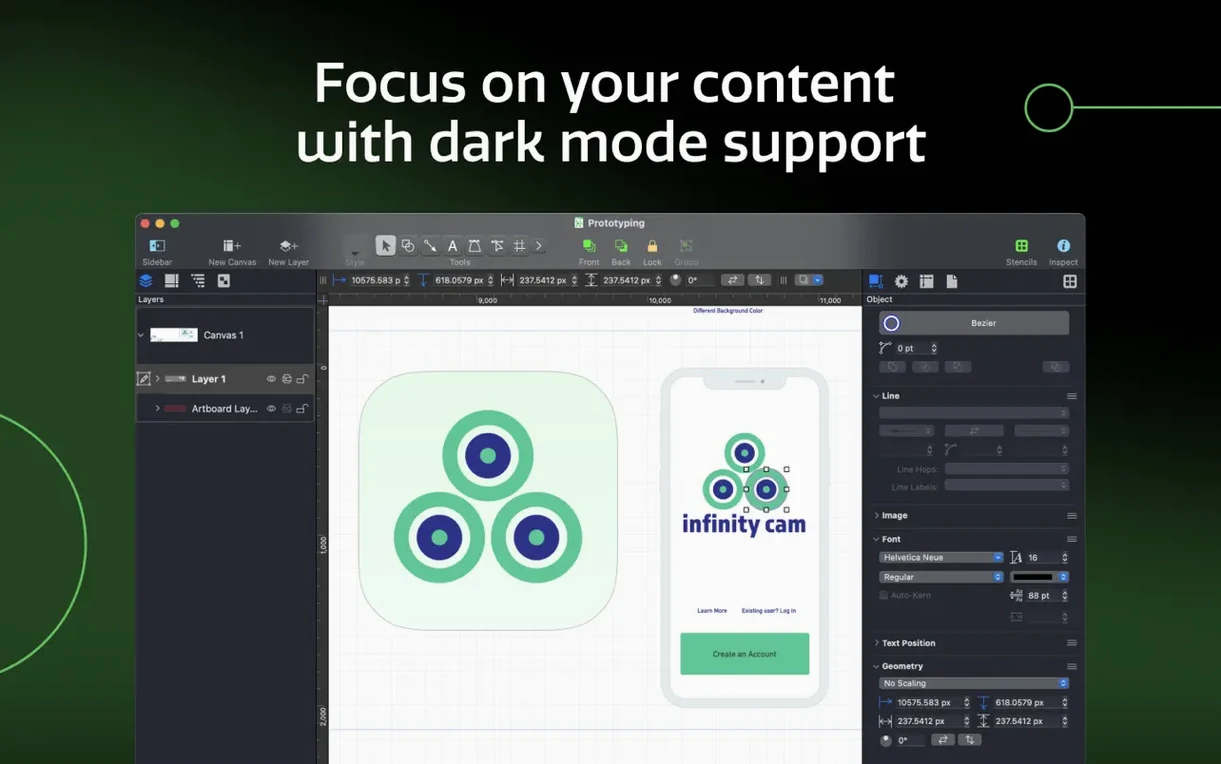
OmniGraffle Pro is a Mac app for drawing diagrams, wireframes, and process charts that scale from a quick sketch to a complex layout.
Handy terms when you're new
Stencil — a reusable collection of shapes. Drag one out, drop it in. OmniGraffle Pro imports Microsoft Visio .vss stencil files, so old collections aren't lost.
Artboard — a defined canvas area. Think of it as a fixed frame for a screen mockup or a single print page.
Shared layer — a layer that appears on every canvas. Update a logo or a footer once and it ripples across the whole document.
Table — a shape that holds rows and columns. Useful for grouping related bits without drawing a box by hand.
Text-to-shape — select some text and convert it into a shape. Handy for turning a quick list into blocks you can push around.
Import a Visio stencil and build from Xcode classes
Start by importing a Visio stencil you already know. Getting a familiar set of shapes under your fingers makes the canvas feel less empty.
Next, build a project diagram straight from an Xcode file. The import pulls in classes and protocols, giving you a head start on documentation.
Finally, give shared layers a spin. Drop a title block onto a shared layer and watch it appear on every new canvas you create — a proper time-saver for multi-page work.
One last tip: if your finished diagram needs pixel-polish elsewhere, export the layers to Photoshop. Each OmniGraffle layer lands on its own Photoshop layer, ready for tweaking.
Beginners often dive in and start dragging lines between shapes, then get frustrated when things shift about. The fix is hidden in the inspectors. Before you connect anything, set a few shapes to auto-layout. OmniGraffle can tidy up your diagram as you add bits, rather than you nudging boxes by hand for twenty minutes.
Another common stumble: ignoring the magnet points on shapes. You grab a line tool, aim for the edge of a rectangle, and miss — the line just won't stick. Hold down Command while dragging a connection line and the app highlights every available magnet. Pick the one you want and the line stays put when you rearrange things later.
New users also tend to work on one giant canvas and then struggle to print or export sensibly. Artboards solve that. Draw your diagram first, then add an artboard over the bit you want to output. You can have several artboards on one canvas, each exporting as its own slice. Think of them as crop marks that travel with the file.
Rename a shape in the outline to fix your Xcode export
The Outline sidebar doesn't just list shapes — you can drag to reorder them, group them, or move one inside another. Double-click a shape's name in the outline to rename it. That name carries through to any Xcode export, so naming your custom shape "loginButton" rather than "Rectangle-17" saves you a rename downstream.
Right-click any line and choose Convert line to shape. Now you've got a filled polygon you can nudge, stretch, and style like any other shape. Useful when a connector line needs to turn into a fat arrow or a decorative swoosh.
The keyboard shortcut sets are shareable. If one person on the team has spent time tweaking shortcuts to match a Visio muscle-memory habit, they can export a .omnigrafflekeys file and hand it around. Everyone gets the same setup without picking through menus.
Send layers to Photoshop for lighting and texture
OmniGraffle Pro doesn't try to be a pixel editor, but it talks nicely to the ones you already use. Export layers to Photoshop when a diagram needs lighting effects or texture that a vector canvas can't manage. Each OmniGraffle layer lands on its own Photoshop layer, with names intact. You can hand off a wireframe set to a designer who works in Photoshop and they'll pick up right where you left off.
Visio users who moved to Mac often keep a stash of old .vsd, .vss and .vst files. OmniGraffle Pro opens them natively. It also writes .vdx files for colleagues still on Visio. The round-trip isn't pixel-perfect — no import ever is — but the structure survives, and that's what matters for a process chart or an org diagram.
For developers, the Xcode import deserves a second mention. It scans a project and drops classes and protocols onto the canvas, already connected. From there, you can colour-code by module, add annotations, and export a diagram that makes sense to someone who hasn't read the source code. It's the quickest way to turn a sprawling codebase into something you can point at in a meeting.
If you've been hunting for an omnigraffle download that handles the Visio-to-Mac shift without losing your old stencils, the Pro edition's import chops make the transition less painful. And if you're nursing an older MacBook that can't stretch past macOS 14, an omnigraffle torrent or omnigraffle crack might pop up — just keep in mind that version 7.26 expects macOS 14 or newer, so check your system before you commit.
- Better compatibility with macOS Golden Gate 27
- Now requires macOS 14 or newer
- macOS 14 or newer
- Apple Silicon or Intel Mac
Questions from the bench
Can I use my old Visio stencils in OmniGraffle Pro?
Yes. OmniGraffle Pro can import both .vss stencil files and .vst template files from Microsoft Visio.
Does it work on Apple Silicon Macs?
Yes, it runs natively on both Apple Silicon and Intel Macs. You need macOS 14 or newer.
What languages does the interface support?
The app supports English, German, Spanish, Italian, Simplified Chinese, Korean, Dutch, Portuguese, French, Japanese, and Russian.




 Back up
Bench talk (0)
Sign in or get a library card to pin up a note.
Nobody has chimed in on this card. If you have used it on an old Mac, say which one.