

Compressor 5.3 — Mac version
You’ve finished the edit, but the file is too chunky for the web or in a format a client can’t open. That’s the problem Compressor solves. It’s a dedicated transcoding workshop that takes your master file and turns it into exactly what the job needs.
Feed other Apple editing apps
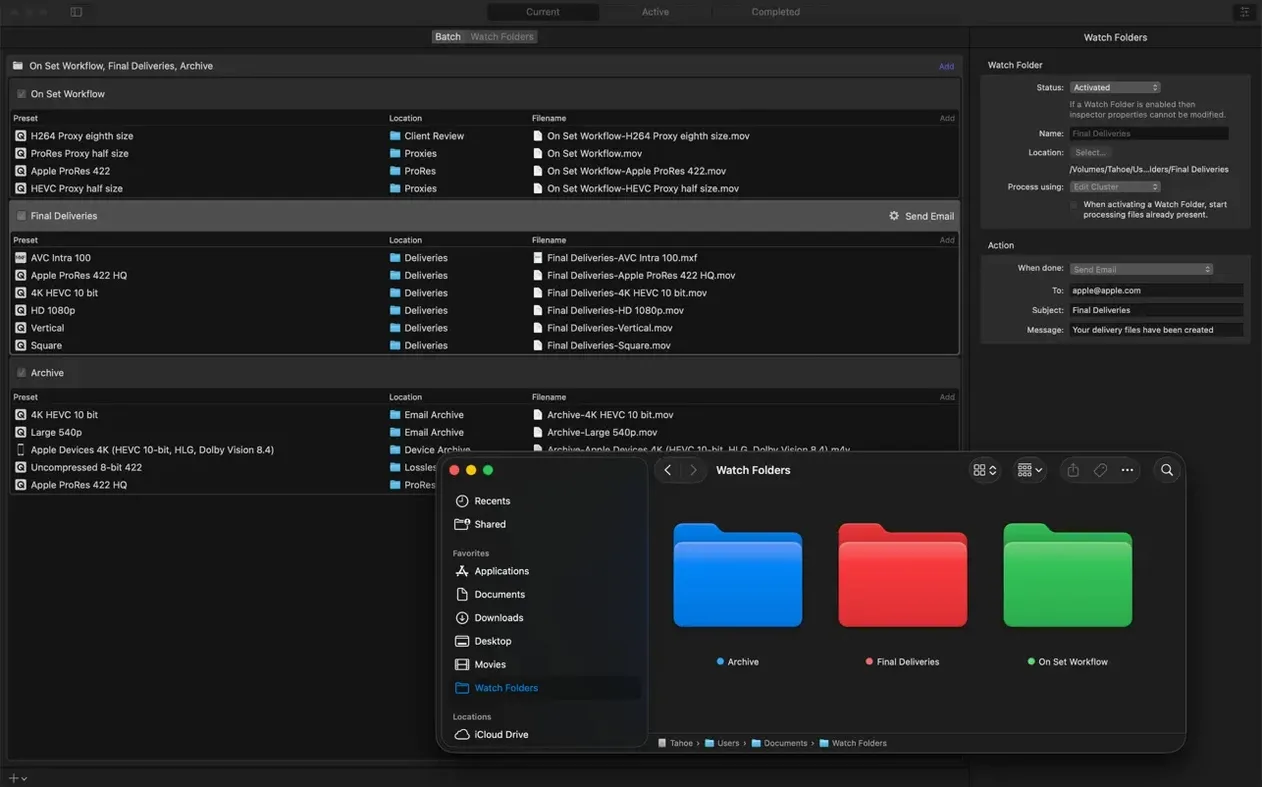
Send a project directly from Final Cut Pro or Motion. Compressor uses the same rendering engine, so colour and timing stay true, and you can add jobs like emailing a review copy or copying the finished file to a server once encoding wraps up.
Build outputs for any screen
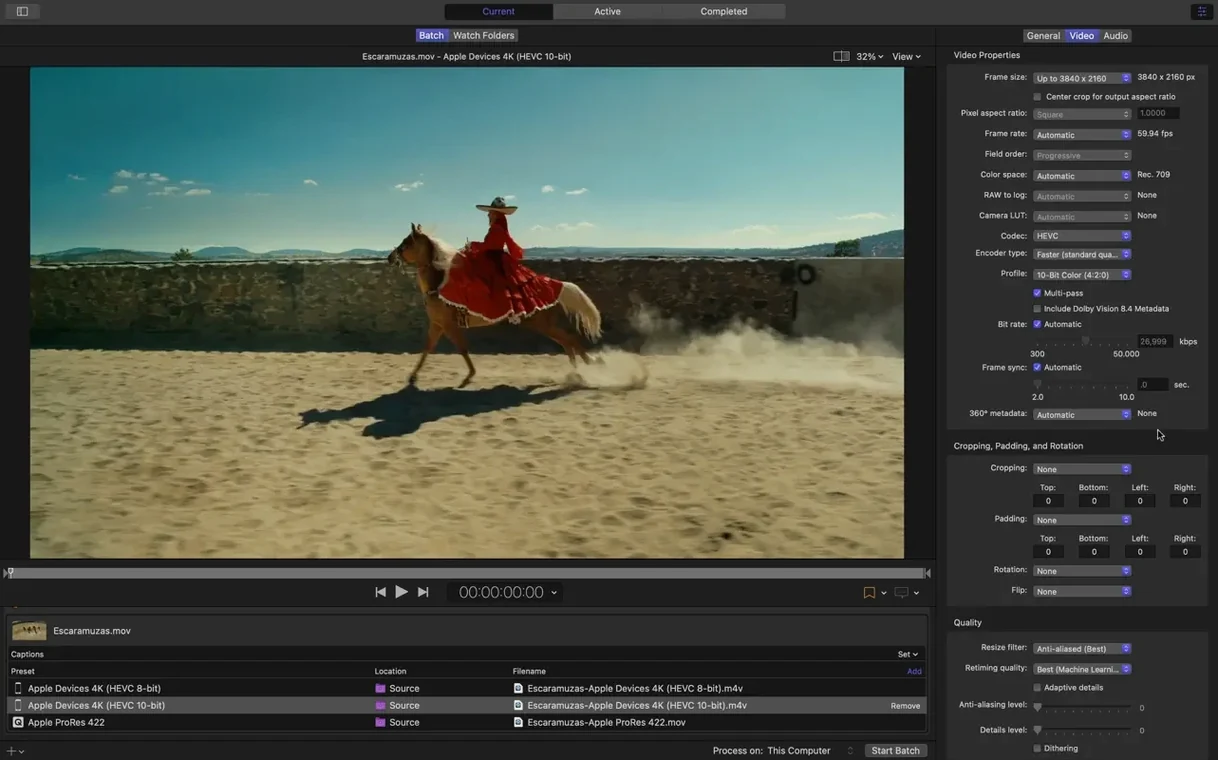
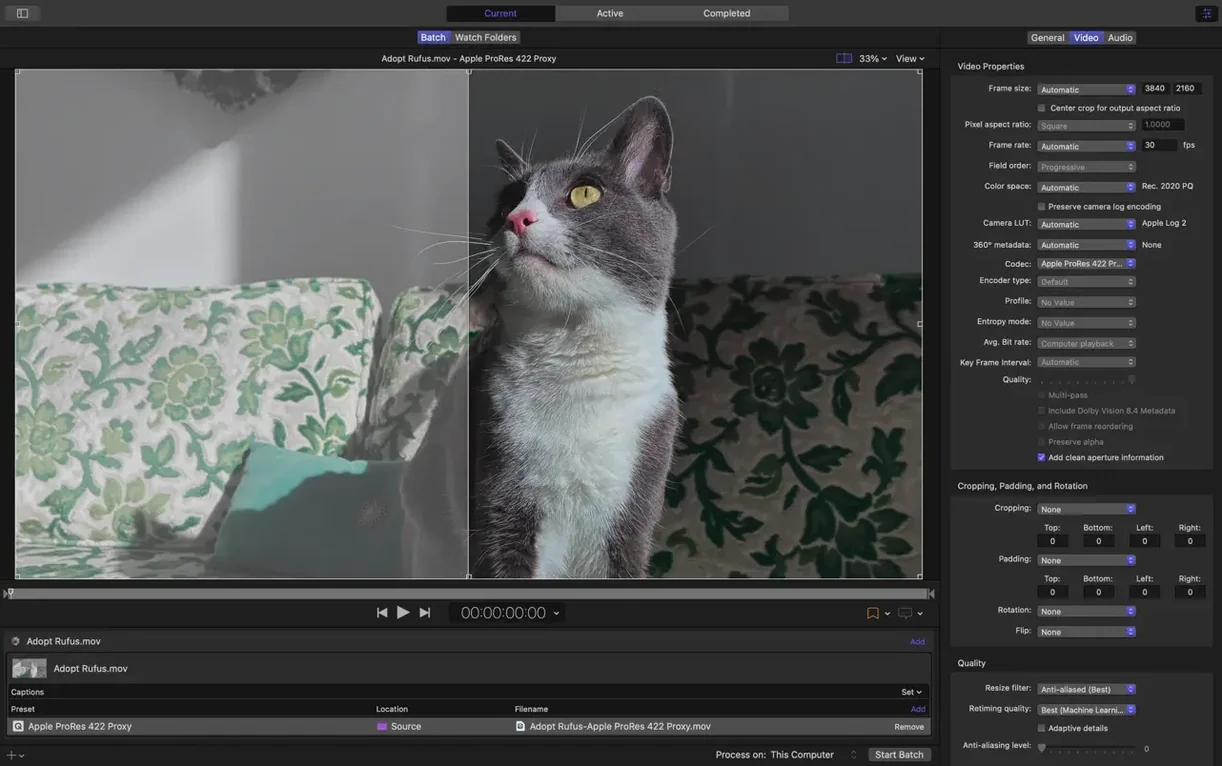
Use the side panel to pick a preset for an Apple device, a web platform or a professional format like MXF. The inspector lets you tweak the advanced audio and video properties without burying you in menus.
Speed up long jobs
When a single Mac isn’t fast enough, share the work across other Macs on your network with distributed encoding. It also leans on hardware encoders for H.264 and HEVC, which keeps things moving on supported machines.
A real example: you’ve shot a training video and the raw ProRes file clocks in at 14 GB. The client needs a compact version for their LMS — 720p H.264, under 200 MB — plus a small review clip to share over email.
Workflow: master to two outputs
- Drag the master file onto the Compressor window. Wait a beat for the thumbnail to appear.
- From the Apple Devices group, pull the Apple Devices HD (Best Quality) preset onto your source clip. It lands as a job row.
- Click the job row, then open the inspector. Set resolution to 1280 × 720, audio to AAC 48 kHz stereo, and tick the data-rate limiter. Flick the frame rate to match the original — usually 25 or 30 fps.
- Change the output filename to something sensible in the General tab of the inspector. The client sees your file name: make it count.
- Add a second job from the same source: drag Small 360p or a custom preset built for email — 640 × 360, 800 kbps video, mono AAC audio. The inspector lets you name it
review-clip. - With both jobs ready, hit Start Batch. Compressor churns through them in order unless you enable the shared-network option, which splits jobs across idle Macs in the same subnet.
- Once done, a post-encode action copies the LMS file to a NAS folder and drops the review clip onto your desktop. No extra clicking.
When it refuses to work
Jobs can stall, and the error messages are famously tight-lipped. A few things that get things moving again:
- Job stuck at “preparing.” Kill the batch, restart Compressor, and try again. If it persists, check that the source file doesn’t live on a network volume with slow read speeds. Copy it locally first.
- Distributed encoding not finding other Macs. Every machine needs to be on the same version of Compressor and signed into the same Apple account for the sharing service to see them. Firewall rules on the network can also block the Bonjour announcement — try a wired connection for a quick test.
- HDR colours look washed out. This often happens when an HDR master gets squashed into an SDR preset without a colour transform. Add a Colour Space video effect in the inspector and set the output to Rec. 709.
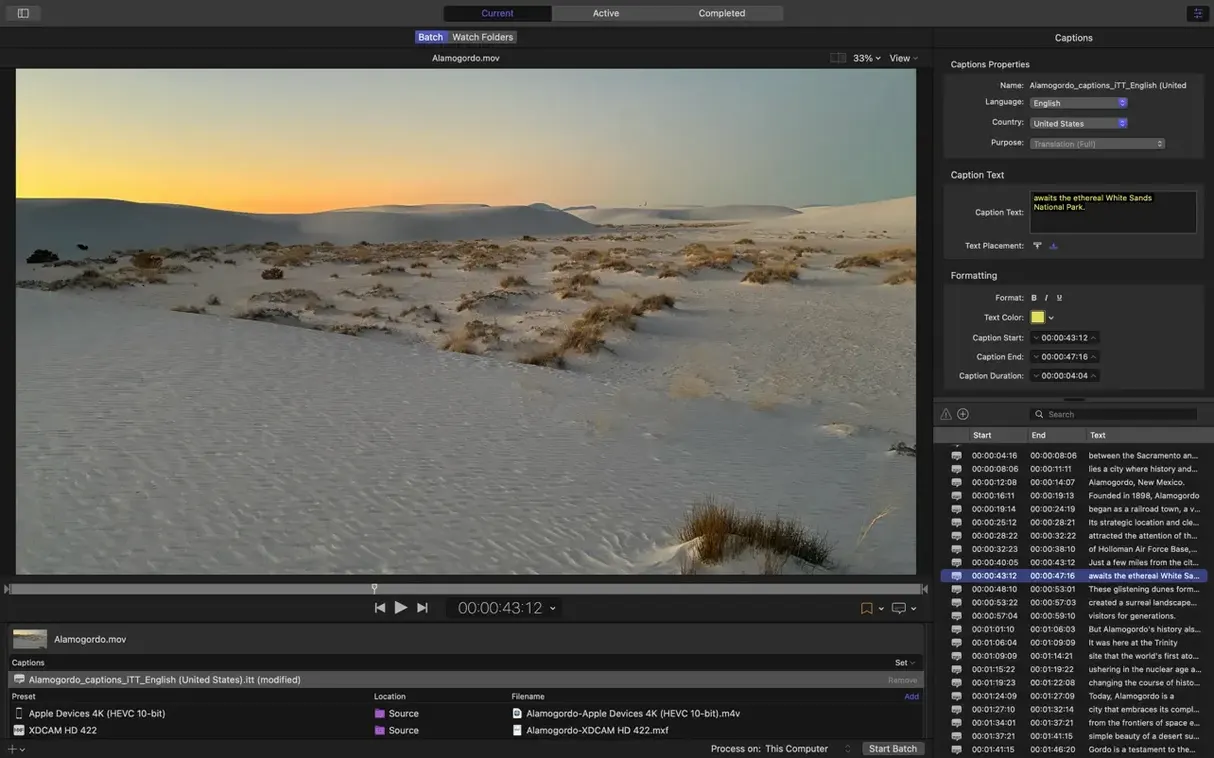
- Output file has no audio. Some presets strip audio by default — glance at the Audio tab to ensure a track is actually assigned. If the source uses WAV audio inside an immersive clip, Compressor 5.3 can now handle it without extra fiddling, but older source layouts sometimes need the audio tracks mapped manually.
Reaching for a ProRes preset for a web-bound file
- Using the wrong preset for the destination. Dragging a ProRes preset onto a job bound for a web player gives a huge file. Instead, browse the Web Sharing or Apple Devices groups. They are built for sensible data rates.
- Forgetting to set a frame size. Compressor doesn’t always guess correctly. A 4K source with the Large 540p preset can still produce 4K if the Video tab says “Current.” Always open the inspector and confirm the resolution numbers.
- Ignoring the data-rate limiter. On Apple silicon Macs, the HEVC encoder now respects a ceiling you set. Without it, variable bitrate can spike and blow a file well past the size budget. A simple 1.5 Mbps limit on a 480p clip often cuts the footprint in half.
- Stacking too many jobs before testing one. Run a single job first. Check the output plays, measures properly and looks right. Then add the rest of the batch. Re-encoding eleven wrong files wastes a morning.
- Treating the inspector as optional. The presets are starting points, not finished recipes. Audio sample rate, keyframe interval, and colour space nearly always need a nudge for a specific upload target.
A morning with Compressor
You open the app at 9:15. A folder of ten ProRes 422 clips sits on the desktop — interviews for a podcast video, shot at 4K but headed to YouTube in 1080p. You drag the whole folder into Compressor; each clip pops up as a source in the batch area.
Rather than setting up ten jobs by hand, you build one custom preset. You start with the Web Sharing – HD 1080p template, drop the colour space to Rec. 709, set keyframes to every 60 frames and lock the data rate to 8 Mbps. You save it as “YouTube 1080p – interviews” so it’s reusable next week.
You select all ten sources, drag the new preset onto them and watch the job list fill. One clip stands out — it’s an anaglyph stereoscopic cut you want to preview before encoding. The new preview option in the viewer lets you check the 3D alignment without a full render.
You tick the shared encoding box. Two other Macs on the desk wake up and appear in the status bar. At 9:22 you hit Start Batch. The first clip finishes while you make tea. By 10 o’clock all ten are done, with the action compressor having copied them into a client Dropbox folder and emailed a short note automatically.
Before you close the app, you open one output file and scrub through on a secondary display. Colour looks right, audio is in sync, file sizes are all under 400 MB. The whole session took three manual decisions — everything else was repeatable.
- Immersive metadata viewer so you can check spatial media properties before you encode
- Output support for 180° Apple Projected Media Profile
- Anaglyph preview option for stereoscopic video
- 5.1 AAC option now listed in Apple Device export settings
- HEVC data rate limits honoured on Apple silicon devices
- Transcode immersive sources without WAV files to Apple Immersive outputs
- macOS 15.6 or later
- Intel or Apple silicon Mac
- 8 GB memory
- 1.2 GB available disk space
Questions from the bench
Can Compressor on Mac handle 360° and HDR video?
Yes, it supports 360° video, HDR, HEVC and MXF right out of the box.
Does the action compressor feature work with Final Cut Pro?
It integrates directly with Final Cut Pro and Motion, and you can set post-encode actions like running a custom script or moving a file after it finishes.
What languages is the Compressor interface available in?
The app works in English, German, Spanish, Simplified Chinese, French and Japanese.







 Back up
Bench talk (0)
Sign in or get a library card to pin up a note.
Nobody has chimed in on this card. If you have used it on an old Mac, say which one.