

Easy New File 6.2 — Mac version
Version 6.2 tidies up a focus bug so that save dialogs appear front and centre when you create a file from the context menu. The app itself does one small job and does it well.
Easy New File — a macOS Finder extension that lives in your right-click menu.
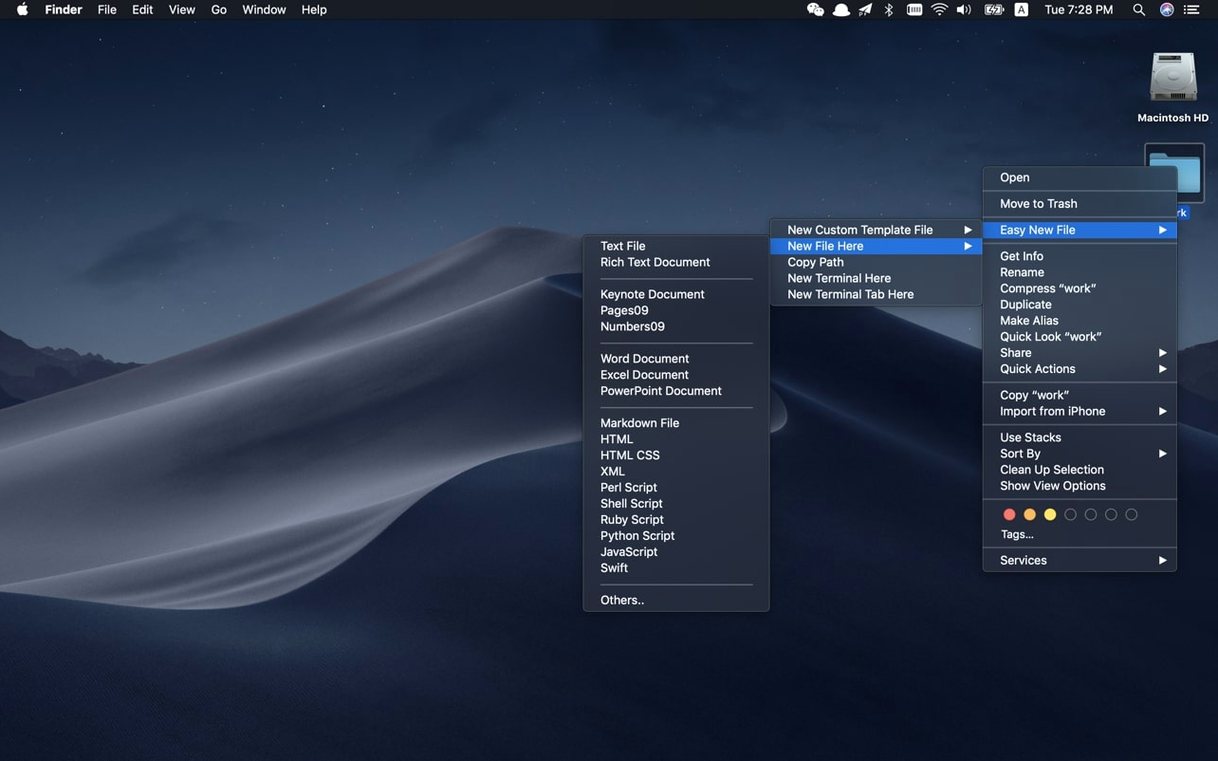
What it adds — commands to create a blank file right where you are browsing, without opening another program first.
File types you get — plain text, rich text, Word, Excel, Keynote, plus shell, Python and Swift scripts. You can add your own templates too.
Handy extra — a Copy File Path command, so you don't have to dig through Get Info.
Who it's for — anyone who spends a lot of time in Finder and is tired of save-dialog dodgeball. Developers, writers and tinkerers tend to pick it up fastest.
Enable the Finder extension straight away
Most of these are Finder-extension growing pains, not bugs.
- Not enabling the extension straight away. After you drag the app into Applications, pop open System Settings > General > Login Items & Extensions, find Finder Extensions, and flick the switch for Easy New File. Until you do that, right-clicking does nothing.
- Expecting it to replace Save As. This isn't a document editor. It drops a blank file onto disk instantly. Naming and typing come later, when you double-click to open it.
- Right-clicking on the desktop background and wondering where the menu went. The extension works on folders and inside Finder windows. The desktop background is a special case — right-click a folder there instead, or open a Finder window to your Desktop folder.
- Forgetting to set a default template folder. The app looks neatest when you point it at your own templates in Preferences. New users often skip that step and miss half the fun.
Scaffold a Python project without leaving Finder
Say you're sketching out a small Python project. You open a Finder window at ~/Documents/scratch. You haven't launched an IDE or even TextEdit — you just want the files to exist so you can think in structure.
- Right-click an empty patch of the folder. The Finder menu pops up with Easy New File near the bottom.
- Hover over it. You see the list: Text, Rich Text, Word, Excel, Keynote, Shell, Python, Swift. Pick Python.
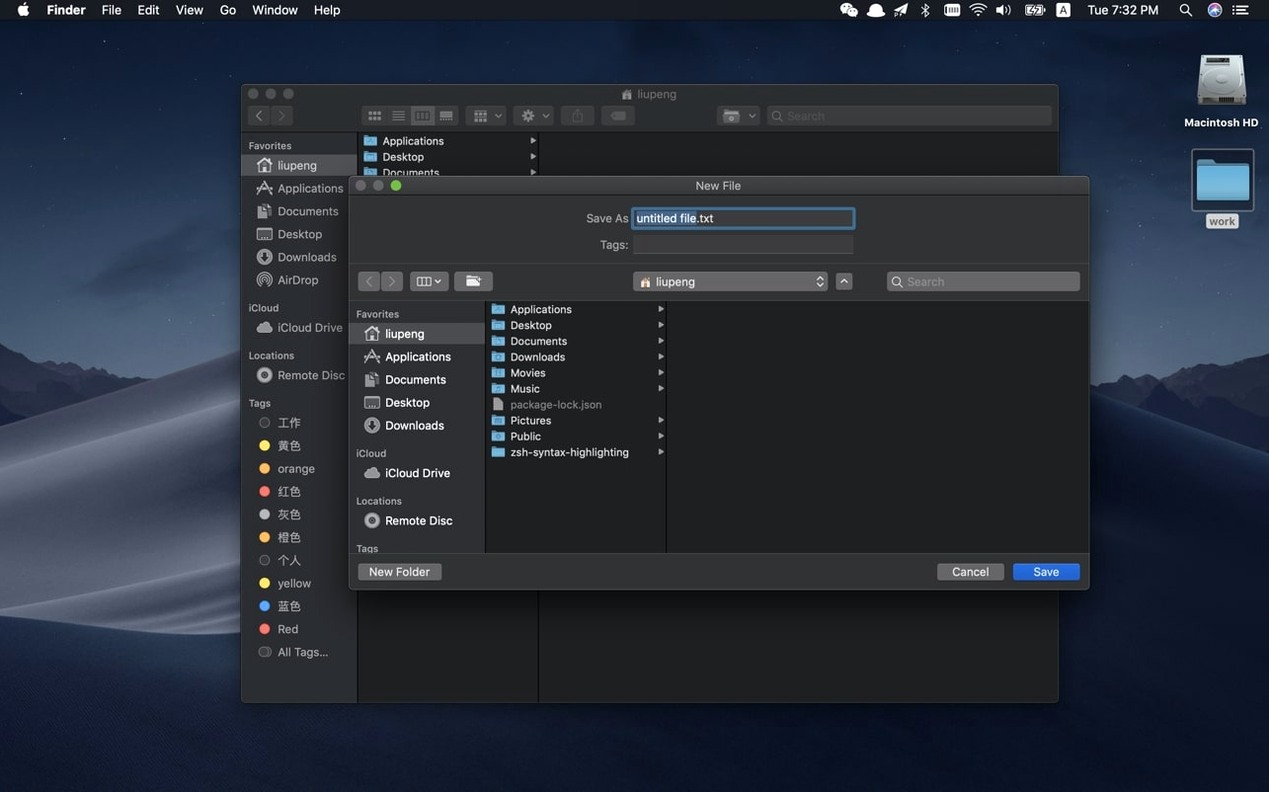
- A save dialog appears. The focus bug from earlier versions is fixed, so you can type
scraper.pyimmediately, no extra clicking. - Hit Return. The file lands in the folder — zero bytes, ready to edit. You repeat the move for
utils.pyandREADME.txt. - You right-click
scraper.py, choose Copy File Path, and paste it into a terminal command. No dragging, no Get Info panel. - Later you add a custom template for TOML config files. Now the right-click menu grows with your habits.
That's the rhythm: right-click, pick a type, name it, carry on. It feels like part of Finder after a day or two.
Shorten the menu by hiding unused file types
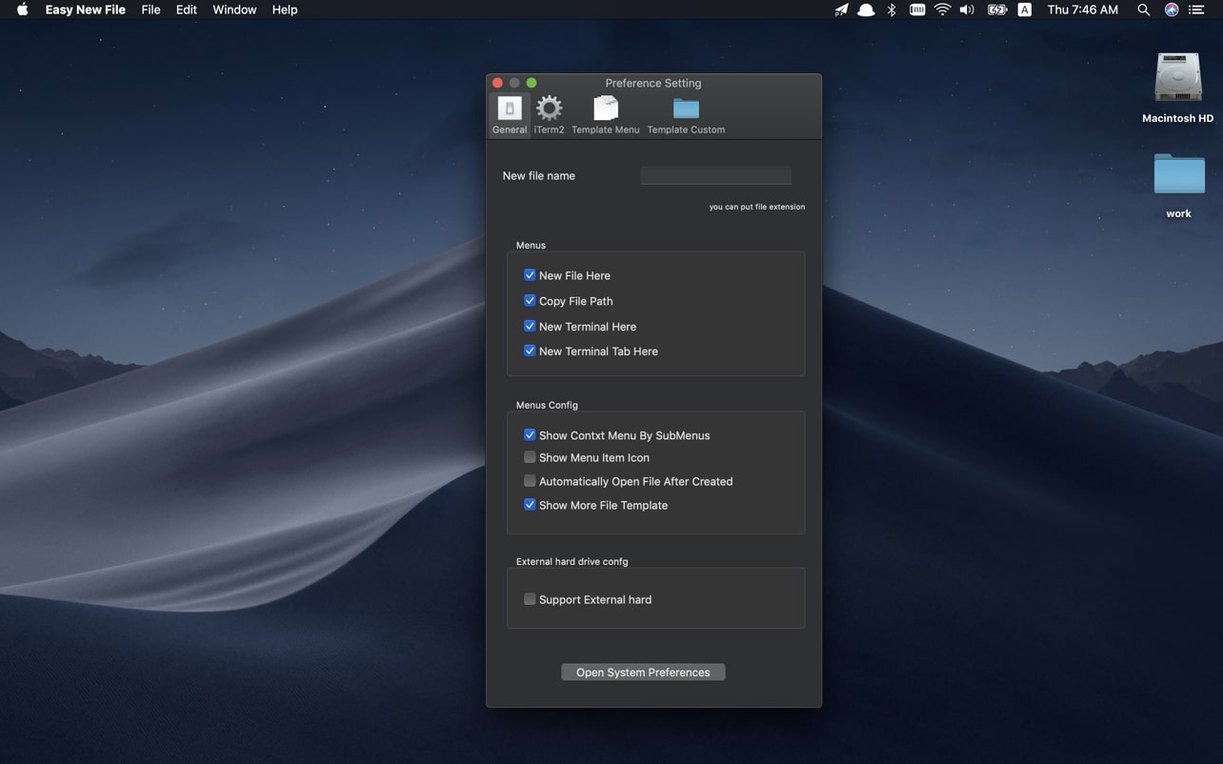
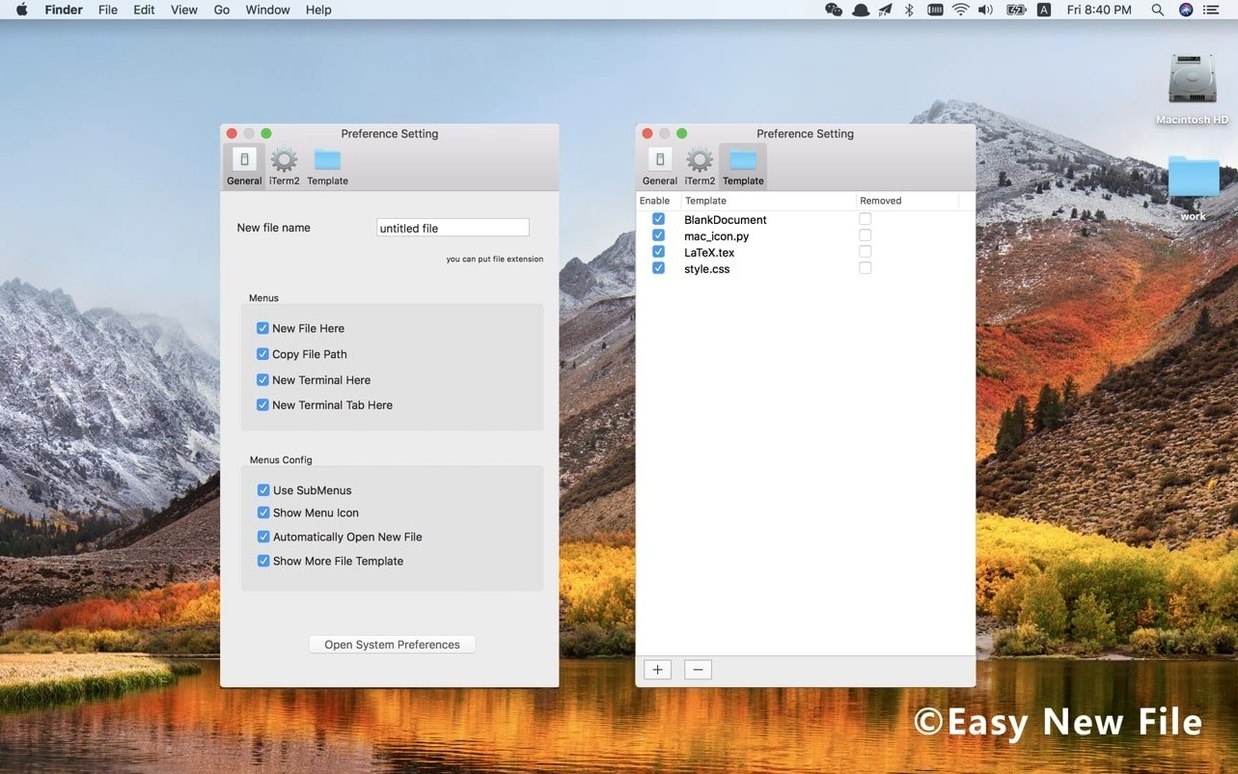
The preferences window is small but worth a visit early on.
- Hide file types you never use. The default list is generous. If you never touch Excel or Keynote, uncheck them and shorten the menu.
- Add a custom template. Drop a blank
.mdor.ymlfile into a templates folder, point Easy New File at it, and you've got your own entry. This is where the app stretches beyond the built-in list. - Open Terminal from the menu. Tucked in the same right-click submenu is an Open Terminal command. If you work in the shell often, it saves you a
cdcommand every time. Enable it in Preferences if it's not already showing. - Check external disk support. The app handles external drives, but macOS permissions can trip it up. If the menu goes grey on a USB stick, open System Settings and make sure Easy New File has access to removable volumes.
Once those three or four things are dialled in, the easy new file mac workflow becomes muscle memory. The version 6.0 refresh tidied the preferences layout, so everything sits in one clean panel now.
- Fixed a bug where the save dialog didn't get focus automatically when making a new file from the context menu.
- General stability improvements and better compatibility with current macOS releases.
- macOS 10.15 or later
- Works on Intel and Apple Silicon Macs
Questions from the bench
Can I add my own file templates?
Yes. The app supports custom templates, so you can add any file type you reach for regularly.
Does it work on Intel and Apple Silicon Macs?
It runs on both, and needs macOS 10.15 or later.
Which languages does the interface support?
It comes in Russian, English, German, Italian, Traditional Chinese, Simplified Chinese, Korean, Polish, French, Hindi and Japanese.







 Back up
Bench talk (0)
Sign in or get a library card to pin up a note.
Nobody has chimed in on this card. If you have used it on an old Mac, say which one.