

WhatCable Pro 1.4.0 by EDISO — Mac version
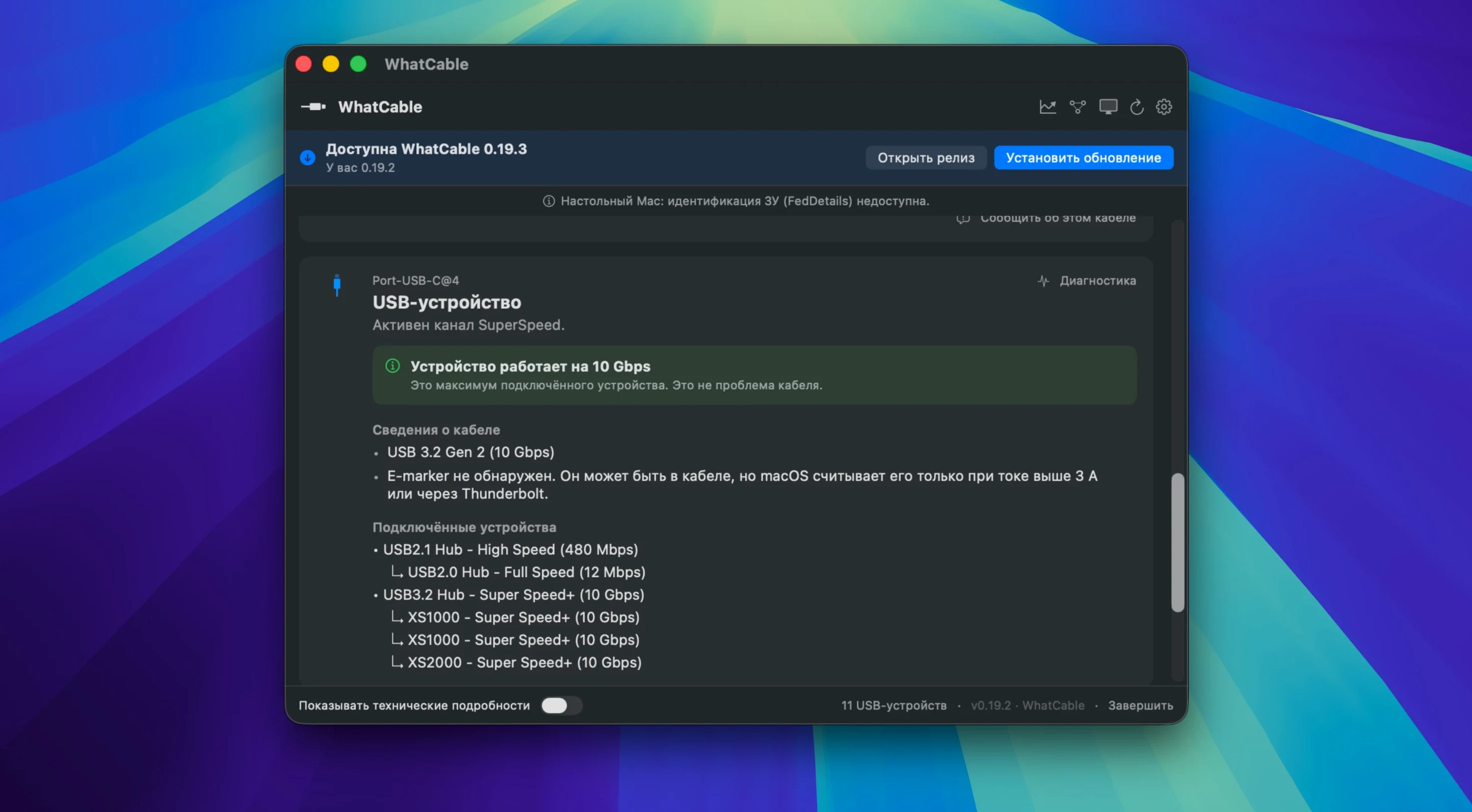
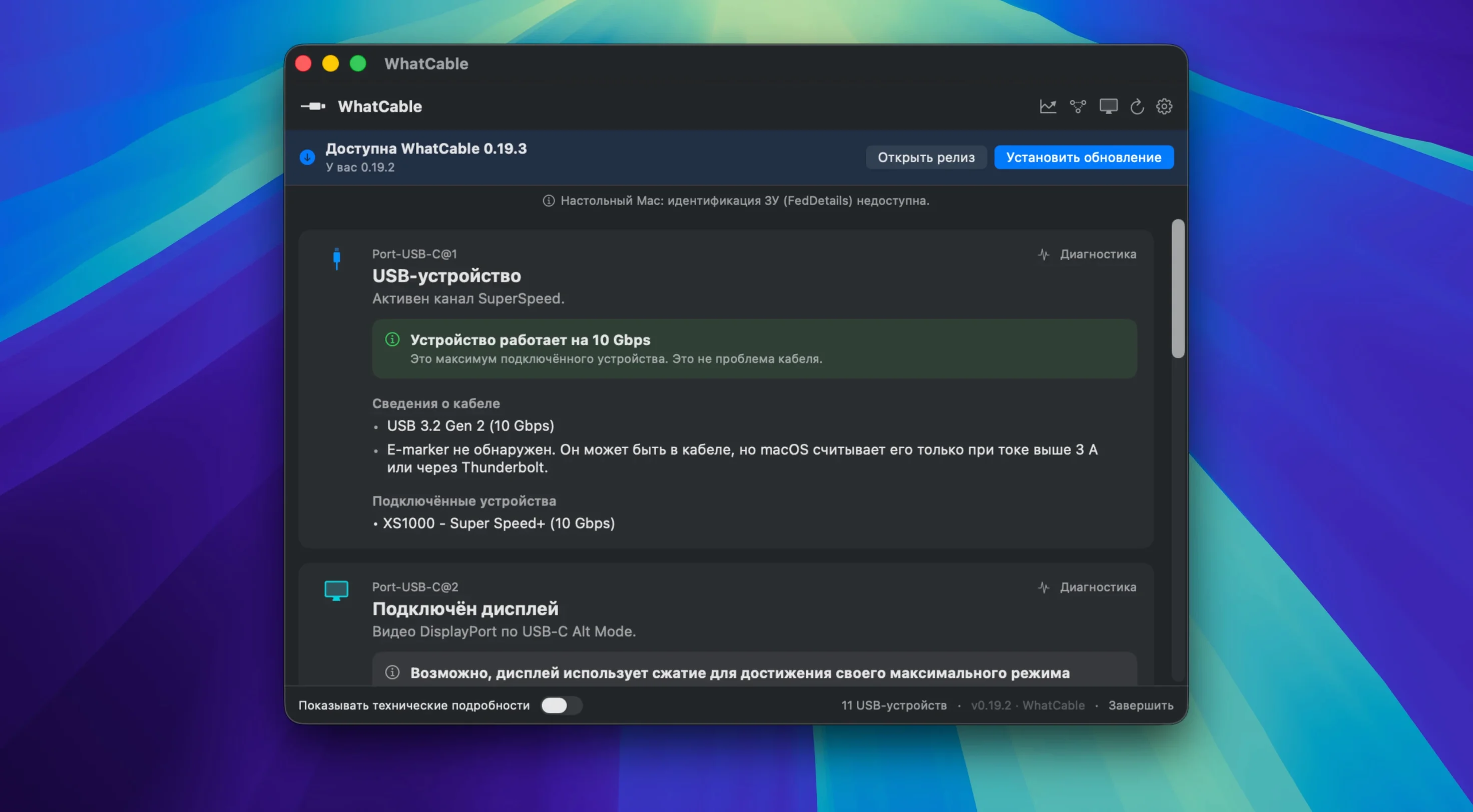
Every USB-C cable looks the same, but the one in your drawer might be stuck at USB 2.0 speeds or unable to drive a 4K display. WhatCable Pro 1.4.0 reads the hidden e-marker chip and translates the raw data into plain specs.
Pinpoint the slowest link in your charging chain
- Spotting whether a cable, charger or Mac is the bottleneck for charging speed
- Checking if a cable can actually push a monitor at its full resolution and refresh rate
- Deciding whether a faster cable would bump up data transfer speeds
- Inspecting PD contract details, including active voltage, current and mismatch flags
- Developers who need raw VDO data from the command line
The e-marker requirement and what’s inside the menu bar
- Needs macOS 14 or later
- Only works with e-marked USB-C cables — passive, unmarked cables won't show much
The menu bar app packs several Pro screens: Power Monitor, Negotiation Diagnostics, Display Diagnostics and a Saved Cables list. A built-in command-line interface exposes the raw numbers for scripts or deeper digging. It won't fix a bad cable, but it'll tell you which one to swap out.
Morning at a co-working desk
A freelancer unpacks their MacBook, plugs in a portable monitor and a 65W charger, then grabs the one long USB-C cable that reaches the wall. The external display flickers at 4K and the battery icon shows a slow charge. Opening the Power Monitor in WhatCable Pro shows the cable tops out at 3A and 20V — enough for the charger, but the Negotiation Diagnostics screen flags that DP Alt Mode is absent. The display is falling back to a USB video adapter over a slow data link. Swapping to the short cable from the monitor box makes the flickering stop and the charge rate jumps. The freelancer labels the long cable “power only” and coils it for travel days when a display isn’t needed.
First week with the menu bar tool
- Save cables you trust in the Saved Cables list — label them by max wattage and video support so you can grab the right one from a drawer without re-testing.
- Watch the Power Monitor while wiggling a connector; if the wattage drops out, the plug or port may be worn.
- Use
--watchmode in Terminal when you’re at a test bench. It logs every connection change, which helps spot intermittent faults over an afternoon.
- macOS 14 or later
- Apple Silicon or Intel Mac







 Back up
Bench talk (0)
Sign in or get a library card to pin up a note.
Nobody has chimed in on this card. If you have used it on an old Mac, say which one.