

Winclone Pro 10.5 — Mac version
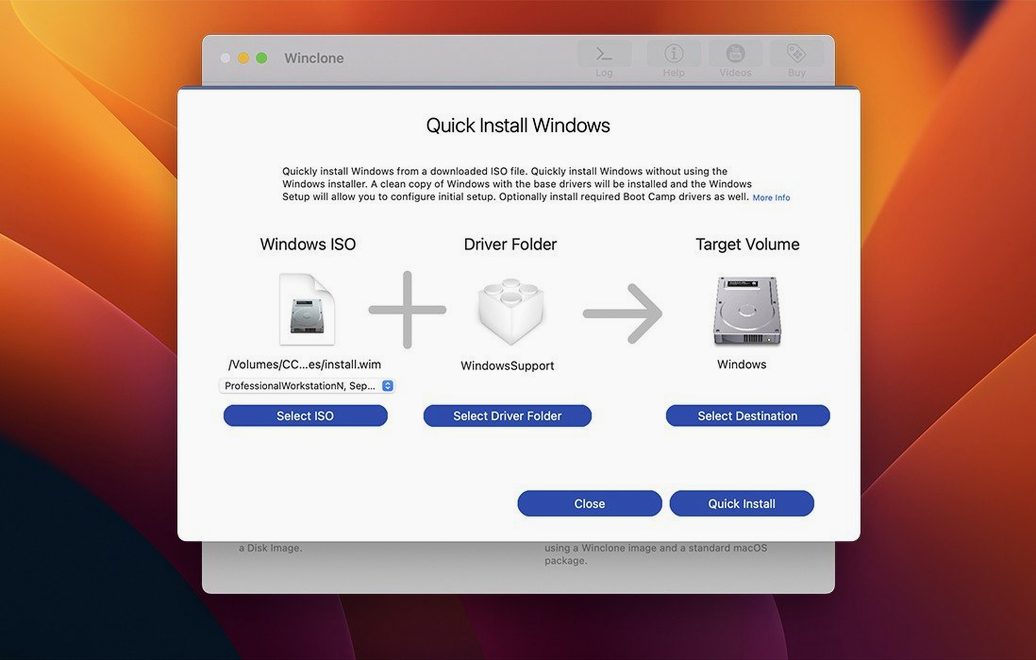
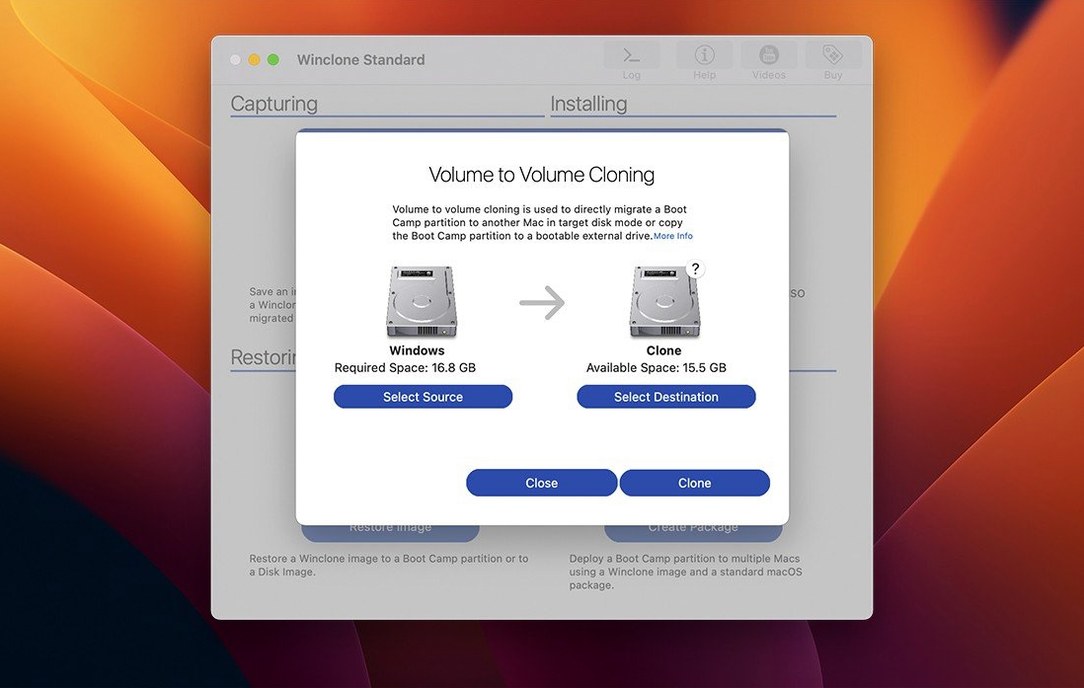
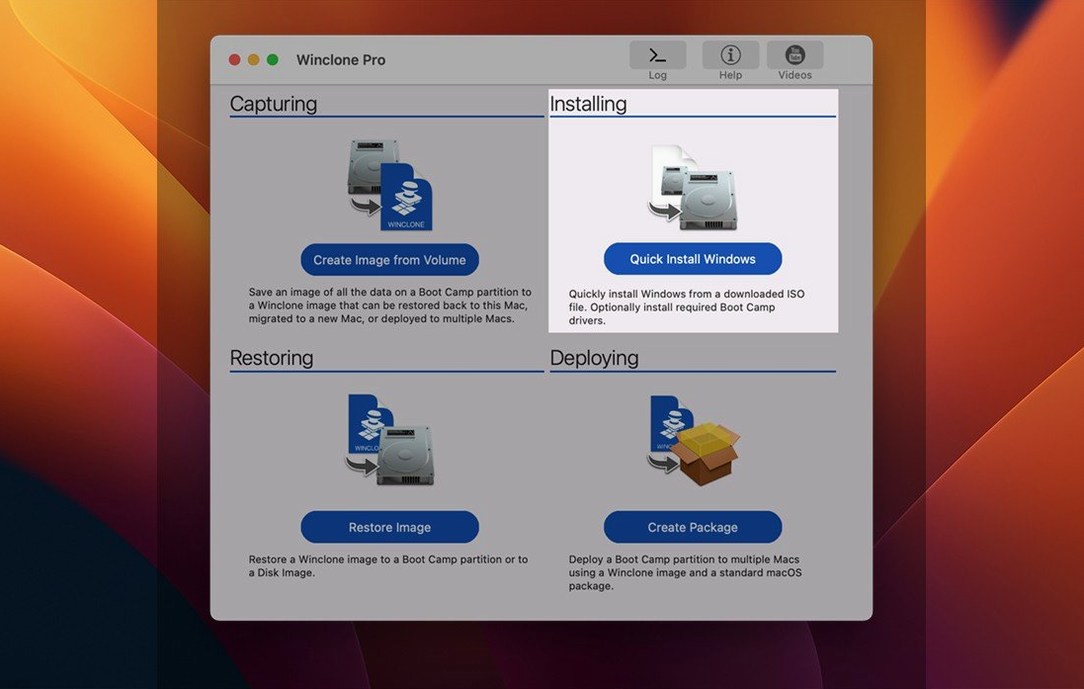
If you've ever used Disk Utility to image a drive, you know the basic idea. Winclone has a similar spirit, but it's built specifically for the Boot Camp partition on your Intel Mac. It copies your Windows installation, settings, apps and all, into a single file you can store and restore later. You might use it to move Windows to a bigger drive, back up before a risky update, or roll out the same setup across a workshop full of machines.
- Clones an entire Boot Camp partition to an image you can save on external or network storage
- Restores images to DOS-FAT32, ExFAT or NTFS volumes and can shrink or expand the file system to fit
- Creates incremental images so you're not copying the whole partition every time
- Detects mismatched GPT and MBR boot records and reports what's inconsistent
- Builds a package installer that creates a fresh Boot Camp partition and restores your image into it
- Plays a sound when a job finishes or fails, so you don't have to watch the screen
It's a focused tool. You won't find it trying to manage your photos or clean up temporary files. It does one job: getting a working Windows environment from one place to another without reinstalling everything from scratch. The interface is updated in version 10, and there are links inside the app to support docs when you need them.
Turn off the overwrite confirmation prompt
Out of the box, Winclone Pro works. But a couple of tweaks make it friendlier for everyday use. Open Preferences (⌘,) and have a look at the Warnings tab first. By default the app asks for confirmation before overwriting a volume. Leave that on — it has saved me more than once. The one I do switch off is the prompt about unsupported configurations. If you're running older hardware or a slightly odd Boot Camp setup, that nag gets tiresome.
Next, head to Notifications. The completion sound is handy when you've wandered off to make tea, but you can pick your own alert or turn it off entirely. I keep it on for restore jobs and silence it for quick clones. On the General tab, set your default save location now, before you create your first image. Point it at an external drive with plenty of room — a fresh Windows install with a handful of apps can balloon past 40 GB without trying. Network storage works too, though over Wi-Fi you'll want patience and a full kettle.
One more worth knowing: the Advanced tab lets you toggle whether Winclone checks GPT and MBR consistency before proceeding. On a healthy machine you can skip it, but if your Mac has seen a few repartitioning adventures, leave it on. A mismatched boot record is exactly the kind of thing that turns a Monday morning into a rebuild.
A Snow Leopard-era interface finally got modernized
Version 10 brought a refreshed interface that feels less like a utility from the Snow Leopard era. Menus are flatter, progress bars are clearer, and the estimated time remaining actually gives you a realistic number. Under the hood, it sorted out the macOS 11.0 requirements for Boot Camp cloning and package deployment — useful if your fleet runs Big Sur or later. The incremental imaging got quieter, too. You can now update an image without the whole process feeling like starting from scratch.
The 10.5 update, released September 2025, is a modest one on paper: updated OS requirements and verified Tahoe compatibility. In practice, that means if you've moved a machine to macOS Tahoe, Winclone doesn't throw a fit. The system checks that used to complain about an unrecognised macOS build are gone. There's also a quiet fix around how it handles attached volumes on newer Windows builds — the kind of thing you only notice when a restore that used to stall just works. If you've been holding onto an older winclone build, the jump to this one is less about new buttons and more about it not breaking on a Tuesday.
An IT admin's afternoon
Picture someone in a school IT office with twelve identical Intel iMacs. The art department needs Windows for a set of CAD tools, and every machine gets the same setup — same apps, same drivers, same network shortcuts. Building them one by one would eat a week. Instead, the admin sets up one iMac with Boot Camp, installs the software, tweaks the firewall rules and printer paths, then captures a Winclone image to a USB-C SSD. The incremental image feature means later updates — a new driver, a patched application — don't require a full recapture. They just update the existing image and push out a package installer. By Wednesday, all twelve machines are running identical Windows installs, and the admin is back to clearing paper jams.
For home users who've grabbed a winclone torrent to keep an older Mac useful, the scenario is simpler but no less satisfying. A weekend project to swap a tired spinning drive for an SSD becomes: clone Boot Camp to an image, swap the hardware, restore to the new drive with the file system expanded to fill the space. One afternoon, no Windows reinstall, and the machine boots like it's had a second life.
- Updated OS requirements
- Verified Tahoe compatibility
- macOS 10.15 or later
- Intel Mac
Questions from the bench
Can Winclone make a backup without copying the whole partition every time?
Yes, it creates incremental images that only record the changes since your last clone, which saves time and storage space.
What can I do if my Boot Camp partition won't boot after a restore?
Winclone includes a feature that detects and reports inconsistent GPT and MBR boot records, helping you spot the problem before you pull your hair out.






 Back up
Bench talk (0)
Sign in or get a library card to pin up a note.
Nobody has chimed in on this card. If you have used it on an old Mac, say which one.