

Wipr 2.38 — Mac version
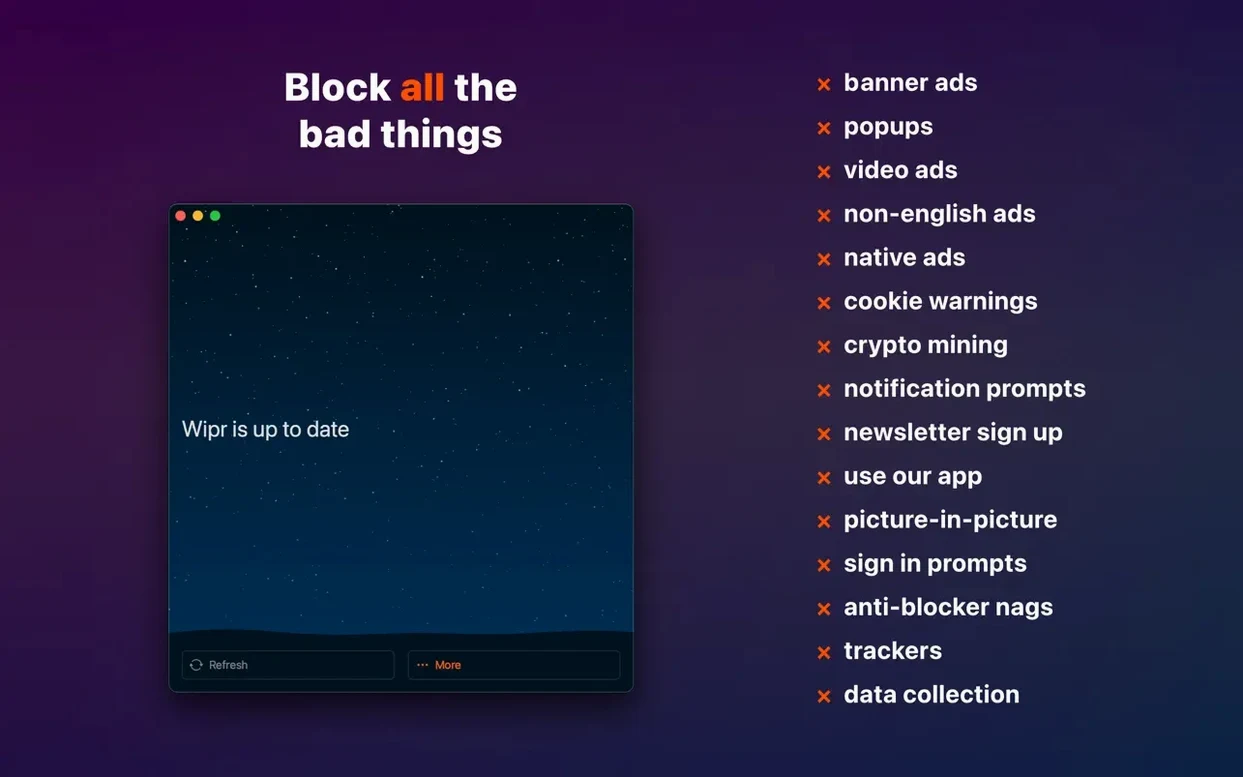
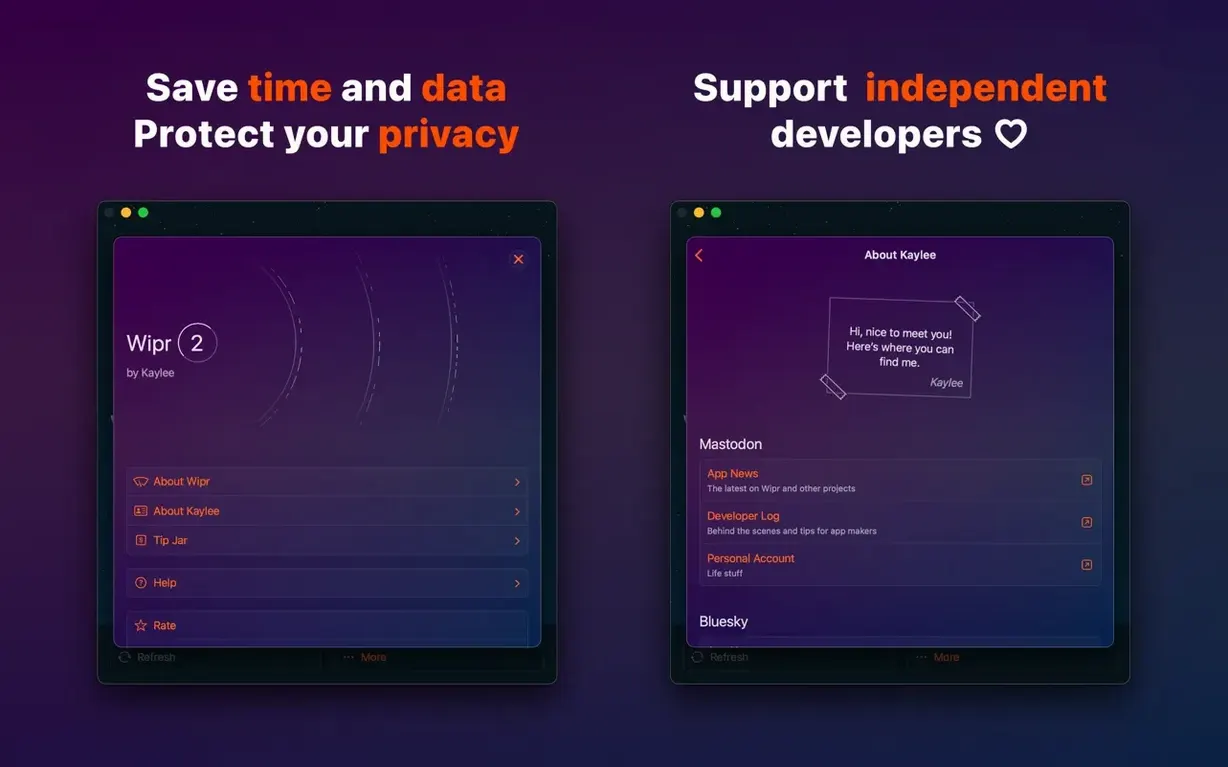
Wipr 2 needs macOS 14.0 (Sonoma) or later. It's the current version of the blocker, replacing the original Wipr. If your Mac runs Sonoma, Sequoia, or newer, you're set.
Once it's installed, you don't need to configure anything. Open Safari, turn Wipr 2 on in Safari's Extensions settings, and it gets to work. The app updates its blocking list twice a week, so new annoyances get caught without you lifting a finger.
What you'll notice first is less clutter. It strips out ads, popups, cookie consent banners, and the invisible trackers that follow you across the web. Pages tend to load faster too, because your Mac downloads less junk with each visit.
The 2.38 release tidies up a few rough edges with accessibility improvements. If you rely on VoiceOver or other assistive tools, the extension settings should feel a bit smoother now.
When a site breaks after stripping its trackers
Sometimes a site refuses to load at all after you install Wipr 2. Nine times out of ten, the blocker is doing its job — the site is so stuffed with trackers that it breaks when they're stripped. You can check quickly: click the Safari extension icon in the toolbar, choose Reload Without Content Blockers. If the page springs to life, you know what's up.
Another one: YouTube video pages sometimes misbehave. The player loads fine because Wipr 2 doesn't touch first-party video, but comment sections or sidebar thumbnails might vanish. That's usually a sign the blocking list caught a new ad-serving domain. Give it a day — the twice-weekly update often puts things right.
On older Macs still running Monterey or Ventura, you'll need the original Wipr instead. Wipr 2 genuinely won't launch below Sonoma, and there's no workaround. It's not a soft requirement.
Cookie notice blocking works brilliantly on most sites, but some EU-based pages show a blank overlay instead. The notice is gone, but so is the scrollable content behind it. A single page refresh almost always clears it. If it persists, you've hit a site that ties its cookie wall directly to page rendering — rare, but not unheard of. Reloading with content blockers off for that one visit is the quickest fix.
You installed the app but skipped the Safari extension
The big one: installing the app and thinking that's it. Wipr 2 sits in your Applications folder, yes, but it doesn't do anything until you enable the extension inside Safari. Go to Safari > Settings > Extensions, tick the box next to Wipr 2, and make sure it's set to Allow for all websites. Without that step, you're browsing unprotected.
Another common slip: running two content blockers side by side. Safari lets you enable several extensions at once, and people sometimes stack Wipr 2 with another ad blocker "just to be safe." The two end up fighting over which rules apply, and pages break in odd ways. Pick one and stick with it.
Beginners also tend to blame Wipr 2 when a site's login form stops working. Some sites use third-party authentication scripts that look like trackers, and the blocker catches them. Rather than giving up on the blocker, try the Reload Without Content Blockers trick for that one page. Log in, then turn blocking back on for everything else. It's a five-second habit that sorts most problems.
Blocking cookie banners and newsletter pop-ups
Wipr 2 is deliberately light on settings — that's the point. But one thing you might want to adjust day one: the Wipr Extra toggle. This extension handles annoyances beyond ads and trackers — things like "sign up for our newsletter" overlays, sticky headers, and chat widgets. It's on by default. If a site you use daily suddenly feels cramped or broken, flicking Wipr Extra off for that domain often restores it without losing ad blocking for the rest of your browsing.
To get at it, click the Wipr 2 icon in Safari's toolbar. You'll see a simple panel with toggles for the current site. No menus to dig through. If you find yourself visiting a small handful of sites that need Wipr Extra turned off, the app remembers your choice per-site from then on.
Also worth knowing: the extension works across all your Apple gear if you've got iCloud sync turned on for Safari extensions. Set it up once on your Mac, and your iPhone and iPad pick up the same choices. Handy if you're grabbing a wipr 2 download for multiple devices.
- Wipr Extra improvements across many websites
- Accessibility improvements
- macOS 14.0 or later
- Works on Intel and Apple Silicon Macs
- English interface








 Back up
Bench talk (0)
Sign in or get a library card to pin up a note.
Nobody has chimed in on this card. If you have used it on an old Mac, say which one.