

AIMP 5.40.2675 — Mac version
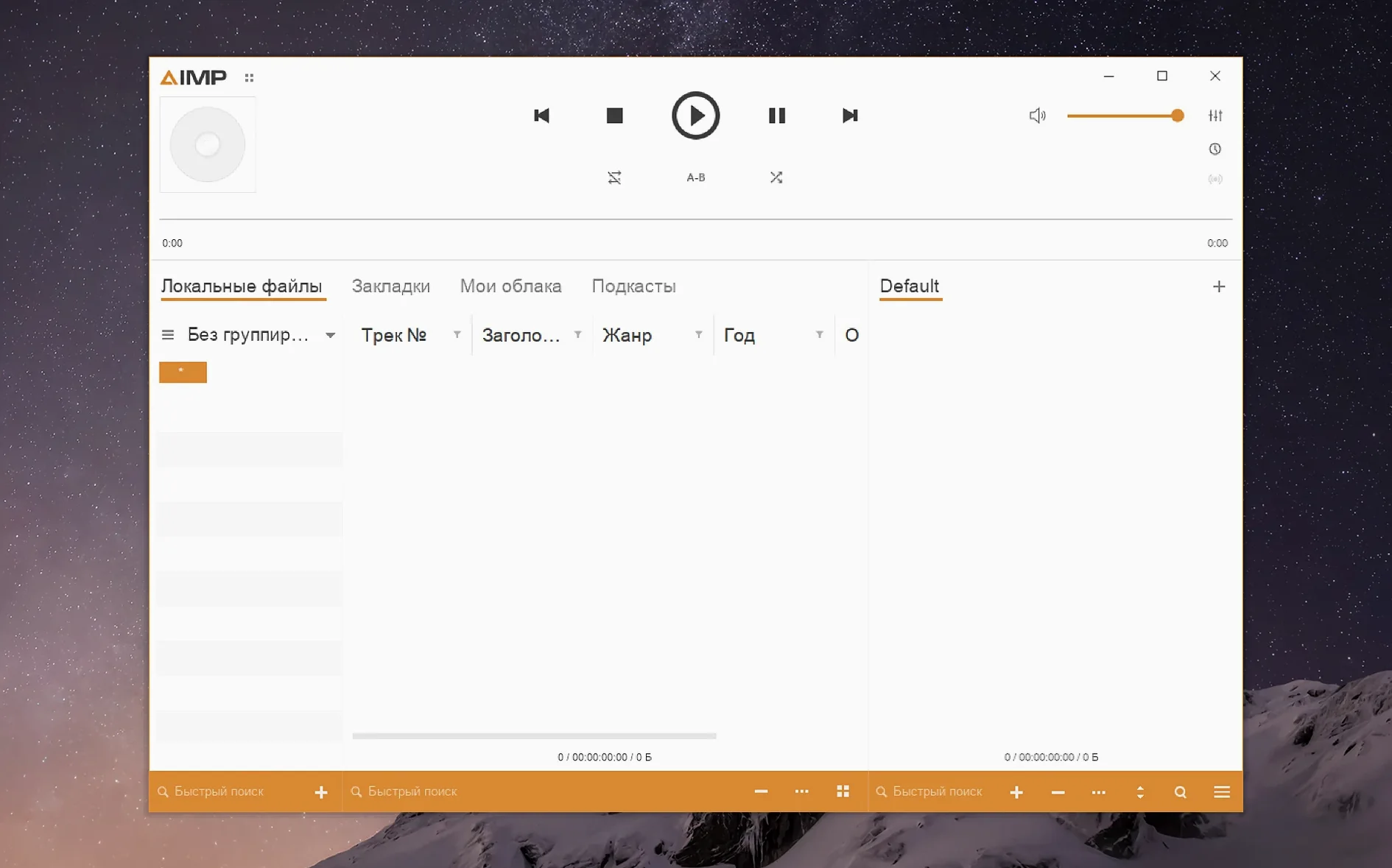
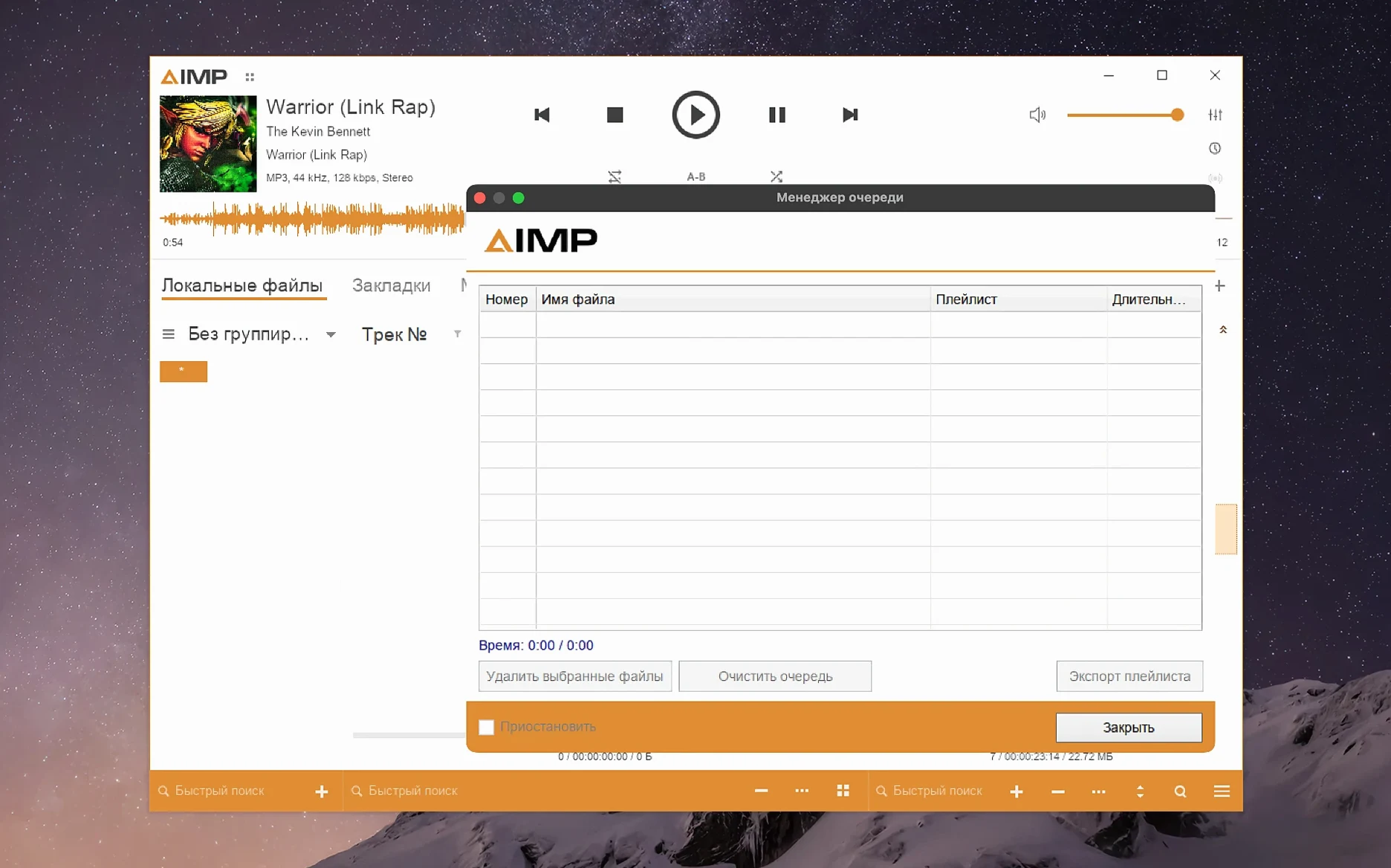
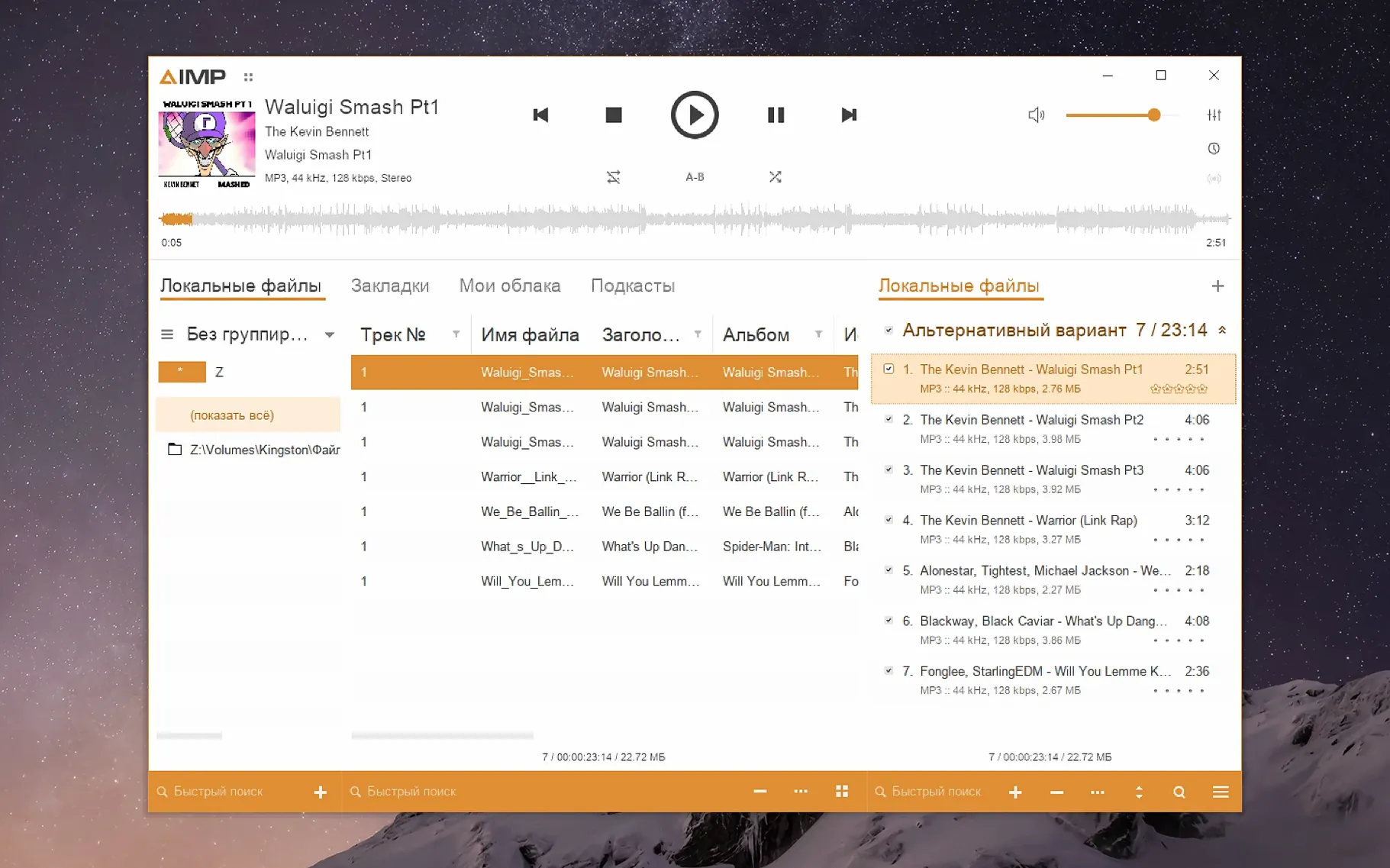
If you've used AIMP on a Windows machine, you'll know it as the audio player that does almost everything without getting in your way. On macOS it's the same app, just packaged inside a Wineskin wrapper so it can run on Apple Silicon Macs. That wrapper is the reason some things feel a bit different from a native Mac app.
The first question people ask is whether it works at all. It does, on macOS 11 and later, and the changelog shows the team is actively fixing things that break. The latest build sorted out a crash-report issue, fixed a mouse wheel bug in the Skin Engine visualization window, and stopped the playlist manager marking things as modified when you just change tracks. It's not abandonware.
Another common worry is language support. The interface covers a lot of ground: English, Russian, German, Japanese, Korean, Portuguese, Italian, Danish and more. If your preferred language is listed, you're probably sorted.
The one quirk worth knowing upfront: the interface can look tiny on a modern screen. There's a fix, but you have to dig into the app package to run the config tool and bump the graphics resolution up to something between 122 and 144 dpi. It's a one-time job and the read-me in the disk image walks you through it.
Wrapper quirks you can fix in minutes
Because AIMP runs inside a wrapper, a few things can trip you up that wouldn't happen with a native app. Most are easy to fix once you know what's going on.
The app won't open at all
If you drag the app to Applications and it refuses to launch, don't panic. The disk image includes a Fix file for exactly this. Run it, then try again. It usually sorts the problem in seconds.
Playback stutters on high-res files
If you're playing FLAC or Monkey's Audio tracks and getting little glitches, check the audio output settings inside AIMP. Sometimes the wrapper defaults to a buffer size that's too tight for Apple Silicon's translation layer. Open Preferences, go to Playback, and nudge the buffer up a notch. The latest build also improved waveform calculation speed, so the lag you might see when seeking through long files should be less noticeable now.
Drag-and-drop feels off
Wineskin apps don't always handle drag-and-drop from Finder as smoothly as native ones. If dropping a folder onto the playlist does nothing, use File → Add Files or Add Folder instead. Works every time.
Keyboard shortcuts clash with macOS
Some shortcuts overlap with system ones — Cmd+Q quits, but AIMP might not register Ctrl-based shortcuts the way you expect. You can remap them inside the app. Head to Preferences → Hotkeys and set ones that don't fight with Mission Control or Spotlight.
Get the interface size just right
Out of the box, AIMP is perfectly usable. But a few quick tweaks make it feel more at home on your Mac.
- Interface scale. We already mentioned the config tool trick — bump the resolution to 122–144 dpi. Do this before anything else. Squinting isn't fun.
- Playlist appearance. The default font sizes can be tiny even after scaling. Right-click the playlist header, pick Appearance, and bump the row height and font size until it looks comfortable.
- Output device. AIMP might not pick the right audio output straight away. Go to Preferences → Playback → Output and select your speakers or headphones explicitly. The WASAPI option often works best inside the wrapper.
- Library auto-watch folders. If you want AIMP to track your music folder automatically, add it under Music Library → File Search. Tell it which folders to scan and how often. The grouping tree glitch from earlier builds — where Alt+Click misbehaved — is fixed, so browsing by artist or album should feel solid.
- Skin engine. The default skin is fine, but there are loads of alternatives built in. The mouse wheel bug in the visualization window is fixed now, so switching skins and tweaking the look is smooth. Try a dark compact skin if the default feels too Windows-y.
AIMP next to Vox, Swinsian, and Foobar2000
If you're looking at AIMP for Mac, you're probably also eyeing up a few other players. Here's how they stack up.
AIMP vs Vox
Vox is a native Mac app with a clean, minimal design. It handles FLAC and hi-res audio beautifully, and it ties into streaming services if that's your thing. But its playlist management is basic — nothing like AIMP's multi-tab playlists, smart playlists, and tagging tools. Vox also nudges you toward a paid account for cloud features. AIMP doesn't bother with any of that. If you want a sleek, Apple-like player, Vox wins on looks. If you want deep control over your library and playlists, AIMP pulls ahead.
AIMP vs Elmedia Player
Elmedia does video as well as audio, which AIMP doesn't touch. It's a capable all-rounder, and the Pro version adds AirPlay and subtitle support. But as an audio player specifically, it feels like a video app that happens to play MP3s. AIMP's tag editor, format conversion, and playlist intelligence are miles beyond what Elmedia offers for sound. If you need one app for video and audio, Elmedia makes sense. For pure music management, AIMP is the sharper tool.
AIMP vs Swinsian
Swinsian is the heavyweight of Mac music players — native, fast, and built for people with enormous libraries. It handles large collections without breaking a sweat and has powerful smart playlist rules. AIMP comes close on features: both have tag editing, batch renaming, and customisable layouts. The difference is that Swinsian feels like a Mac app through and through. AIMP, being wrapped, feels like a Windows app running politely on your Mac. If that doesn't bother you, AIMP gives you most of Swinsian's power without spending a penny.
- Monkey's Audio codec updated to version 11.08
- Waveform calculation speed improved
- Fixed a libVorbis conflict with third-party plugins
- Fixed a sampling-frequency buffering issue
- Localizations updated
- macOS 11 or later
- Apple Silicon Mac








 Back up
Bench talk (0)
Sign in or get a library card to pin up a note.
Nobody has chimed in on this card. If you have used it on an old Mac, say which one.