
Audiobook Builder 2.2.9 — Mac version
You’ve got a stack of audio CDs or a folder of MP3s from an old language course. Playing them track by track is a faff, and the Music app doesn’t treat them like a proper book you can resume. Audiobook Builder turns that pile of sound into a single, organised audiobook your iPhone or Mac understands.
Build your first project
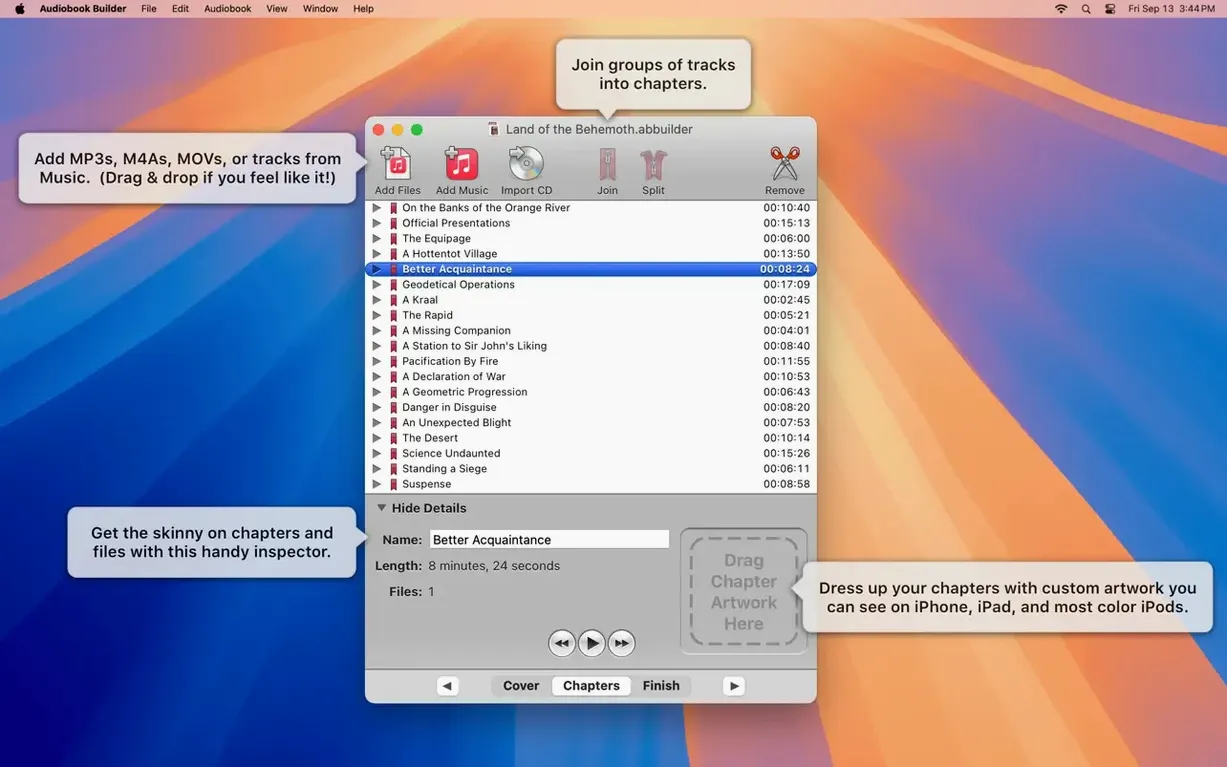
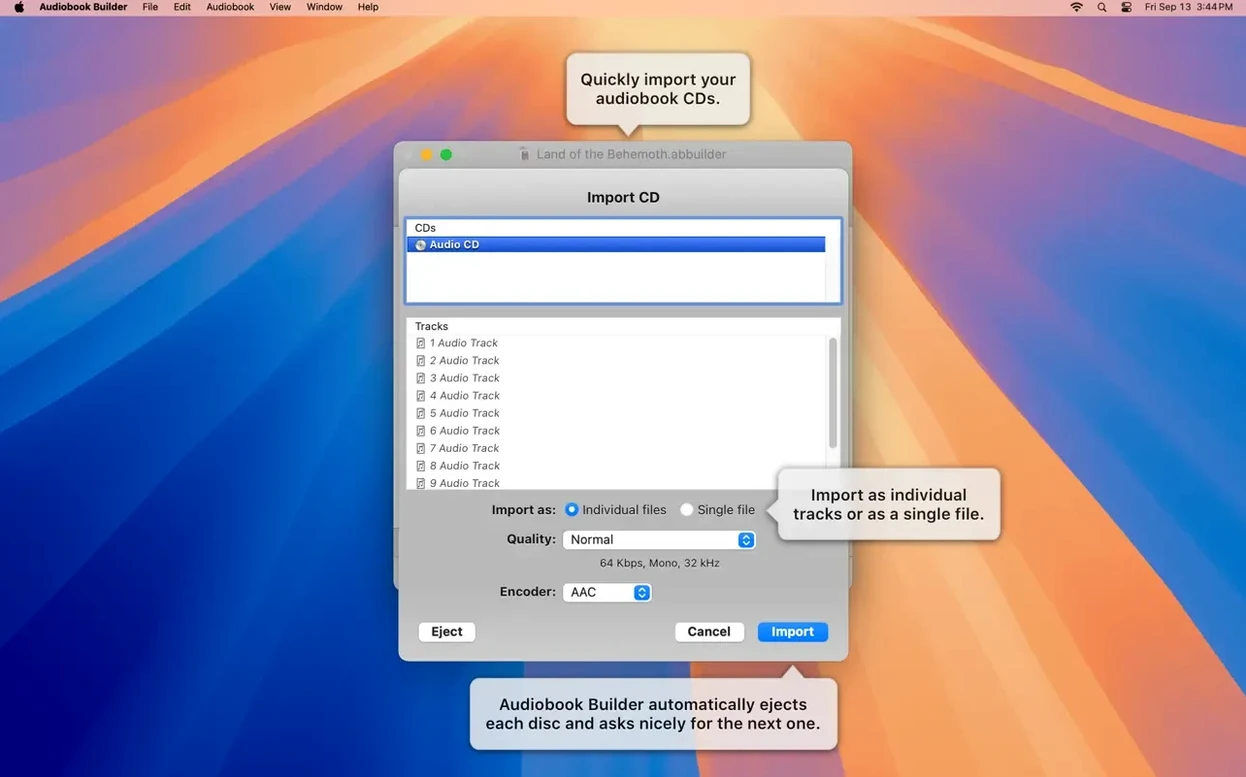
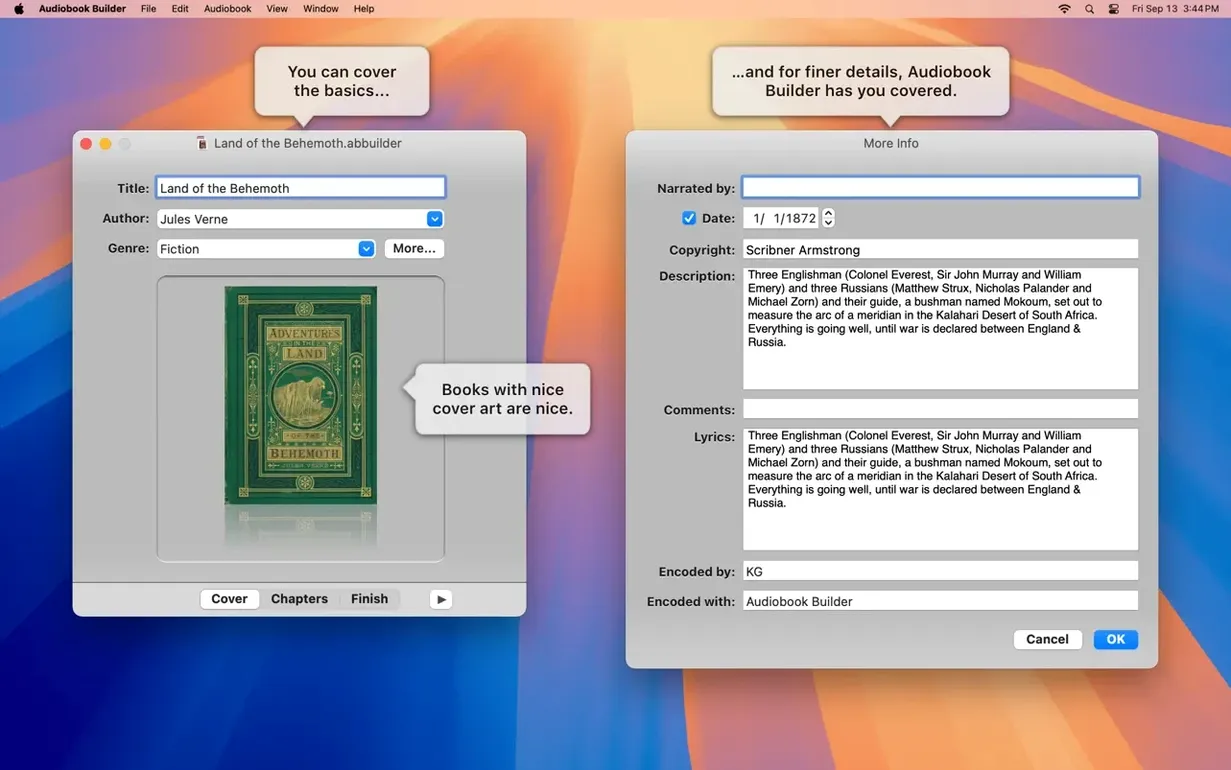
Drag in a folder of audio files or pop a CD in the drive. The app scans what you’ve added and groups tracks into chapters automatically. You can rename chapters, drag to reorder them, or merge short sections together if the auto-grouping splits things oddly.
Set chapter artwork
Grab a cover image for the book, then drop a different picture onto each chapter if you like. That artwork shows up in Apple Books as you skip through sections — handy for kids’ stories or anything where visuals help you navigate.
Fine‑tune the output
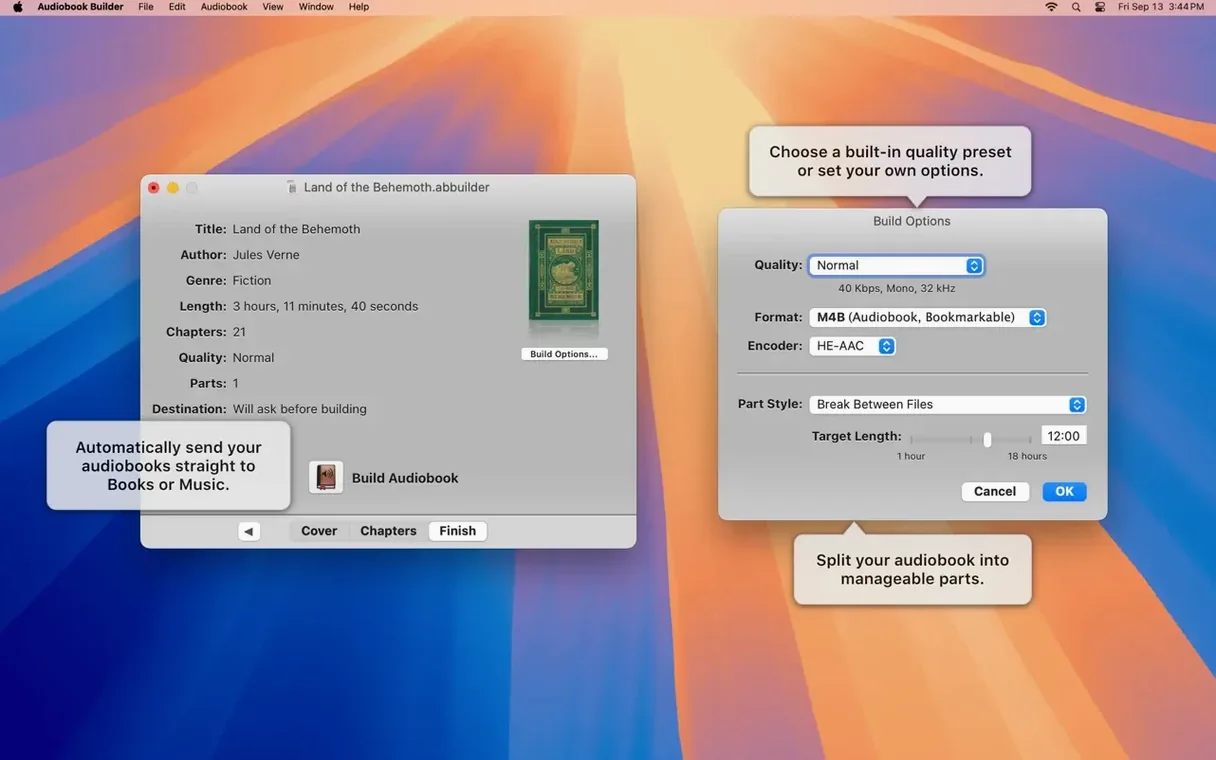
Before you hit Build, open the audio settings. You can choose the quality, set a custom bit rate, and decide whether the finished file lands in the Books app or just on your desktop. The app stitches everything into one m4b with proper chapter stops, ready for any Apple device.
You’ve just finished dragging in a folder of MP3s from an old radio series. Here’s how a typical session goes from that point.
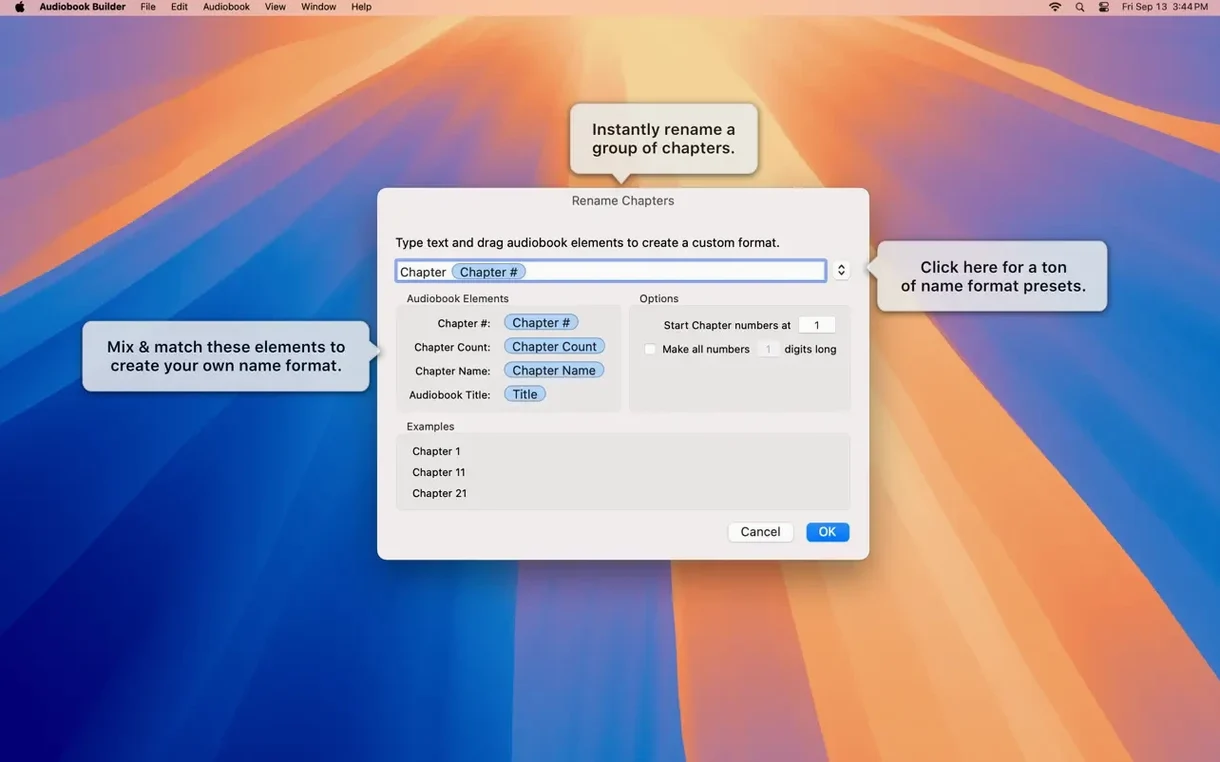
First, check the chapter list on the left. Audiobook Builder has split your files into chapters based on how the tracks were named — often it gets it right, but sometimes a two-part episode lands in separate chapters. Click the first one, then Shift-click the second and choose Merge Chapters. Now they’re one. Give it a sensible name like “The Blue Carbuncle, Part 1” so you’ll spot it later in the Books app.
Next, click the artwork well at the top. Drag in a cover image — the app accepts a JPEG or PNG without fuss. If you want chapter-specific art, click a chapter, then drag a picture into the small well that appears on the right. Not every chapter needs its own, but it’s a nice touch for anthologies or language lessons where a visual cue helps.
Now head to the Audio tab. Pick a quality preset — “Spoken Word” keeps file sizes small without making voices sound like they’re underwater. If you’re archiving music, “High Quality” is the safer bet. The custom settings let you dial in a specific bit rate, but the presets do the job for most people.
Click Build. The progress bar chugs along as the app encodes and joins your files. When it finishes, a fresh m4b file appears — either in the Books app or on your desktop, depending on the checkbox you ticked earlier. Open Books on your Mac or iPhone, and the audiobook is there, cover art and all, with chapter stops that actually work.
Split a chapter at the playhead with a right-click
Right-click any chapter and you’ll find a Split Chapter command. Handy when a long recording covers two distinct sections and you only notice after import. The split point is wherever you place the playhead, so scrub to the right spot first.
The File menu holds a “Join CD Tracks” option that’s easy to miss. If you’ve ripped a CD as separate tracks and the silence gaps bother you, this smooths them into one continuous flow — useful for live albums or concert bootlegs.
Double‑click the Author field before you build. Whatever you type here becomes the artist tag in Books, which affects sorting. If you’re making audiobooks for someone else, put their name in — it’ll group neatly under “Authors” on their device.
While the build runs, you can queue another project. Audiobook Builder doesn’t lock you out. Set up the next book, and it waits patiently until the current encode finishes.
Runs on El Capitan and Intel Macs from 2015 onward
Will it run on my old iMac from 2015? If it’s on OS X 10.11 or later, yes. The current version still supports El Capitan, which is rare these days. It runs on Intel Macs just as well as Apple Silicon machines, so you’re not forced to upgrade hardware.
Does it only work with CDs? No. Drag in MP3, WAVE, or AAC files from anywhere — a USB stick, a folder on your desktop, an external drive. The app treats them all the same way. If you’re building audiobooks from downloaded language lessons or ripped YouTube audio, that’s perfectly fine.
Can I stop a build halfway and resume later? You can stop it, but you’ll need to start the build again from scratch. The encoding is fast enough that this rarely stings — a six-hour audiobook takes a few minutes on most Macs.
What happens to the original files? Nothing. Audiobook Builder reads them and leaves them untouched. The m4b it creates is a new file, so your source MP3s stay right where they were.
- Ready for macOS 15 Sequoia.
- Cover and chapter artwork work again on macOS 13 Ventura.
- Stopped the false “no audio in file” error for WAVE files that contain MP3 data.
- Fixed an error‑reporting glitch on Macs running pre‑11.3 systems.
- Brought back the Description tag for some classic iPods.
- OS X 10.11 or later
- 64‑bit Intel or Apple Silicon Mac
Questions from the bench
Can I change where chapters start and end?
Yes. You can split a long chapter into two or merge several short ones — just select the tracks and use the chapter controls before building.
Does it run on older Macs?
It runs on anything from OS X 10.11 El Capitan right through to macOS 15 Sequoia, on both Intel and Apple Silicon Macs.






 Back up
Bench talk (0)
Sign in or get a library card to pin up a note.
Nobody has chimed in on this card. If you have used it on an old Mac, say which one.