
PDF Reader Pro 6.0.0 — Mac version
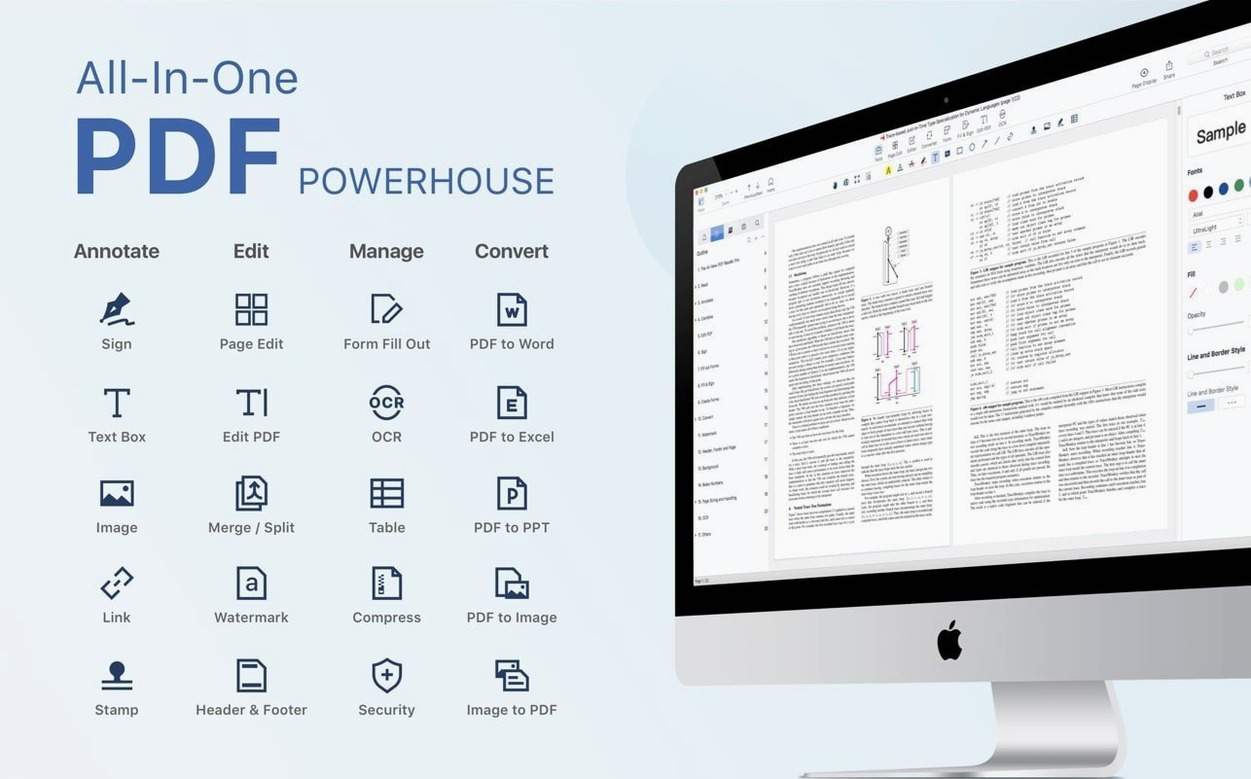
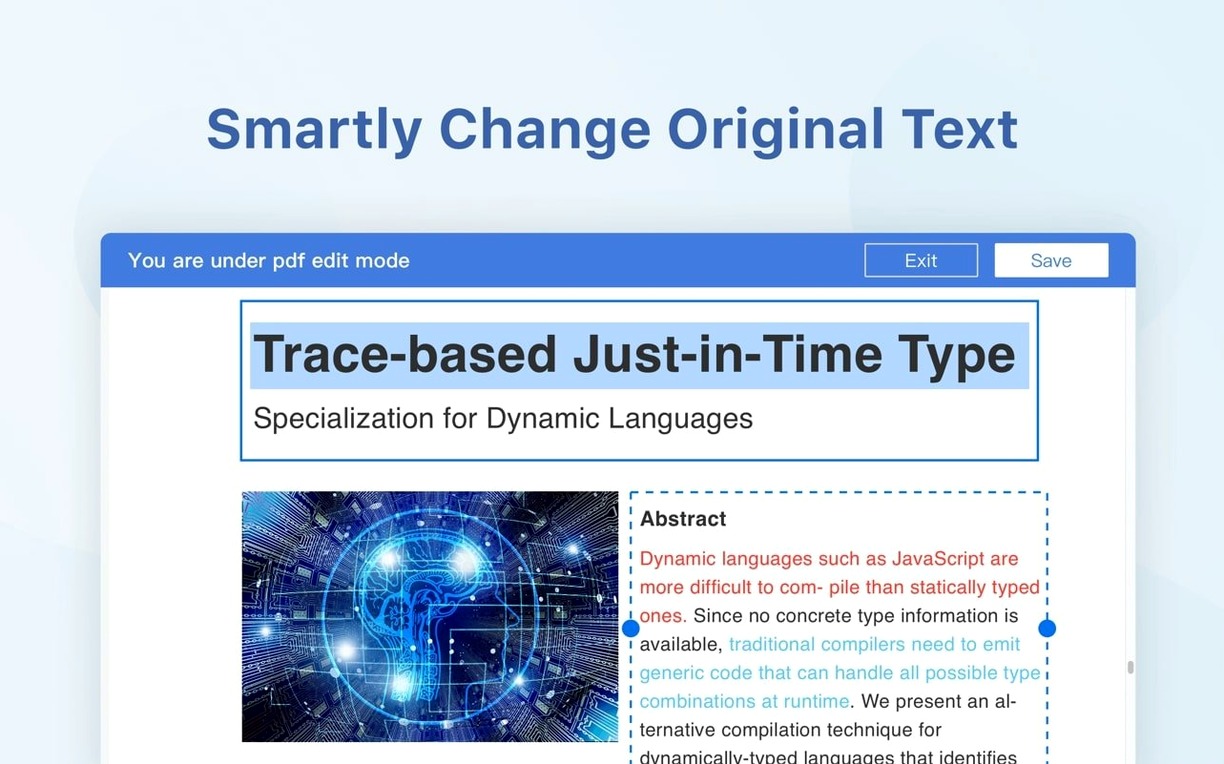
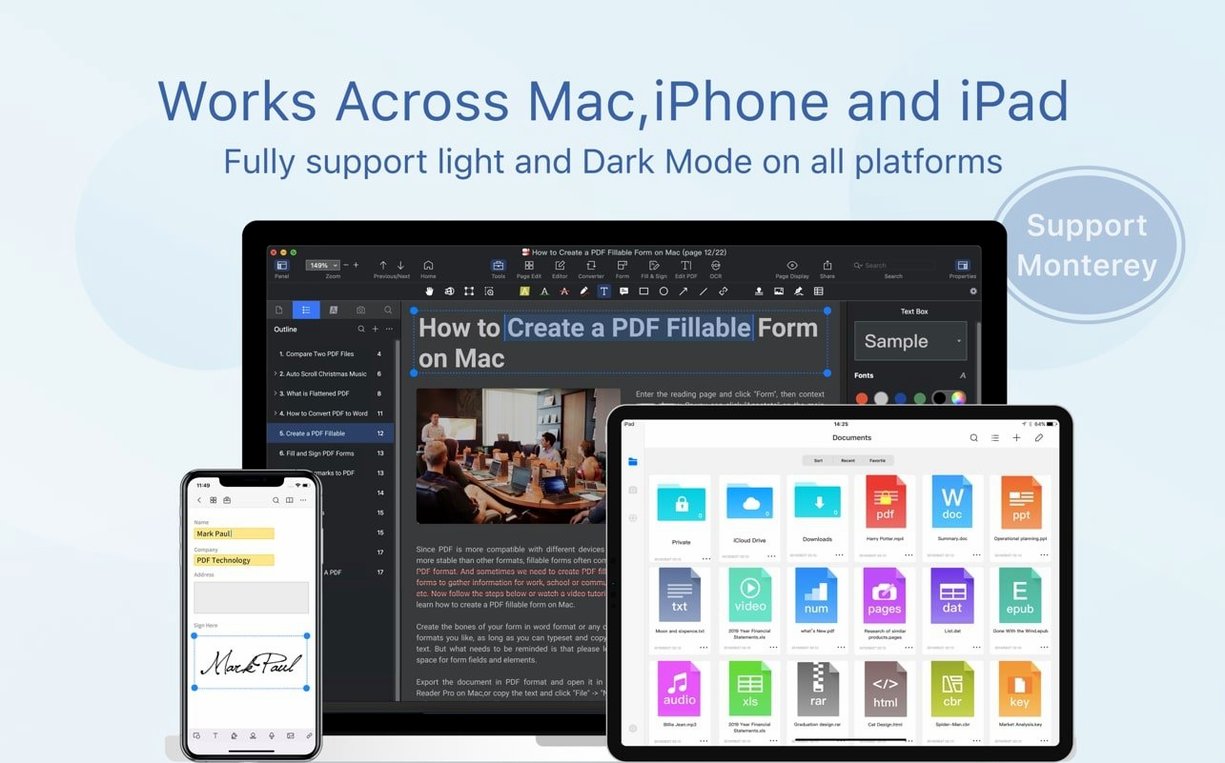
You're sent a ten-page contract that needs signing and a few notes before the end of the day. You open it, scribble a couple of queries, drop your signature on the dotted line, and send it straight back — all without printing a single sheet.
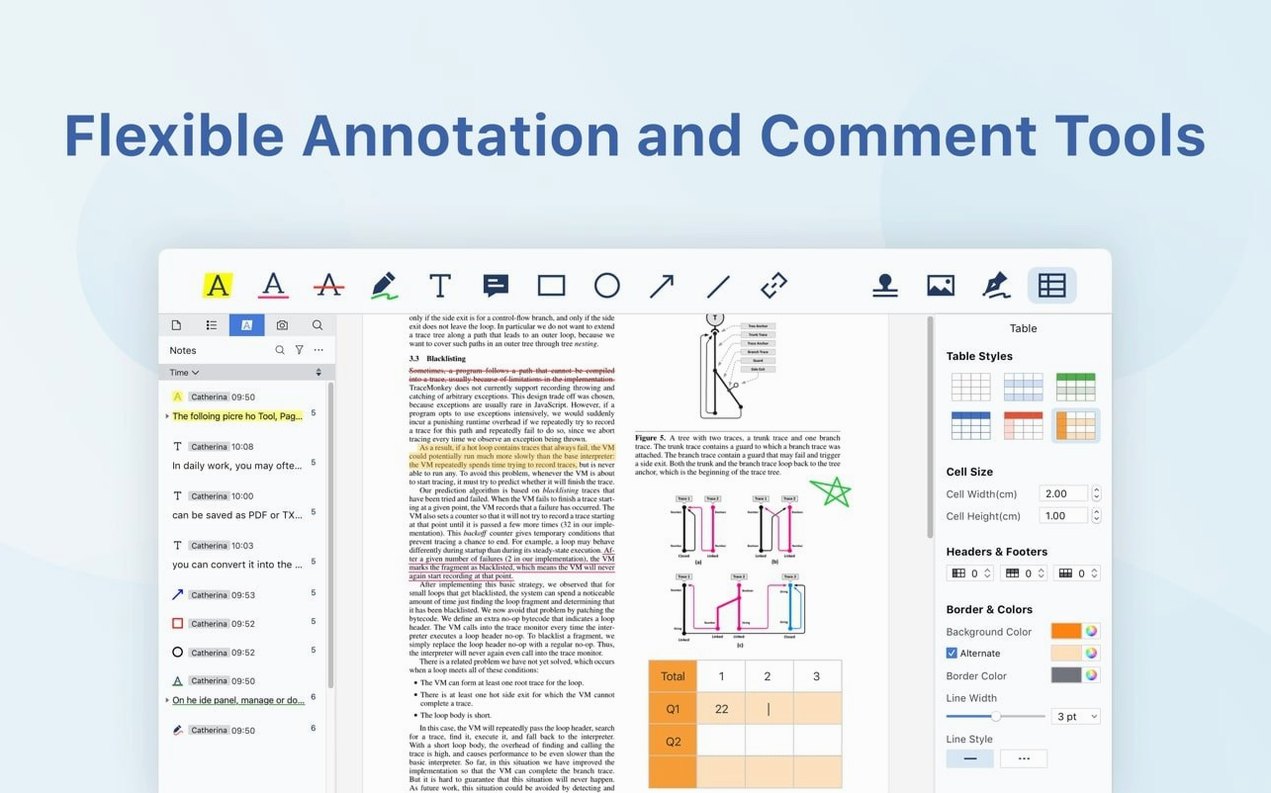
- Mark up as you read. Highlight passages, strike through outdated clauses, and stick a sticky note where something needs clarifying. The annotation tools sit ready in a toolbar that feels familiar if you have used any word processor.
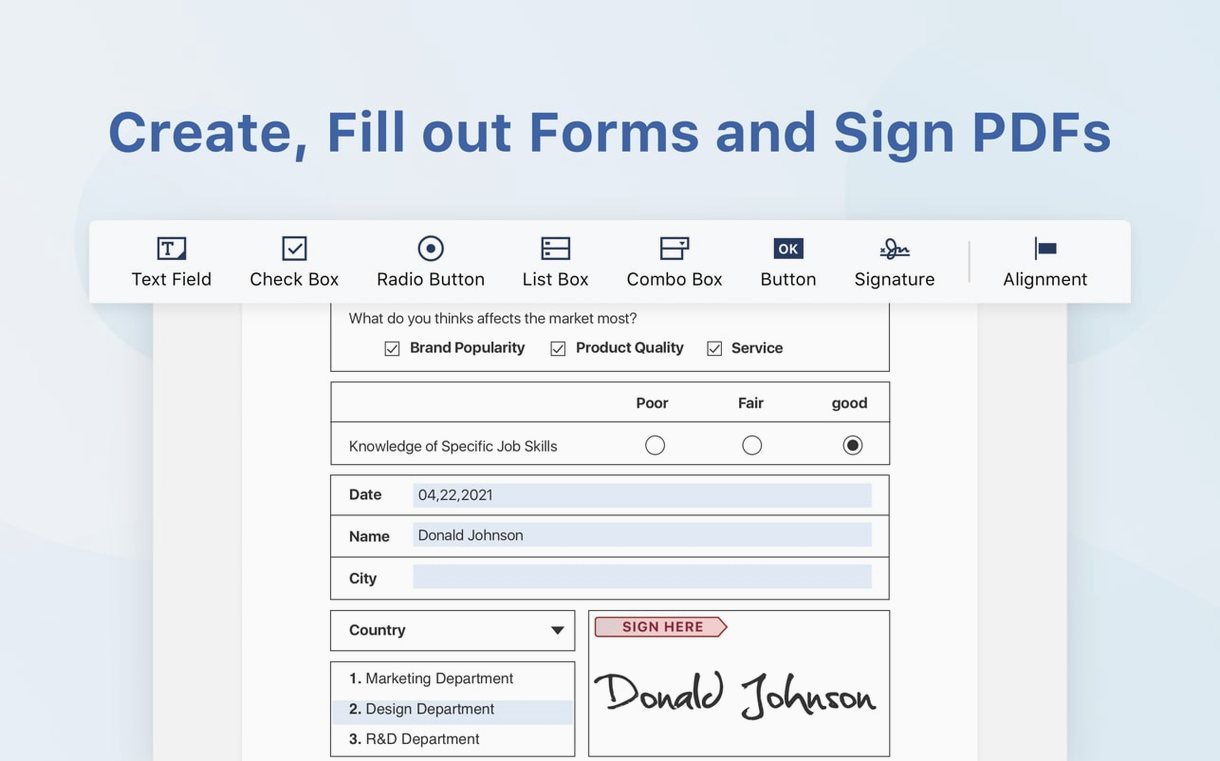
- Fill and sign forms. Tap a blank field and start typing. For signatures, scribble one with the trackpad, grab a saved scan, or just type your name and pick a handwriting font. It works on everything from tax forms to school permission slips.
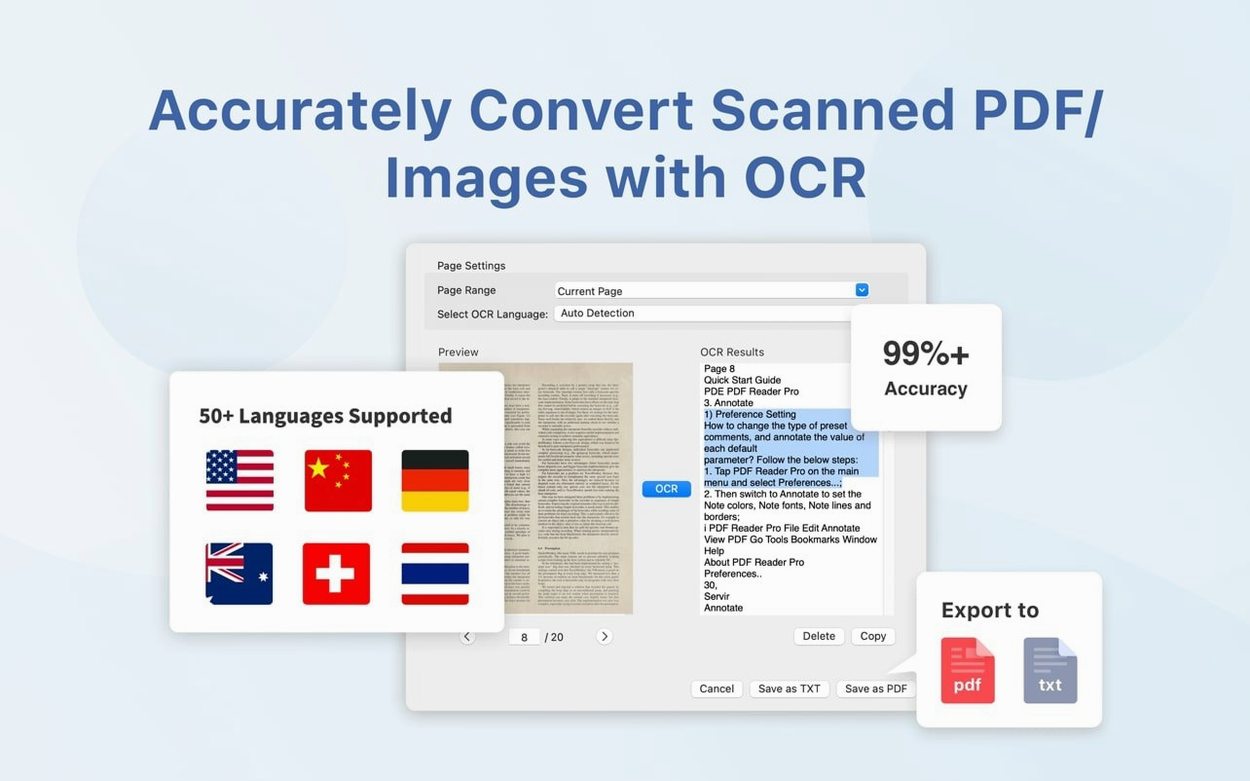
- Turn scans into searchable text. Open a photographed document, and the built-in OCR layer recognises the words so you can copy, search, and highlight them as if it were born digital.
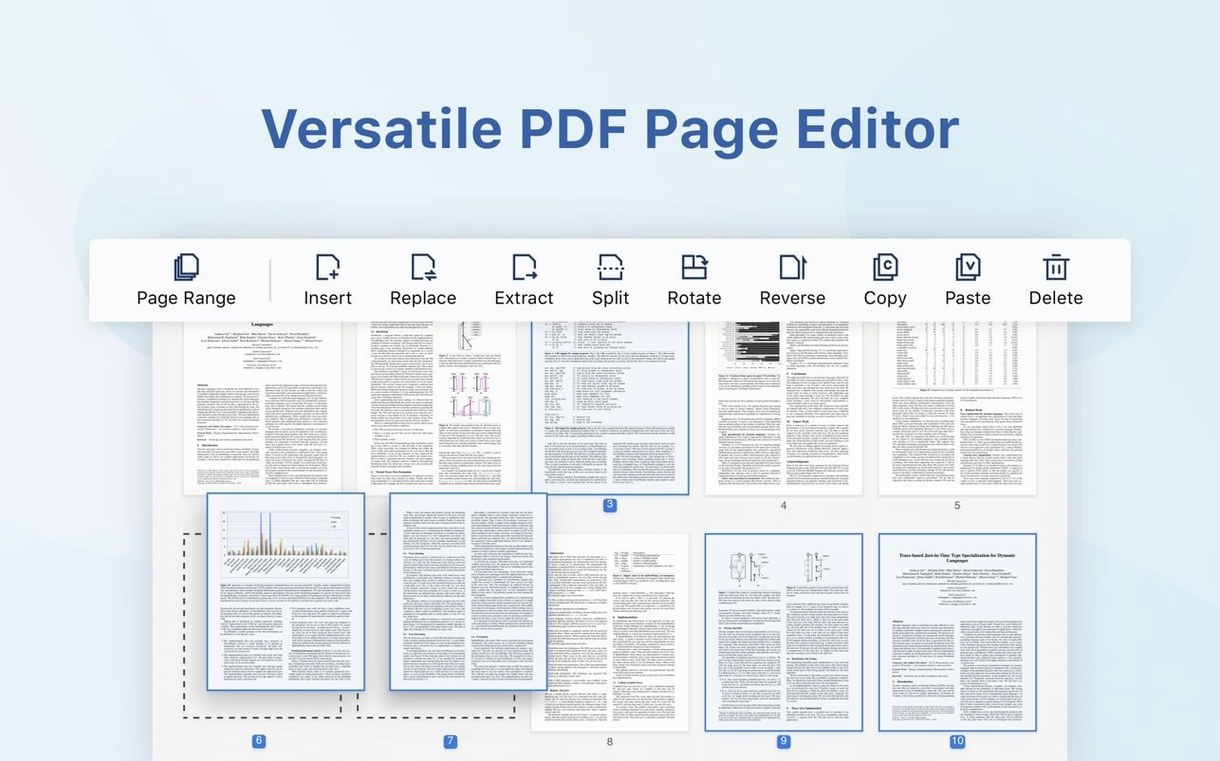
- Split or merge in a couple of clicks. Pull out just the pages you need from a monster report, or bundle three invoices into one file ready for accounts. No intermediate printer dialogue, just drag and drop.
- Listen instead of read. When your eyes are tired, switch on text-to-speech and let the app read the document aloud while you make a cuppa. Handy for proofreading your own writing too.
Presentation mode turns a multi-page PDF into a clean slide deck on any connected display — useful when you need to walk a client through a proposal without faffing about in Keynote.
Scrolling a 200‑page manual without grey placeholders
On a 2015 MacBook Pro with 8 GB of RAM, PDF Reader Pro opens a 200-page illustrated manual in about three seconds. Scrolling through it stays smooth — no grey placeholder boxes while pages catch up, which still plagues some free viewers. Memory use sits around 180 MB with a single document open, creeping toward 400 MB when you juggle half a dozen tabs. That is respectable for an editor that also carries OCR and conversion engines under the bonnet.
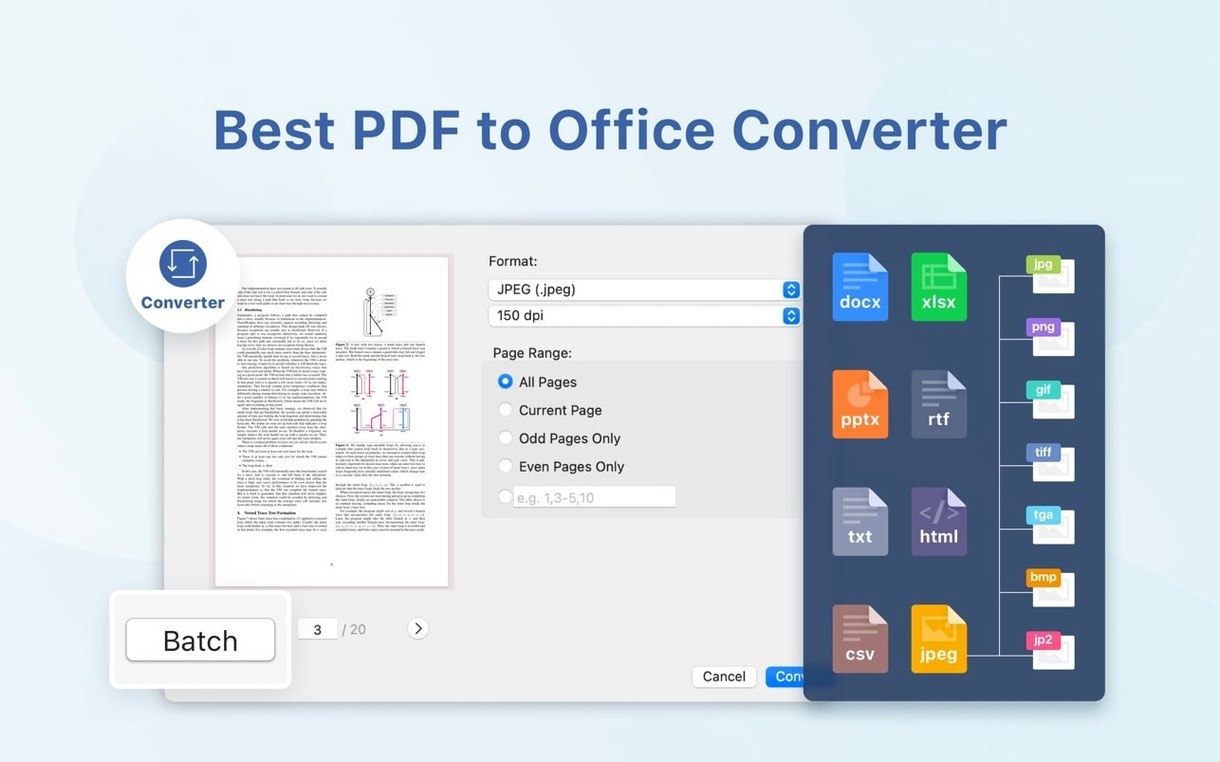
Exporting a 40-page report to Word takes roughly the same time as making a coffee — a bit over a minute — and the resulting .docx keeps headings, tables and images in sensible order. Smaller files, like a three-page invoice, convert almost before you lift your finger off the trackpad. The app is a universal binary, so it runs natively on Apple Silicon without the Rosetta overhead; on an M1 Mac, those same jobs feel properly snappy.
One thing that stands out is how rarely it beachballs. Even during OCR on a badly photographed A4 page, the interface stays responsive. You can queue up several recognition jobs and carry on annotating another document in a different tab. The trade-off is that background exports do not pause politely — they peg a couple of CPU cores until finished, so the fans might wake up on older Intel machines.
Tabbing 30 journal articles at once before a deadline
Imagine a final-year history student staring at thirty PDF journal articles, a half-written dissertation, and a looming deadline. She opens PDF Reader Pro and drags all thirty files into one window. The tab bar at the top keeps them lined up like browser tabs, so she can flick between Foucault and footnotes without losing her place.
She highlights key quotes in yellow, drops orange margins on wobbly arguments she plans to challenge, and types short reminders onto sticky notes that sit in the gutter of the page. With the search sidebar open, she types "enclosure movement" and watches the app comb through every open tab — not just the one on screen. Hits light up in a list, and clicking any result jumps straight to the page. By elevenses, she has pulled the relevant passages into a single merged file and exported them as a rich-text document she can drop straight into Scrivener. No re-typing, no lost references.
Pinch‑to‑zoom that survives long reading sessions
- Pinch to zoom. It sounds obvious, but many pdf reader torrent packages aimed at power users forget trackpad gestures. PDF Reader Pro respects the native Mac pinch-to-zoom and two-finger swipe for page navigation, which makes long reading sessions feel less like operating a crane.
- Right-click quick convert. In the page thumbnail sidebar, right-click any page and choose "Export As…" to send just that page out as a PNG, JPEG or single-page PDF. Brilliant for grabbing a diagram without exporting the whole document.
- Tab memory. Close the app and reopen it; your tabs and last-read positions come back. If you are deep in a pdf pro torrent download that turned out to be a 600-page textbook, you will appreciate not hunting for page 347 again.
- Dropbox sync without fuss. Link a Dropbox account in the preferences, and a "Dropbox" entry appears in the sidebar. You can open and save directly, and changes sync back automatically. Team members working on a shared set of PDFs will find it a quiet time-saver.
- Custom toolbar. Right-click the toolbar, choose "Customise Toolbar…", and drag only the tools you actually use into view. If you never redact, hide the redaction button. If you sign documents daily, pull the signature tool front and centre. The app remembers your setup between launches.
- QuickLook-friendly saves. Files saved by PDF Reader Pro still preview properly with a tap of the spacebar in Finder. Not every pdf editor mac torrent manages that — some break the QuickLook thumbnail. This one stays tidy.
- macOS 11 or later
- Works on Intel and Apple Silicon Macs
Questions from the bench
Does PDF Reader Pro work on older Macs?
The app needs macOS 11 or later, and it runs on both Intel and Apple Silicon machines.
Can I combine several PDFs into one document?
Yes, the merge tool lets you pull pages from multiple files and save them as a single PDF.
What languages does the interface support?
You can switch the app to Russian, German, Spanish, Italian, Dutch, Polish, French, Japanese, Simplified Chinese or Traditional Chinese.



 Back up
Bench talk (0)
Sign in or get a library card to pin up a note.
Nobody has chimed in on this card. If you have used it on an old Mac, say which one.