

PDFelement Pro 12.1.28 — Mac version
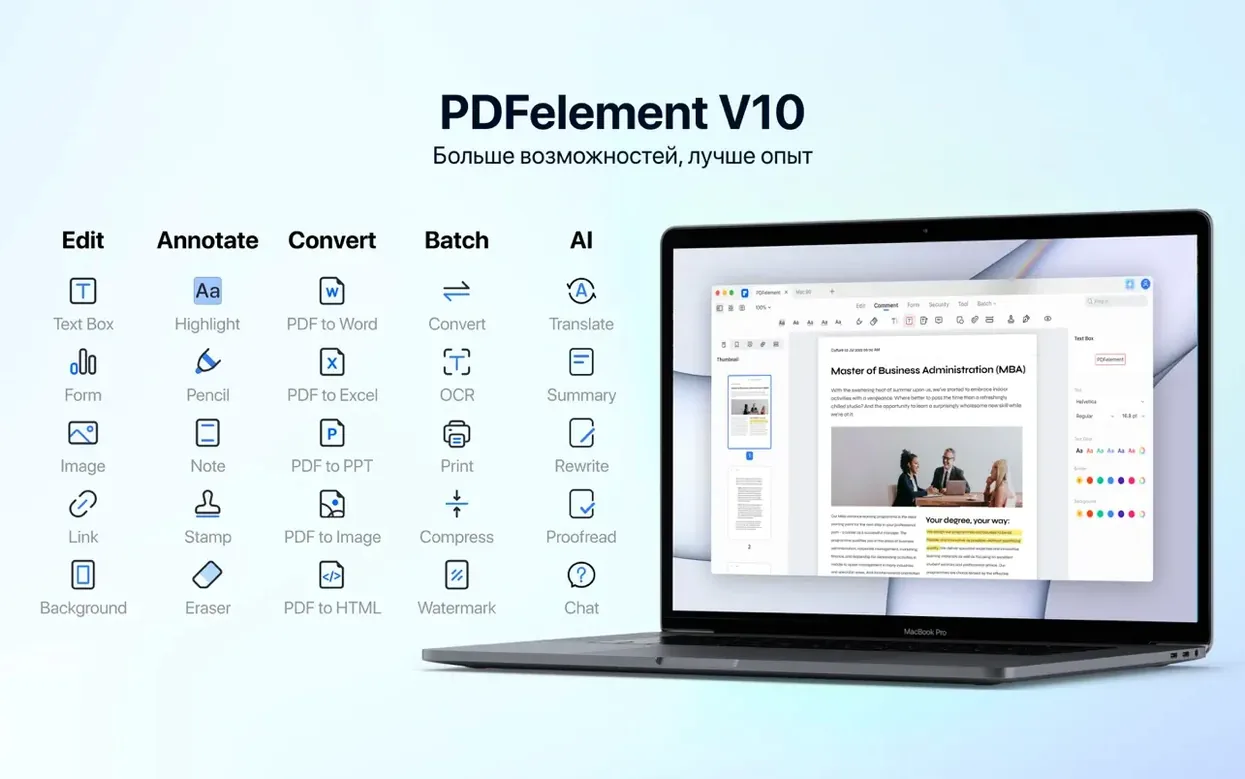
A volunteer drops off a scanned 40-page club roster and asks you to pull out just the membership forms and redact the contact details. That's the kind of job PDFelement Pro was built for. It's a full-strength PDF editor that handles text, images, signatures, and batch jobs without bouncing between three different apps.
It runs on any 64-bit Intel Mac from macOS 11 Big Sur onwards, and Wondershare state that versions 9 through 12 support Apple M1 and M2 chips natively. The current build — 12.1.28 — includes OCR, so scanned paper documents become searchable text you can actually work with.
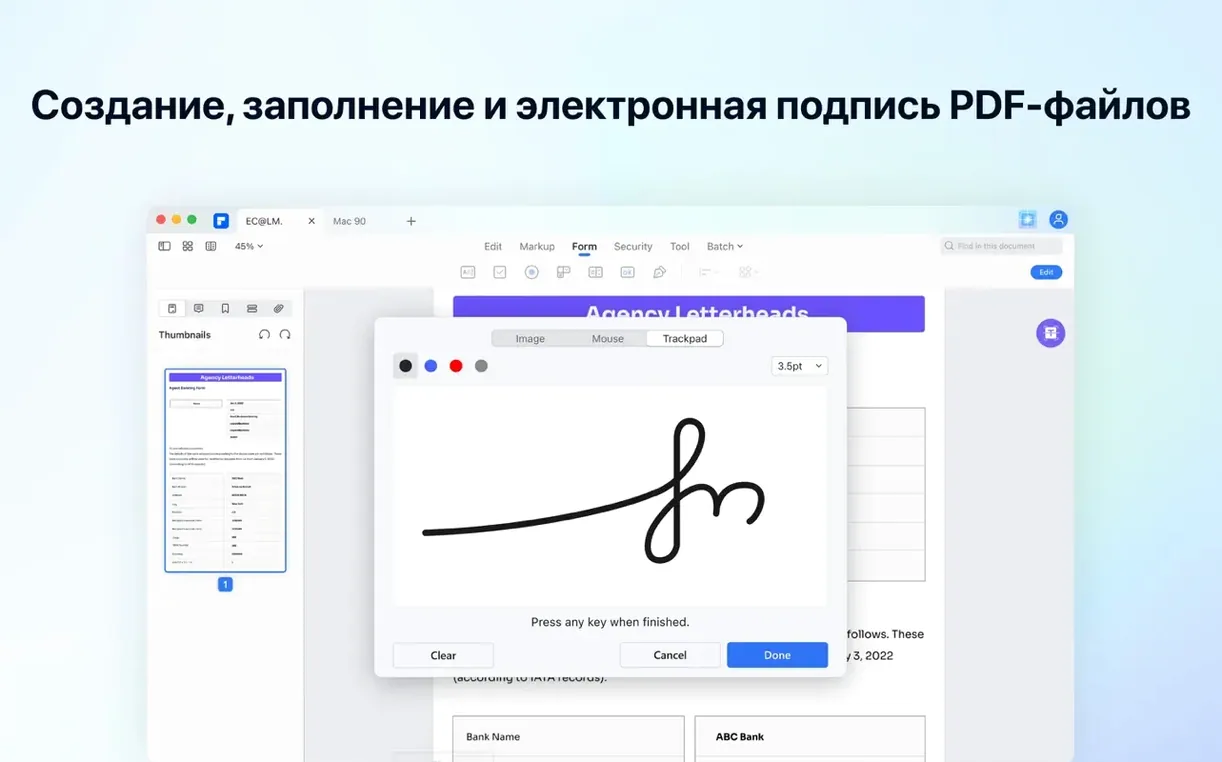
Beyond the usual mark-up and annotation tools, you get form creation with interactive fields like buttons and drop-down lists, digital signing, Bates numbering, and a redaction tool that properly scrubs images and text. Batch processing means you can convert, watermark, or apply the same fix to a whole folder in one go.
One thing I like: it saves to PDF/A for long-term archiving alongside the standard Office and image formats. If you're still nursing an older Mac along, double-check you're on Big Sur at minimum — everything else is handled.
Turn off the start-up window and set your default view
Out of the box, PDFelement Pro works, but a few tweaks make it feel more like your own. Head to the Preferences pane before you do anything else.
Turn off Show start-up window. It's a splash screen that lists recent files and templates. Useful once, then just in the way. While you're there, set Default zoom to "Fit Page" — freshly opened documents land where you can actually read them instead of squinting at a corner.
Under OCR preferences, pick your language before scanning a batch. The engine defaults to English, and if your club roster has French or German pages, recognition takes a dive. Switch it to match the document and you'll save yourself a re-scan.
One that catches people out: Auto-save is on by default for cloud-connected folders but not for local documents. If you're prone to forgetting Command-S, switch it on under File > Preferences > General. Your future self, mid-crash, will thank you.
Fix garbled OCR text by matching the document language
This is a big, feature-packed app, and it comes with a few sharp edges.
OCR text comes out as gobbledegook. Almost always a language mismatch. Check Preferences > OCR and make sure the document language matches what's selected. Mixed-language documents need a manual run per section — select the text area, hit OCR, choose the right language, repeat.
Redaction overlay looks solid on screen but text is still selectable underneath. You've applied a black box, not a true redaction. Use the Mark for Redaction tool instead — it puts a grey hashed border around the area. Then click Apply Redactions. Only then does the data actually get scrubbed. Skipping that second step is the number one mistake I see at repair café drop-ins.
Bates numbering lands in the wrong spot. The default placement is bottom centre, but if your document has footnotes or tight margins, it'll overlap. Set the position manually under Bates Numbering > Position before stamping. Test on page one first.
Form fields won't respond to clicks. You're still in edit mode. Tap the Hand tool in the toolbar or press H to switch from editing to interacting. Simple once you know, baffling the first three times.
Batch conversion stalls halfway through. Large PDFs with embedded fonts sometimes choke the queue. Split the job into smaller chunks — ten files at a time rather than eighty — and it usually sails through. Also worth checking that none of the source files are password-protected; the batch tool skips those silently and you'll wonder where half your output went.
Extract pages right from the thumbnail sidebar
- Right-click a page thumbnail and choose "Extract Pages" — you don't need to open a separate organiser window. Pull out the membership forms, leave the minutes behind.
- Hold Option while dragging a form field to duplicate it. Laying out a dozen signature boxes becomes a five-second job instead of a chore.
- Command-Shift-T opens the text recognition panel without digging through menus. Same shortcut every time, muscle memory in a day.
- Drag a scanned image straight onto the app icon and it'll offer to OCR it on import. No need to create a blank PDF first.
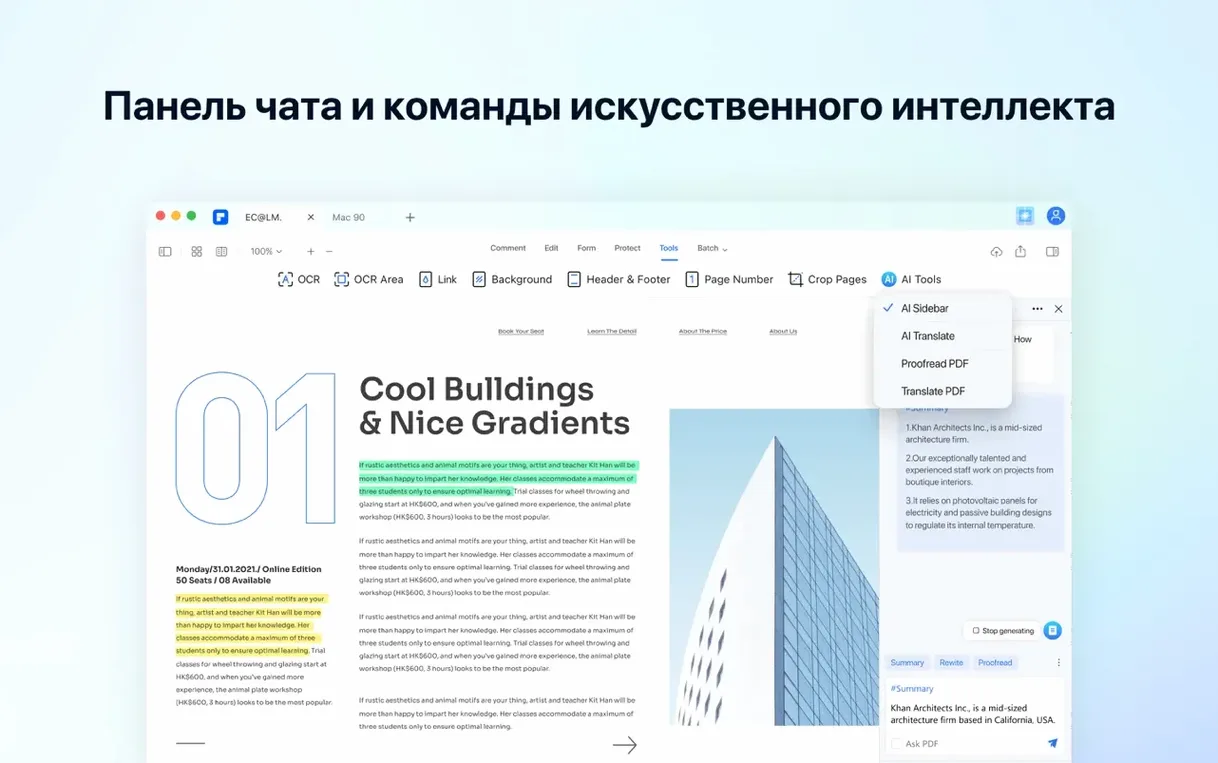
- The AI sidebar summarises long documents in a click, but the quieter trick is the "Explain" button. Highlight a dense paragraph — legalese, technical specs, whatever — and it rewrites it in plain language. Handy when you're translating club rules for new volunteers.
Four-second cold launch on an Intel Mac with 8 GB of RAM
On an Intel Mac with 8 GB of RAM, PDFelement Pro opens in about four seconds cold, two seconds warm. Not instant, but perfectly liveable. Scrolling through a 200-page scanned document stays smooth, and OCR on a 40-page file takes maybe thirty seconds — you can carry on annotating other documents while it churns.
Memory use sits around 400–600 MB with a handful of tabs open. It'll climb past a gigabyte if you batch-process large files, so on an older machine with 4 GB you'd want to close other heavy apps first. It's not a lightweight, but it's not a hog either.
Stability is solid. I've thrown messy scanned PDFs, forms with broken fields, and mixed-language documents at it and it's yet to beachball or crash. The one wobble: the AI sidebar sometimes takes a beat to wake up on first use, showing a blank panel for a few seconds. Click away and back and it sorts itself out.
If you're searching for a copy, terms like wondershare pdfelement full mac or pdfelement torrent tend to turn up the TNT team's build, which is the one running here. The OCR version in particular — wondershare pdf element torrent searches often point to it — bundles everything without needing separate language packs.
- OCR is included in this build
- macOS 11 (Big Sur) or later
- 64-bit Intel or Apple Silicon (M1/M2) Mac
Questions from the bench
Can PDFelement Pro make scanned PDFs searchable?
Yes, the current build includes OCR that turns scanned documents into searchable, selectable text.
Does it work on Apple Silicon Macs?
Wondershare say PDFelement 9 through 12 support M1 and M2 Macs natively, so you won't need Rosetta.
Can I redact private information before sharing a PDF?
Absolutely. The redaction tool lets you permanently remove sensitive text and images from a document.




 Back up
Bench talk (0)
Sign in or get a library card to pin up a note.
Nobody has chimed in on this card. If you have used it on an old Mac, say which one.