

Ghost Buster Pro 6.3.1 — Mac version
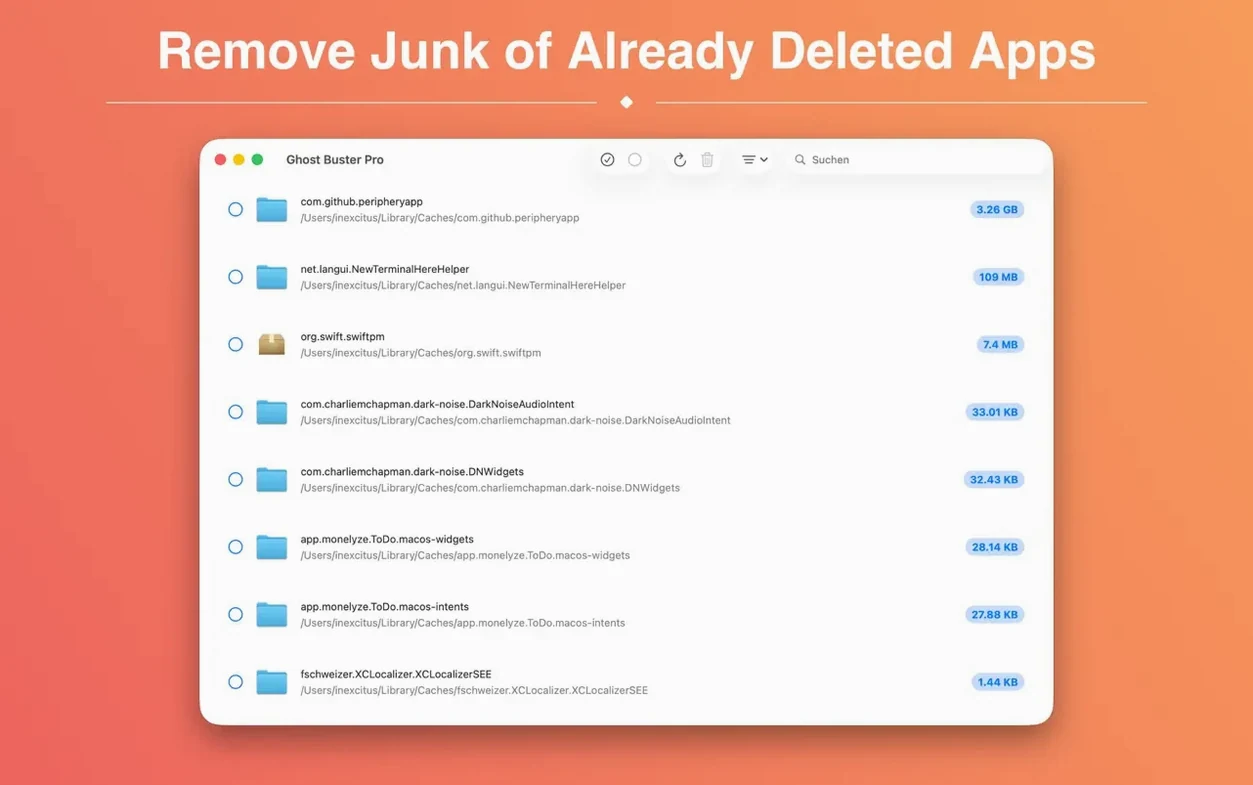
Over 200,000 files can sit on your drive long after you drag an app to the bin. Ghost Buster Pro hunts down those leftovers so you don't have to.
- Launch the app. Scanning starts straight away — no setup, no configuration screens to wade through.
- Scroll through the list of found items. You'll spot support files, preferences and caches from apps you removed ages ago.
- Pick the files you want gone. Nothing gets deleted without you ticking the box first.
- Hit delete. The app removes the selected leftovers directly, no sending to the bin first.
It's a single-purpose cleaner. No real-time monitoring, no background daemons. Just a straightforward scan for the digital dust that builds up every time you uninstall the ordinary way.
A real-deal cleanup: stripping an old video editor
Say you tried a handful of video editors six months ago, picked one, and binned the rest. You assume they’re gone. They’re not — each left a trail of render caches, preference plists and hidden support folders. Here’s a workflow that catches what the bin missed.
- Close everything. Ghost Buster Pro works best when the apps it’s cleaning up aren’t running. No conflicts, no locked files.
- Launch and wait. The scan fires up instantly. Let it finish — on a cluttered drive with spinning rust, give it a minute or two. The list populates with app names you’ll recognise and some you’ve long forgotten.
- Search for your target. Use the search field to filter by the video editor’s name. You’ll see entries grouped loosely by type:
.plistpreferences in~/Library/Preferences, cache folders in~/Library/Caches, and orphaned support files the uninstaller never touched. - Tick carefully. If you flipped between three editors, tick only the ones tied to the app you’re evicting. Look for the bundle identifier in the file path — that’s your giveaway.
- Spot-check one file. Right-click a path and choose to reveal it in Finder. Quick sanity check: yes, that
com.that-editor.plistbelongs to the dead app. Good. - Delete the lot. One click wipes everything you ticked. No confirmation dance — just gone, straight past the bin.
Afterward, run a fresh scan. The ghost entries for that editor should be gone. If one stubborn plist survived, it was probably locked by a background process. Reboot and scan again — it’ll show up and you can delete it then.
The cleanup crew after your uninstaller quits
Ghost Buster Pro doesn’t replace a full uninstaller — it’s the cleanup crew you call after the app’s already gone. Here’s how it slots into a practical toolkit.
With AppCleaner or Hazel. Those tools catch files during uninstall or tidy known folders. Ghost Buster Pro goes wider — it scours the whole drive for traces of apps you deleted before you had a smarter uninstall habit. Run it monthly as a sweep-up.
With Spotlight and Finder. You can reveal any found file in Finder straight from the results list. Useful if you want to inspect a cache folder before wiping it — some apps share cache directories, and you don’t want to nuke a live app’s data by mistake.
With Time Machine. If you delete something and regret it, Time Machine has your back — as long as the backup ran before you hit delete. Ghost Buster Pro skips the bin, so there’s no undo inside the app itself. Worth remembering.
With macOS privacy features. On first launch, the app will ask for Full Disk Access. That’s normal — without it, it can’t read ~/Library paths where most leftovers live. Grant it in System Settings under Privacy & Security, then quit and relaunch.
A Dock icon that finally matches macOS 27
The jump to 6.2.0 brought a new app icon tuned for macOS 27’s visual style — a small touch, but it means the app looks at home in the Dock alongside Apple’s own icons. Practically, the update kept compatibility tight with macOS 15.6 and newer, so if you’re running a recent system you won’t hit framework mismatches.
Earlier versions sometimes lagged on Apple Silicon Macs when scanning large ~/Library trees. The universal binary in 6.2.0 runs natively on ARM and Intel, and the scan feels snappier on M-series machines — the initial sweep completes in under ten seconds on most drives. The delete operation itself hasn’t changed: it’s still a direct removal, no staging in the bin, so the risk profile stays the same. What has improved is the detection of support files for apps that use bundled runtimes — Electron wrappers and Catalyst ports, which leave particularly messy trails. 6.2.0 catches a broader set of those.
Empty scan list? Check Full Disk Access first
“It’s not finding anything.” You launched it, the scan finished, and the list is empty. First check: did you grant Full Disk Access? Without it, Ghost Buster Pro sees only the most basic folders and comes up blank. Go to System Settings → Privacy & Security → Full Disk Access, toggle the app on, quit and relaunch. Second check: have you actually deleted any apps? The tool finds leftovers after uninstall. If you’ve never binned an app, there’s nothing to find — and that’s a good sign.
“I deleted files and an app broke.” Rare, but it happens if you tick files belonging to an app you still use. Some apps share support folders or cache names. If something stops working, restore from Time Machine or reinstall the affected app. Next time, use the “reveal in Finder” option to check file paths before ticking — look for the bundle identifier to confirm which app a file belongs to.
“Files reappear after deletion.” Some apps regenerate preferences and caches automatically when you launch them next. If you delete leftovers from an app that’s still installed, they’ll come back. Only tick files from apps you know you’ve removed.
“The app won’t open — Gatekeeper blocks it.” Mount the disk image, drag the app to Applications, then open Terminal and run xattr -cr /Applications/Ghost\ Buster\ Pro.app. Press Enter. The app opens normally after that. This is standard for utilities distributed outside the Mac App Store.
“I can’t tell which files are safe to delete.” Stick to files whose path includes the app’s name or bundle identifier. Cache folders labelled with app names are almost always safe. When in doubt, leave it — the space savings from a single plist aren’t worth the hassle of breaking something.
The About window and Help menu have been tidied up so they look and work the same as in the rest of the Ghost Buster suite. Small polish, nothing flashy.
- macOS 15.6 or newer
- Apple Silicon or Intel 64-bit Mac
Questions from the bench
Does Ghost Buster Pro delete files automatically?
No. The app only removes files after you've reviewed and selected them yourself.
Will it find leftovers from apps I've already removed?
Yes, that's its main job. It searches for support files, preferences and caches from previously uninstalled applications.








 Back up
Bench talk (0)
Sign in or get a library card to pin up a note.
Nobody has chimed in on this card. If you have used it on an old Mac, say which one.