
Meta 2.6.0 — Mac version
Clean up a messy library
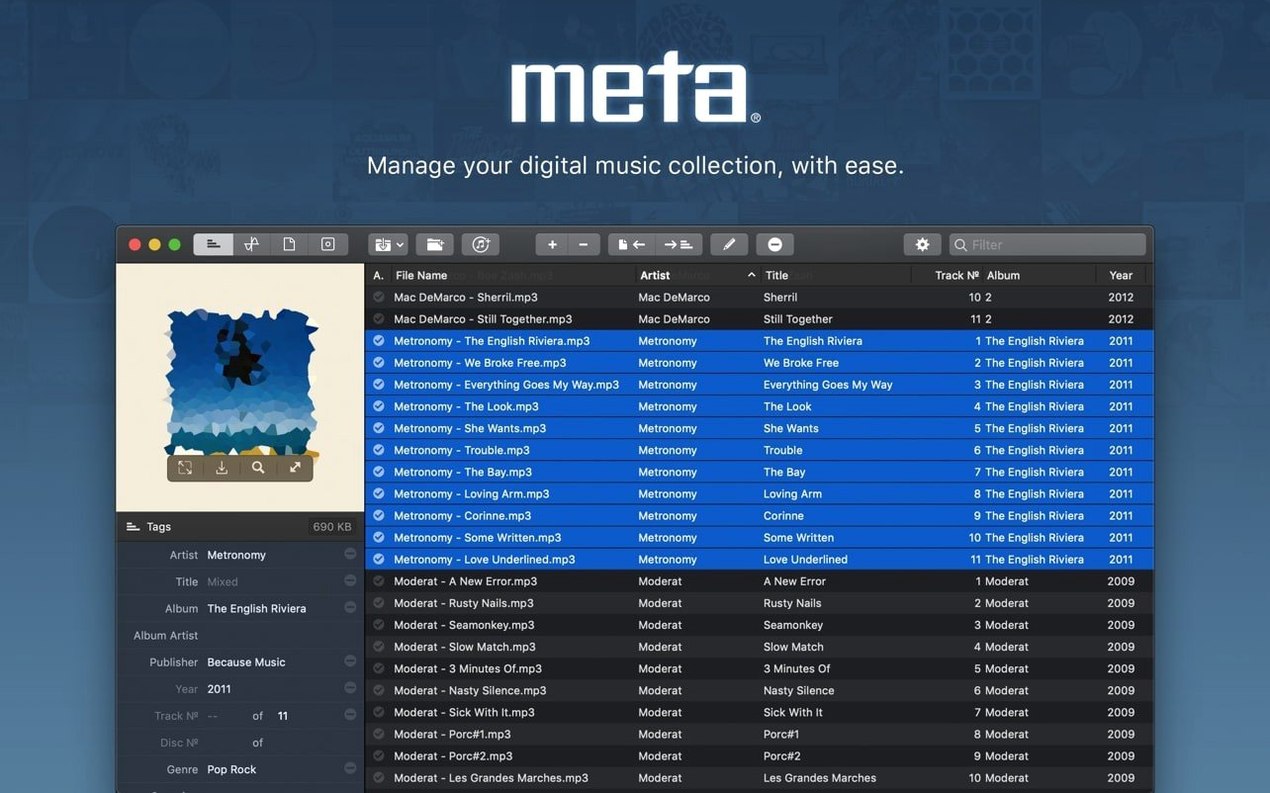
Batch work is where Meta earns its keep. Select any number of files, fill in the artist or album once, and the change lands on every track. Automatic track numbering stops you counting out a dozen tracks by hand.
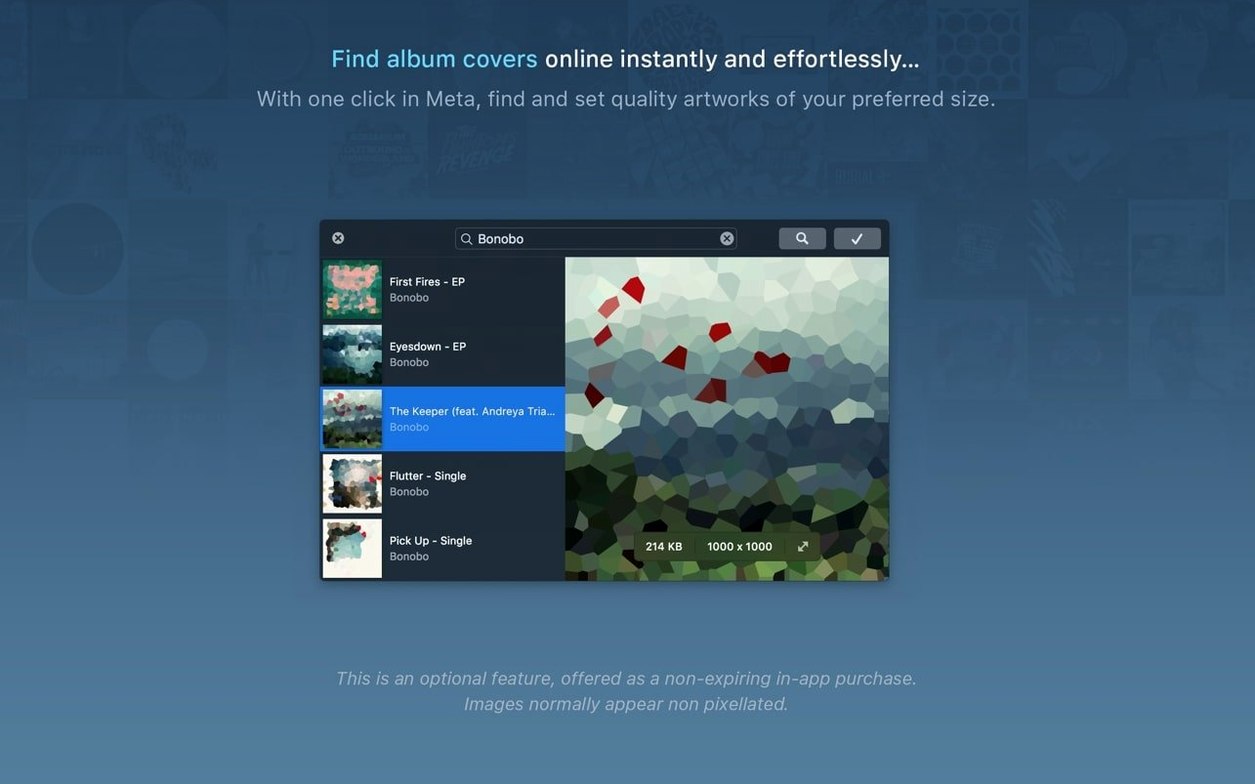
Swap the artwork
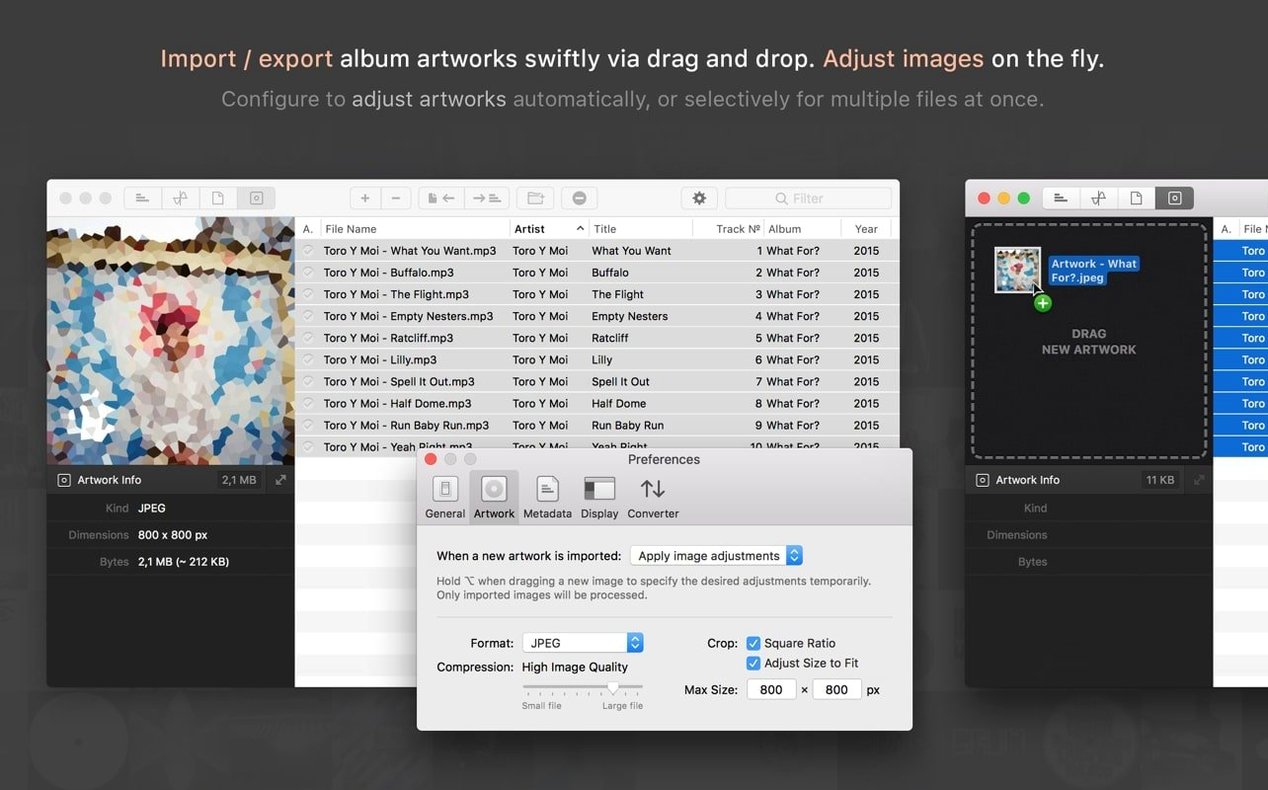
Drag album art straight out of Meta to save it, or drop new artwork onto a file and let the compressor scale and crop it for you. The preview updates as you tweak, so you never guess at the final look.
Switch tag sets in a click
Configurable tag views mean you see only the fields you need. Flip from a minimal view for quick edits to the full MP4, MP3 or Vorbis tag set when a rare field turns up.
Fix a rogue compilation, end to end
A friend hands you a USB stick of FLAC files ripped from various CDs. Every track lists the artist as "Various" and the album name is blank. Finder shows the filenames are decent though: Artist – Song.flac. Here is a straight line to putting things right.
- Drop the whole folder onto Meta’s window.
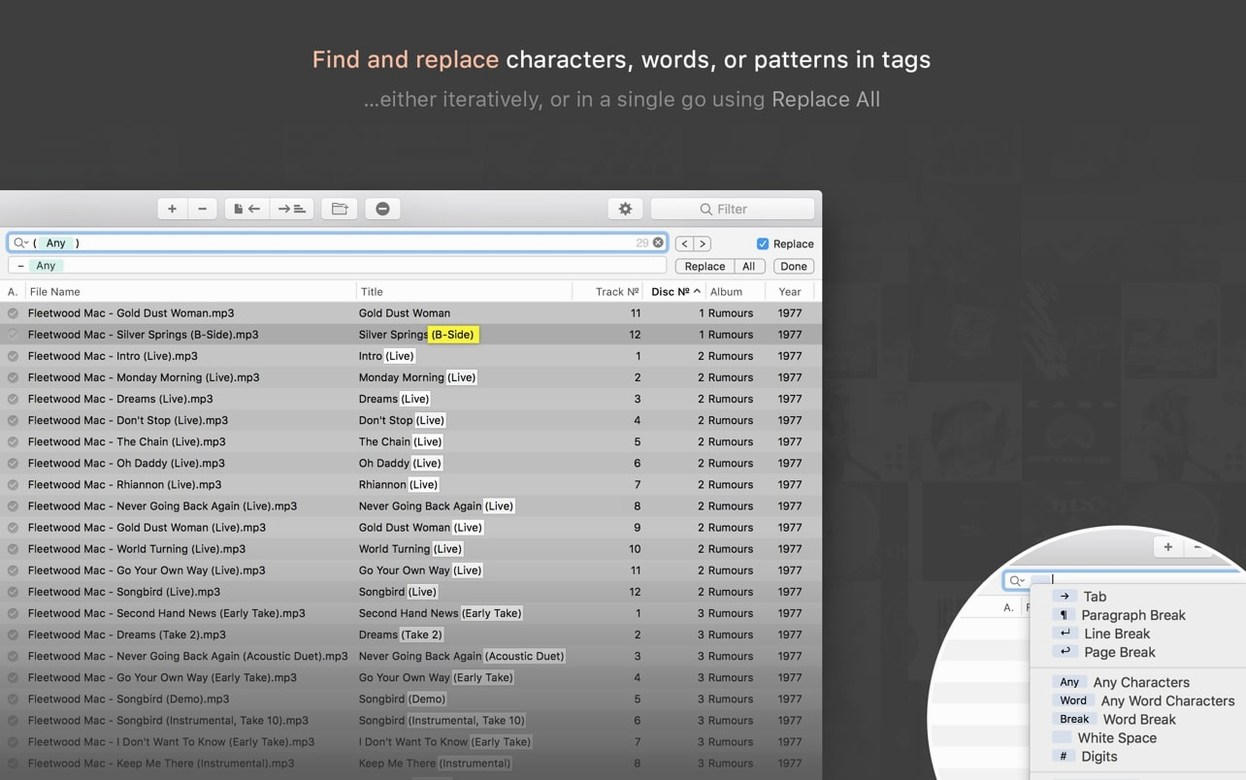
- Open Tag → Convert from filename…. The preview grid shows what Meta will extract.
- Set the pattern to
%artist% – %title%. If a few tracks use an underscore or a double dash, tweak the pattern until the preview looks clean. Regular expressions are there if you need them. - With the artist and title columns populated, select all tracks and hit File → Rename. Tell Meta to build new filenames like
%track% %title%. No more mess in Finder. - Still got no album name? Type the compilation title into the album field once while everything is selected — job done. Hit Command-S to write the tags.
- Grab artwork from a scan or a photo, drop it onto the first track, and let Meta’s built-in compressor shrink it to something sensible. Tick Apply to all selected files and the whole compilation gets a cover.
That USB stick goes back to your mate fully tagged, neatly named, and looking like a proper release. The only thing Meta cannot fix is their taste in music.
A ten‑minute tag‑view setup for daily tidying
Once the app is in your Applications folder, spend ten minutes setting up a couple of tag views. A minimal one with artist, album, title and track number suits daily tidying. Save a fuller view for those weekends when you want to sort BPM, composer or grouping fields on old DJ rips.
Next, point Meta at your main music folder and watch the autocomplete suggestions from the built-in iTunes database. As you type an album name, Meta offers matches. This saves hours of typing and catches small spelling mistakes before they spread across a hundred files.
If you used another tagger before, export a CSV of your current library, open it in Numbers and spot inconsistencies. Meta can import that same CSV back again once the data is clean — handy for migrating years of half-finished tagging into a fresh start.
Finally, test a batch rename on a small folder, not your whole collection. A pattern that works on ten files may trip on track 500. Once you trust your template, you can let Meta loose on the big library.
Where Meta sits among your other tools
Meta is not a player — it is the prep kitchen. You tag in Meta, then send selected tracks straight to the Music app with File → Add to Music. It also writes metadata back after editing, so Music stays in sync without a manual re-import. For DJs who use Traktor or Serato, clean ID3 and Vorbis tags mean fewer surprises when a playlist hits the club system.
Finder integration runs deep. Right-click any audio file and pick Open With → Meta or use the Show in Finder command inside the app to jump to a file’s location. Quick Look works on the track itself — tap the spacebar to preview audio before you tag it.
When Numbers or Excel come into play, Meta’s CSV exchange keeps the bridge open. Export a messy library, sort and filter in a spreadsheet, then pull the cleaned data back in. It is the same idea as a meta torrent search engine: you gather, you filter, you act. Only here the search is across your own hard drive, not a swarm, and the prize is a library that actually makes sense. For anyone who hunts down a Meta Mac full version to organise years of downloaded music, the workflow pairs naturally with a meta tune torrent habit — grab the files, tag them properly, and move on.
Meta 2.6.0 brings the latest batch of under-the-hood fixes and tidy-ups from the developer.
- macOS 10.13 or newer
- Works on Apple Silicon and Intel 64-bit Macs
Questions from the bench
What audio formats does Meta handle?
It works with MP3, MP4, M4A, FLAC, OGG, OGA, OPUS, SPEEX, WAV and AIFF.
Can I integrate it with iTunes?
Yes, you can add selected tracks from iTunes and push updated metadata back.






 Back up
Bench talk (0)
Sign in or get a library card to pin up a note.
Nobody has chimed in on this card. If you have used it on an old Mac, say which one.