

Caato Time Tracker Pro 1.1.18 — Mac version
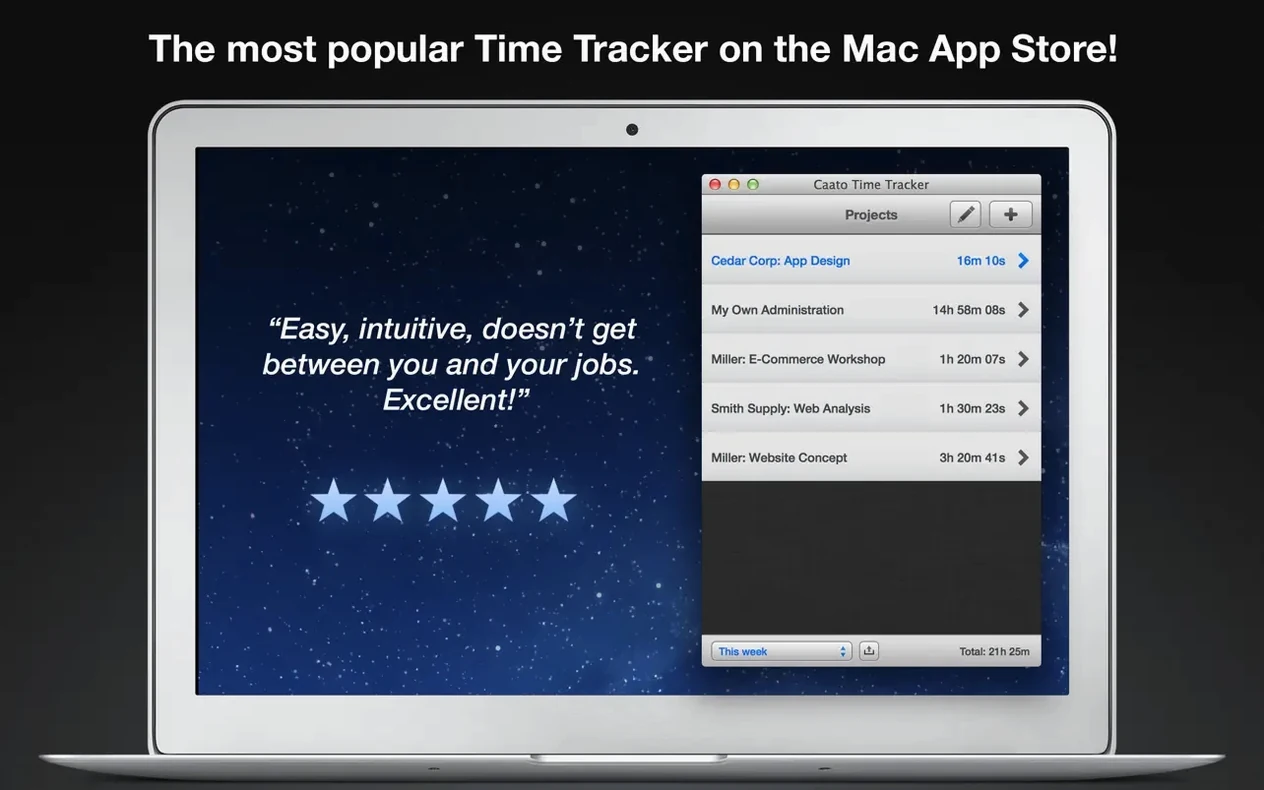
Version 1.1.18 of Caato Time Tracker Pro fixes a macOS Ventura issue where the navigation bar wasn't displaying correctly. If you’re on Ventura and the bar looked missing, that’s sorted now.
Running several projects with tasks inside each
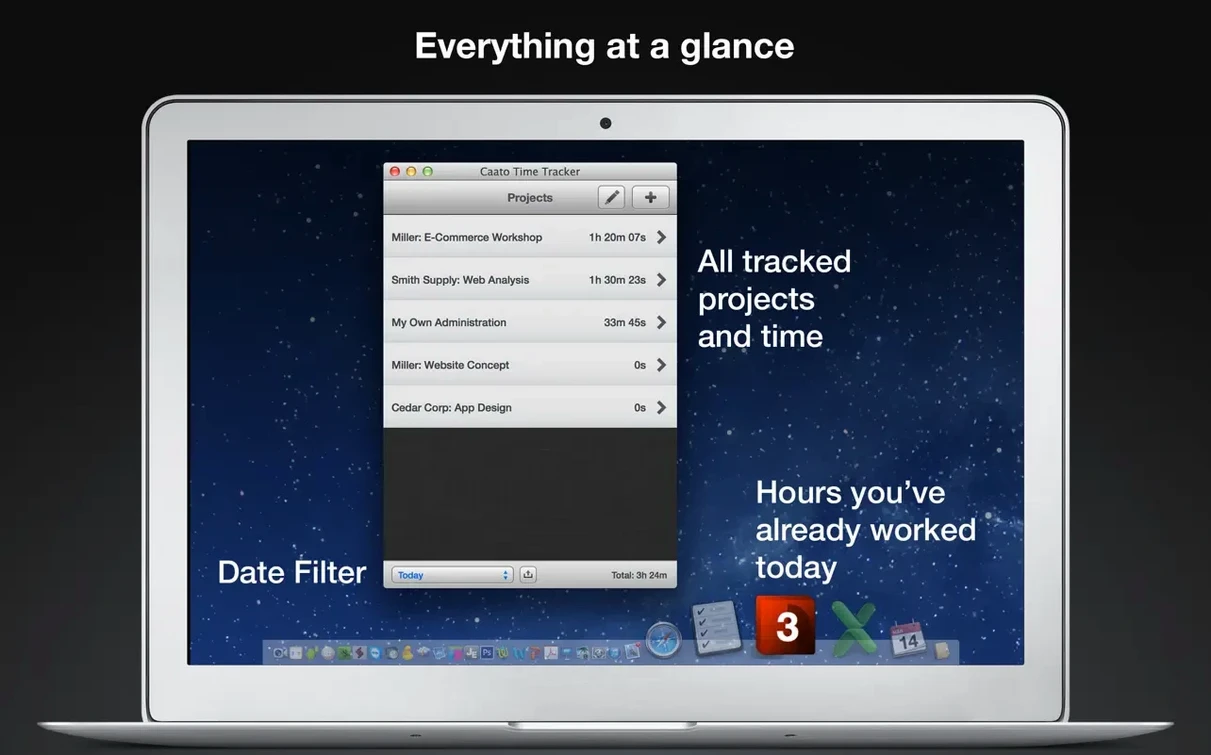
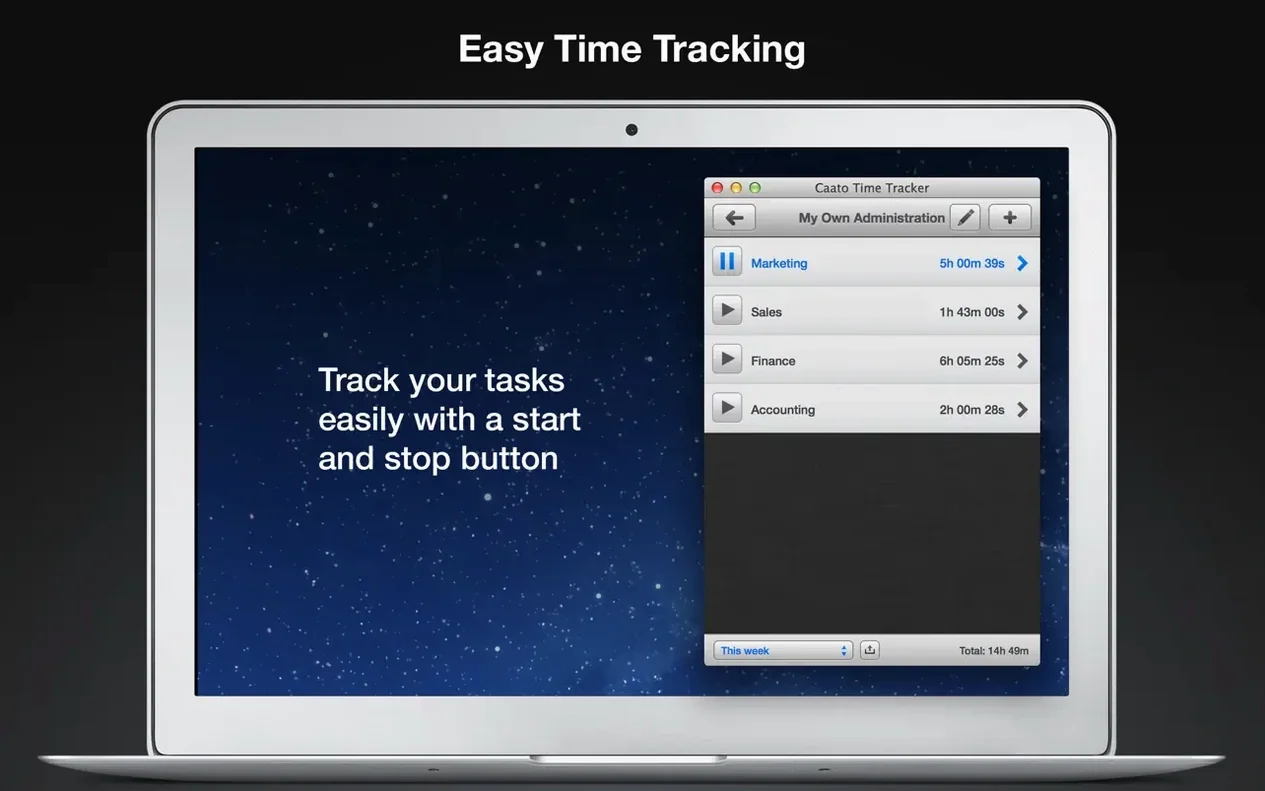
- Running several projects at the same time, with multiple tasks inside each one.
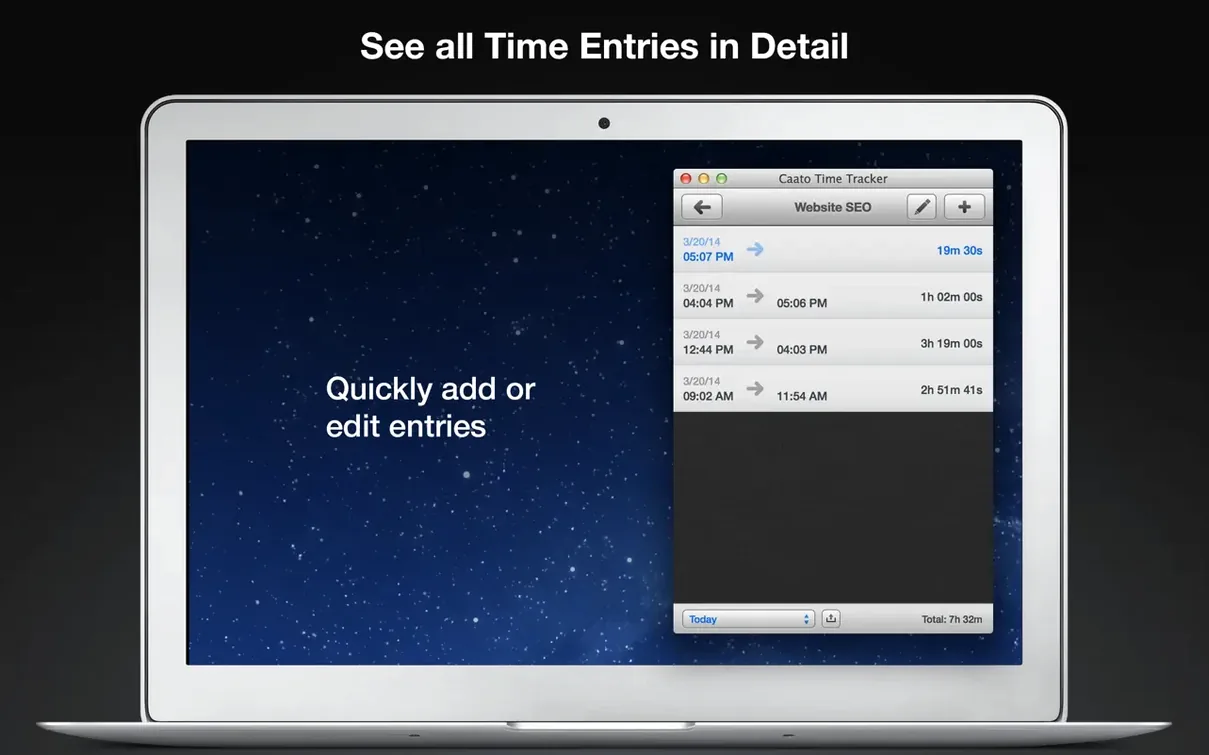
- Editing past entries or adding future ones if you forgot to clock in.
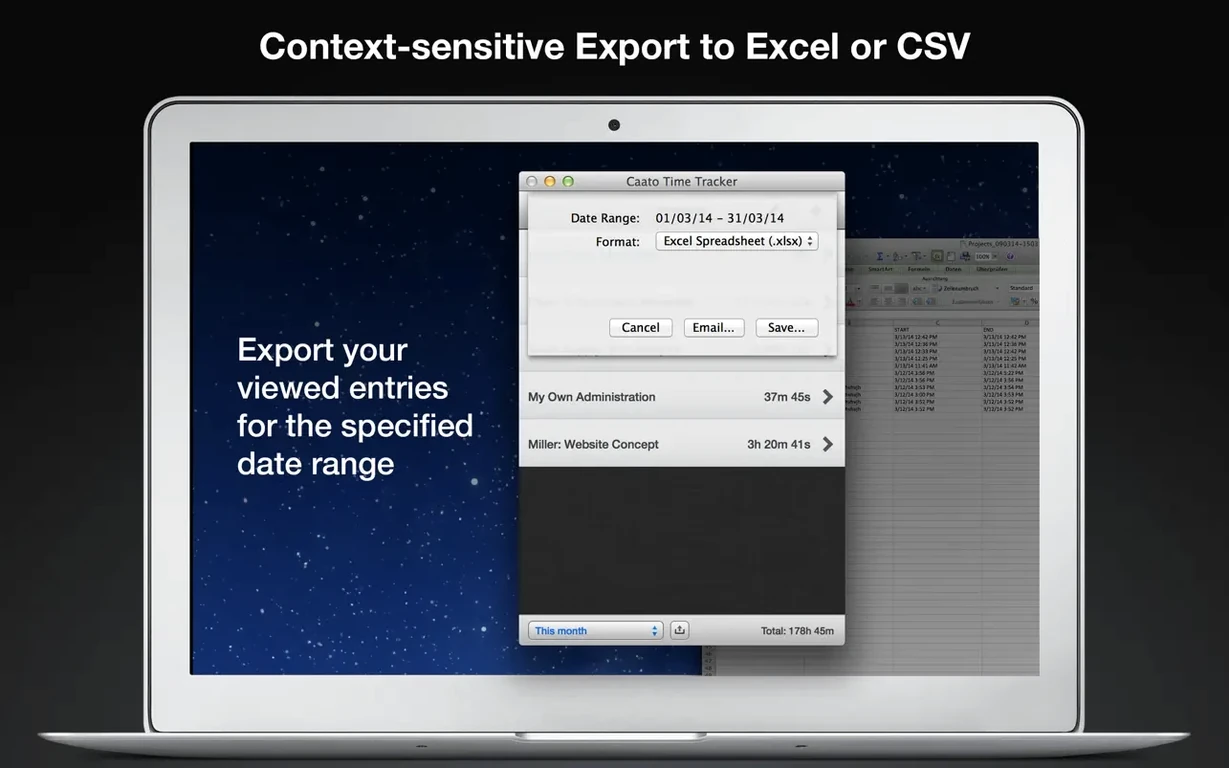
- Formatting reports and emailing them straight from the app.
- Hiding finished projects when you don’t want them cluttering the list.
- Tracking down to the second if you need precise billable hours.
Compatible with macOS 12+ and older export features
- Runs on macOS 12 and later, but older email/export features still need OS X 10.9 or above.
- Works on both Intel and Apple Silicon Macs.
- Interface is in English or German.
Works alongside other apps without conflict
Will it work alongside other time-tracking apps?
Caato Time Tracker Pro doesn't fight with other software. It runs as its own window and leaves your system alone. I've had it open next to a browser, a code editor and Slack without trouble. The only thing it touches is your backup folder, which it manages itself.
Do I lose my data if I switch Macs?
The automatic backup feature writes copies of your projects and time entries. You can move those backup files to a new machine and restore them inside the app. Good for moving from an old Intel Mac to an Apple Silicon one — the app runs on both, so the jump is straightforward.
Is it complicated to set up?
Mount the disk image, launch it. If Gatekeeper stops you — and it will on recent macOS versions — open Terminal and press Enter to bypass it, then drag the app into your Applications folder. One-time thing. After that it opens like any other program.
Show work time or current project in the dock
- Dock icon display — head to preferences and set it to show today's work time or the current tracked project. Means you can glance at the dock instead of opening the window to check what's running.
- Date-range filter — set a custom range that matches your billing cycle. The presets are handy but a custom view saves you from dragging the calendar every Monday morning.
- Hide finished projects — once a project is done, hide it so your project list stays lean. The data stays there, it's just out of sight.
- Second-level tracking — if you bill in decimals or need precise totals, turn on second display in the time-entry settings. The difference between rounding to the minute and tracking the second adds up over a month.
Navigation bar fix for macOS Ventura
The big fix is the navigation bar on macOS Ventura. Before 1.1.18, the bar could go blank — you'd click around and nothing happened because the controls were invisible. That's gone. The navigation bar now draws correctly from the start.
Everything else carries over from the previous version. The three-level hierarchy (project, task, detailed entry) works the same. The start/pause control still lives in the top bar. Exports to CSV and Excel behave identically. If you were on an older version and held off updating because of the Ventura bug, 1.1.18 is the one to grab.
No new features or interface shuffles here. Just one broken thing made right. That's the kind of update you can install and get straight back to work.
- Fixed a macOS Ventura bug where the navigation bar was not displayed correctly.
- macOS 12 or later
- Intel or Apple Silicon
- OS X 10.9 or later required for emailing and export features







 Back up
Bench talk (0)
Sign in or get a library card to pin up a note.
Nobody has chimed in on this card. If you have used it on an old Mac, say which one.