

FSNotes 7.3.5 — Mac version
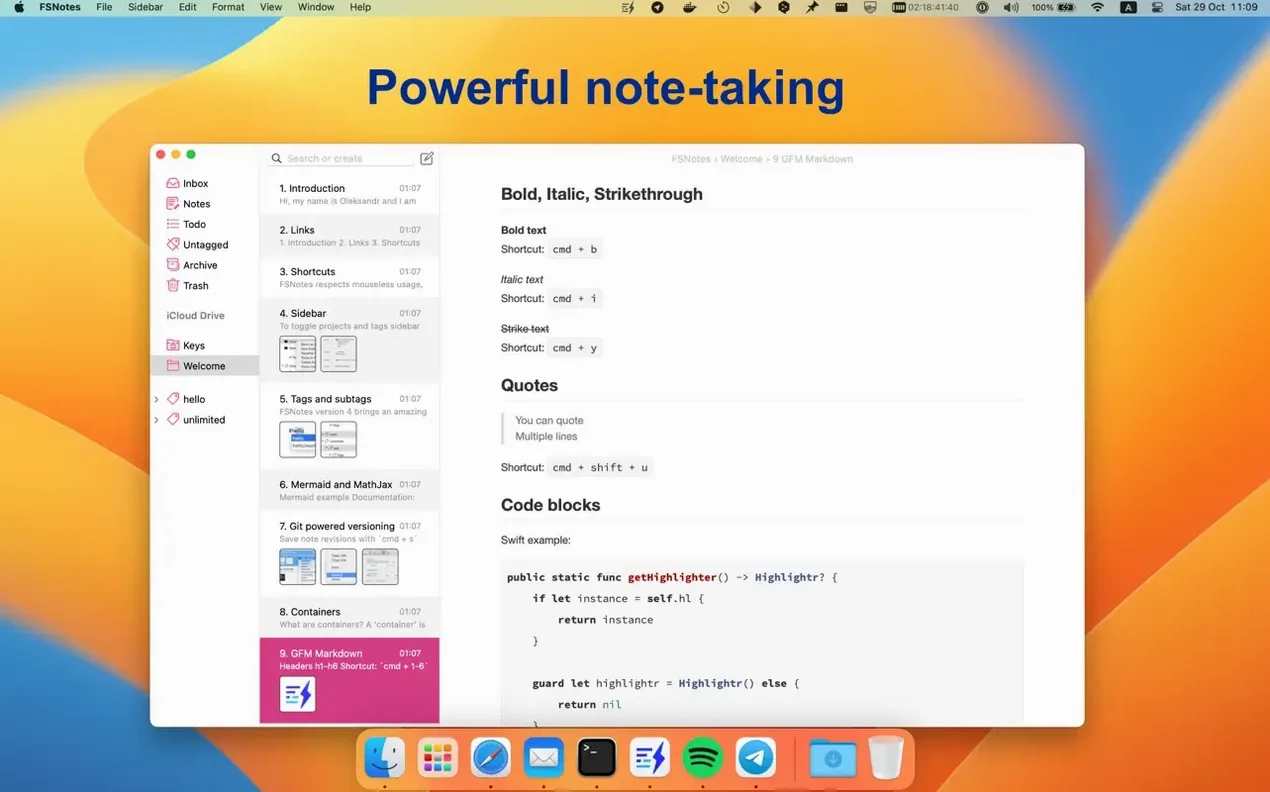
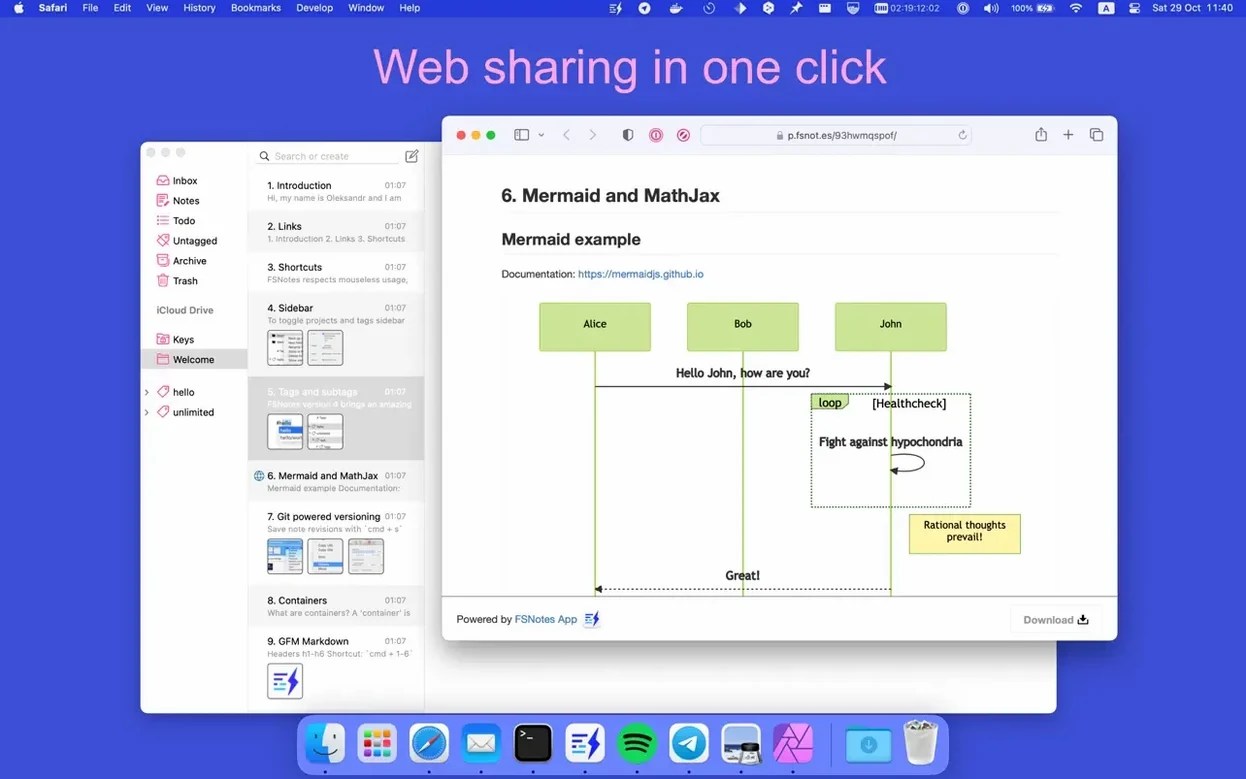
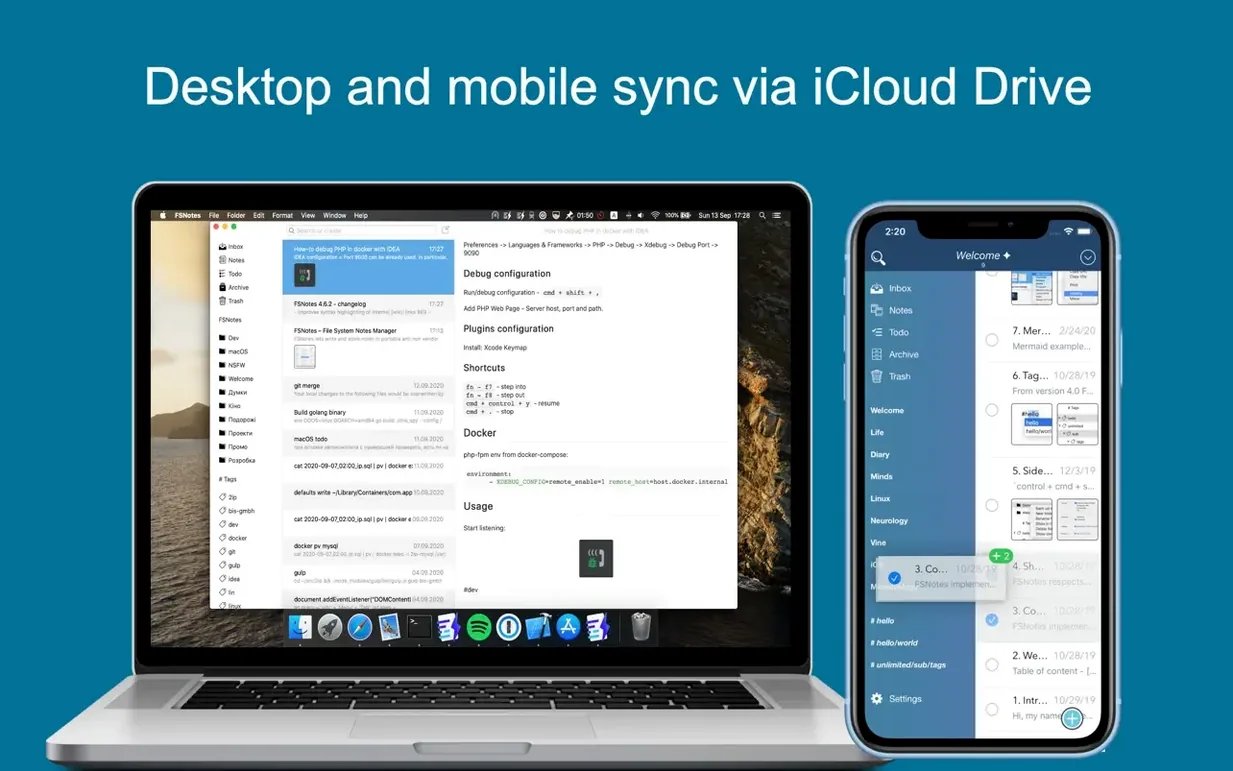
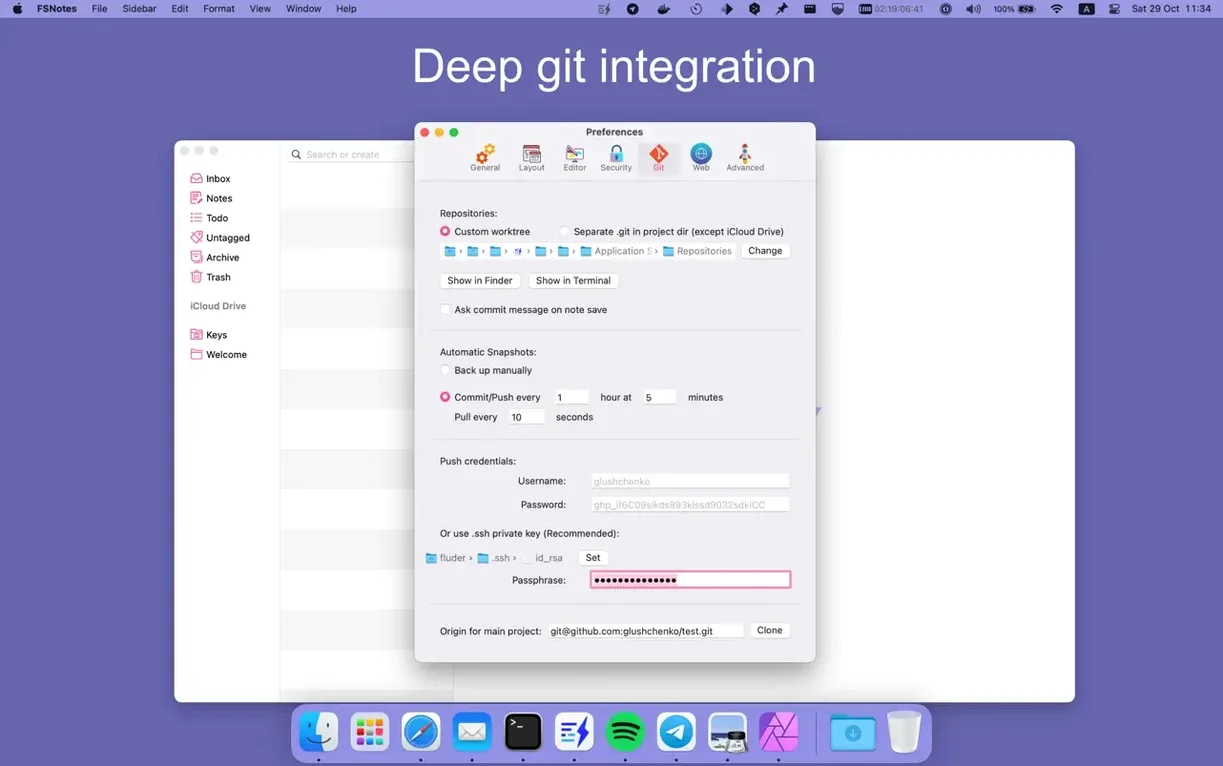
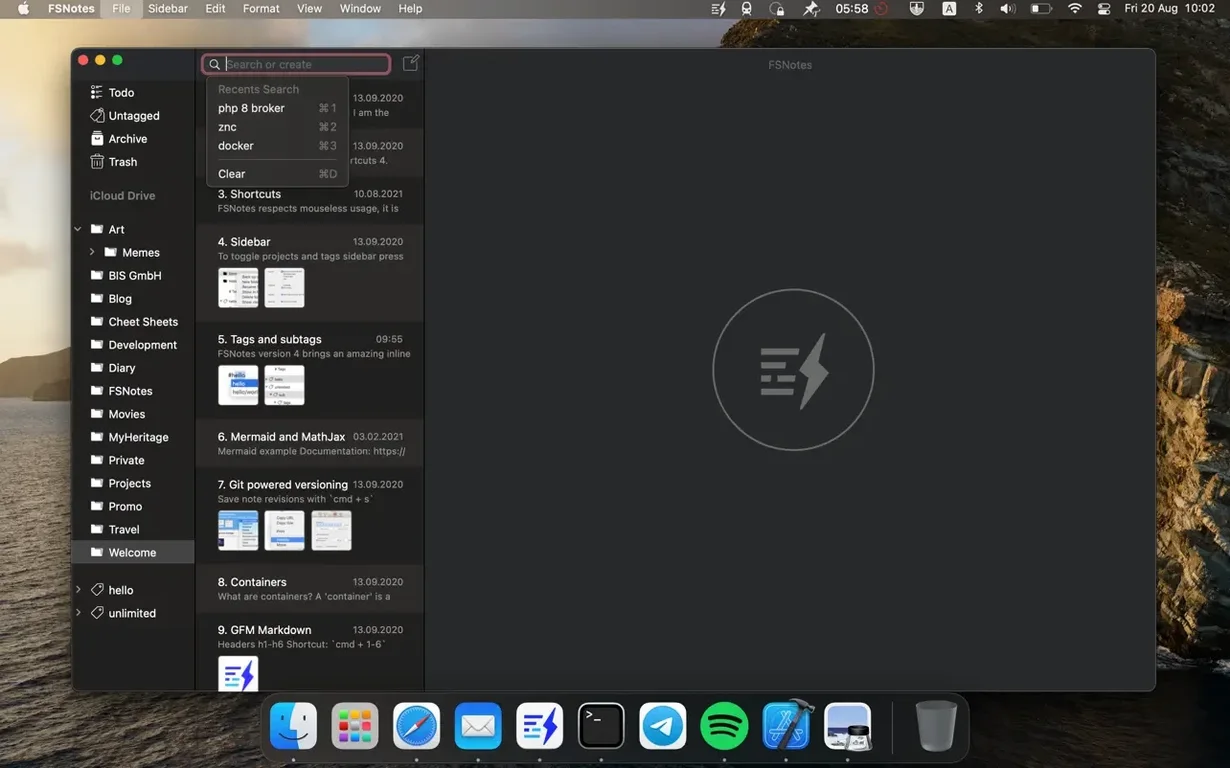
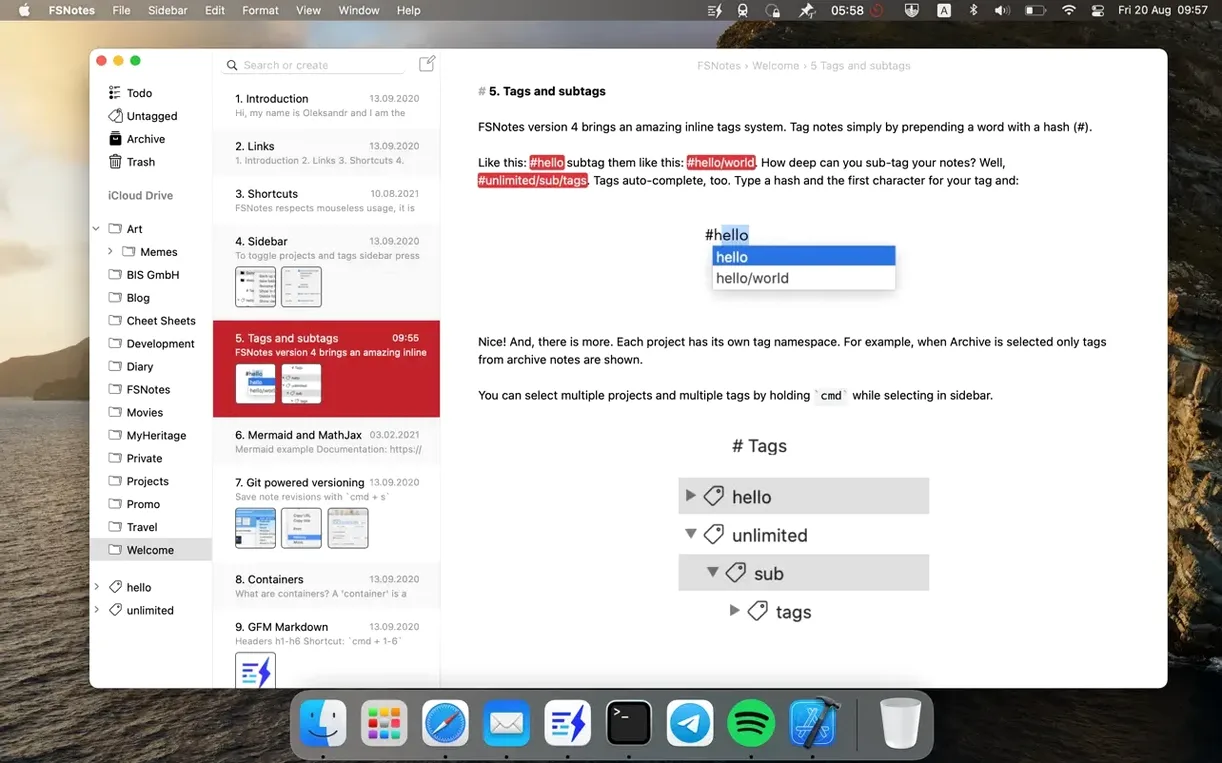
Every note you write in FSNotes is a real file sitting in a folder on your Mac — plain text, Markdown or RTF. No database lock-in, no proprietary format. Here are the things most people ask before they give it a go.
- Can I just point it at my own folder of text files? Yes. Pick any folder and FSNotes treats everything inside it as notes. You keep full control.
- Does it handle Markdown properly? It does. GitHub Flavored Markdown with a side-by-side preview mode, so you see the rendered output as you type.
- Is it quick to search? Real-time filtering inside the app. Start typing and matching notes appear straight away, no waiting.
- Can I pin the important stuff? Yep. Pin a note and it stays at the top of the list until you unpin it.
- What about working on two notes at once? Split view lets you do that. Go vertical or horizontal, whichever fits your screen.
It runs on macOS 12.4 and later, and there's an iOS companion if you want notes on the move. Good shortcut support too, so once you learn a few keystrokes you barely reach for the mouse.
Point the storage to your synced folder
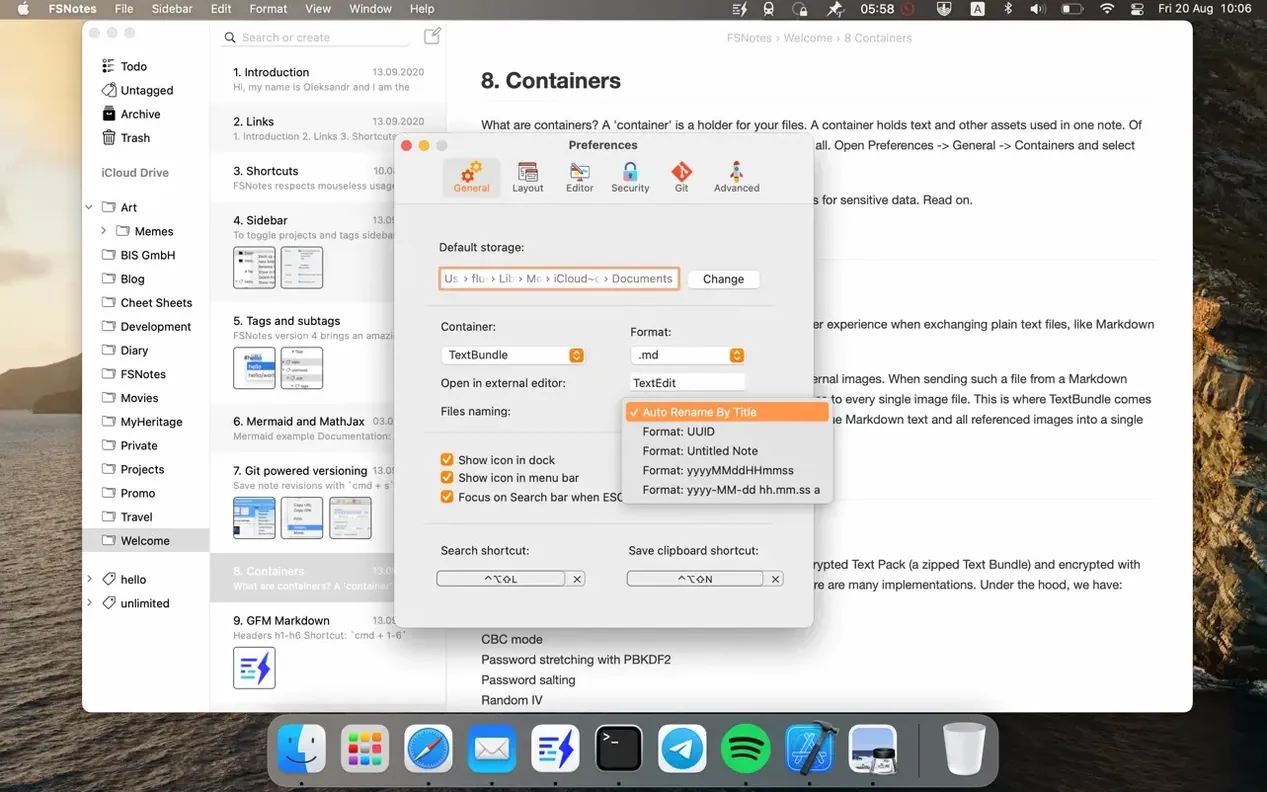
Open Preferences as soon as you launch the app. A few defaults are fine, but three settings make a real difference to daily use.
- Storage folder. Under Storage, point FSNotes at a folder inside iCloud Drive or any synced location you already use. That way every new note lands where your other devices can see it, and you never have to export anything.
- External editor. In the Editor tab, set your favourite text editor — Byword, Nova, even plain TextEdit. Right-click any note later and pick Open in External Editor to switch tools without copying and pasting.
- Keyboard shortcuts. Under Shortcuts, the global hotkey for the search field is the one you'll use most. Pick something easy on the fingers —
⌥⌘Spaceor similar — and you can jump into your notes from any app.
first days with FSNotes
Give it a real folder to work with. Create one called Notes in iCloud Drive, set it as the storage location, and drop a handful of existing text files straight into it from Finder. They appear in the sidebar without any import step — that's the file-system approach doing its job.
Try pinning one or two notes you open every day. A running shopping list, a scratchpad for work, whatever you keep coming back to. The pin sits at the top of the list and survives restarts, so your morning brain doesn't have to go hunting.
Spend ten minutes with the Markdown preview. Write a heading, a code block, a bullet list, then flick to preview mode with ⌃⌘P. Getting the split-view layout right early — horizontal for a widescreen desktop, vertical for a laptop — saves faff later. If code highlighting doesn't kick in, check that your fenced code block specifies a language; FSNotes recognises over 170 of them.
One last thing: the app works completely offline. Before a train journey or a flight, open it once to let any iCloud changes sync, then work away. Everything saves locally and syncs back when you reconnect.
A tidy-up release that fixes a few niggles worth knowing about.
- Editor and preview scroll position now sticks properly when you flick between them
- Fixed a glitch where toggling preview could leave you in the wrong spot
- Cmd+F search no longer messes up the editor padding
- Squashed a crash that could happen during quick searches — a race condition, sorted
- macOS 12.4 or later
- Apple Silicon or Intel 64-bit Mac
Questions from the bench
What note formats does FSNotes support?
Plain text, Markdown (including GitHub Flavored Markdown) and RTF — all stored as ordinary files you can open in any other editor.
Is there an iPhone version?
Yes, FSNotes is built for both macOS and iOS.







 Back up
Bench talk (0)
Sign in or get a library card to pin up a note.
Nobody has chimed in on this card. If you have used it on an old Mac, say which one.