

BatFi 3.0.5 — Mac version
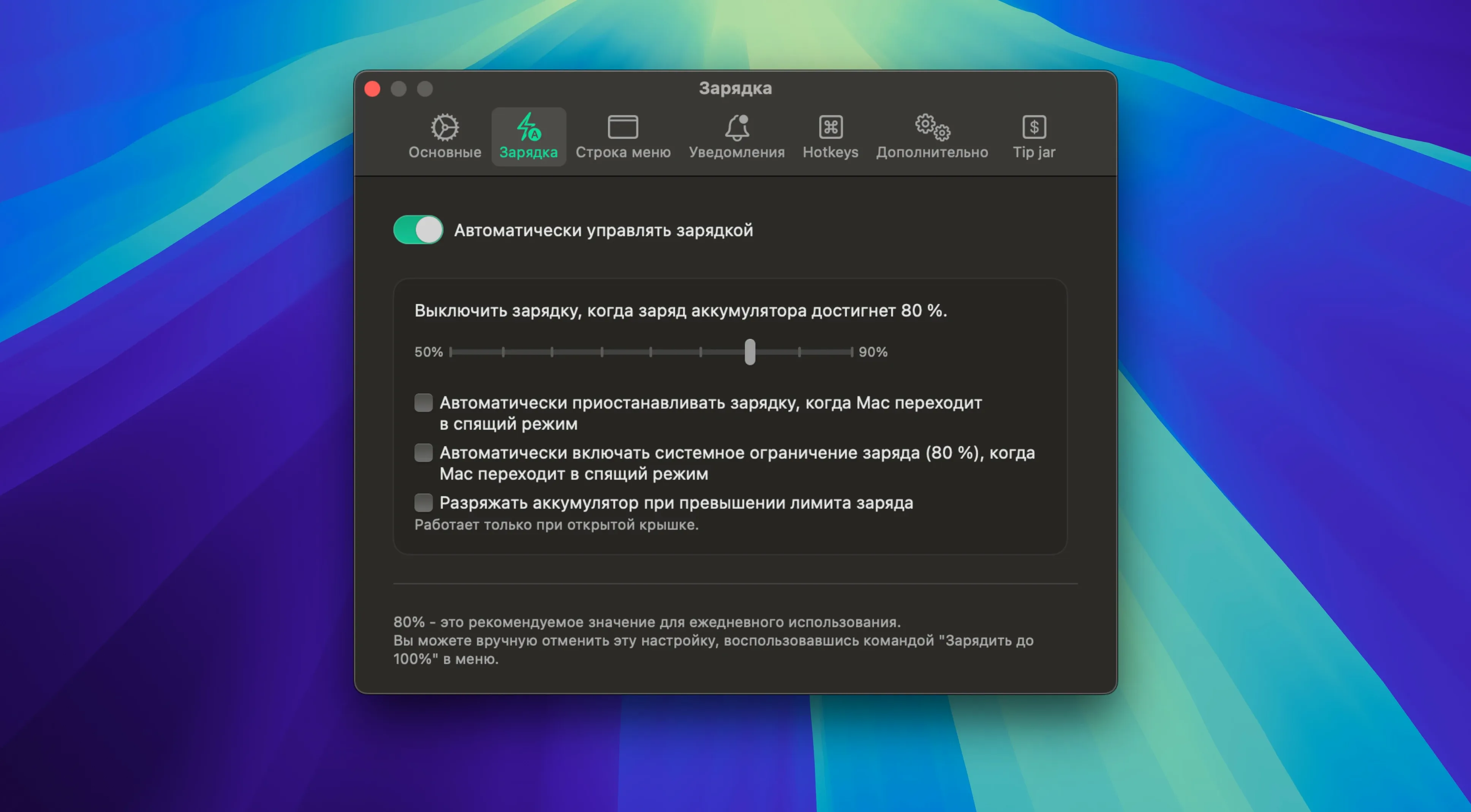
BatFi runs on any Mac with macOS 13 (Ventura) or later, both Apple Silicon and Intel. That covers everything from an M1 MacBook Air to a recent Pro.
What BatFi does
- Set a charge ceiling. Pick a percentage in the app and plug into mains power. BatFi stops the charger dead at that number, every time. No drifting back up overnight.
- Call for a full tank. Tap the menu bar to override the limit when you know you’ll be away from a socket. It charges straight to 100%, then reverts to your normal cap afterwards.
- Glance at battery health. The status item shows charge, time remaining, cycle count and temperature. Customise which bits appear so the menu bar only shows you what matters.
Once configured, BatFi sits quietly in the background. No nag screens, no fiddly schedule to maintain. The app speaks eleven languages including English, German, French and Japanese, so it fits into a home setup or a shared workshop machine.
First days with BatFi
Give it a day or two to settle. The app learns nothing — it simply enforces the limit you set — but your own habits take a moment to adjust.
- Pick a sensible starting point. 80% is a common first choice. It keeps the battery in a comfortable range for chemistry and still gives you a decent charge if you unplug unexpectedly.
- Check the menu bar once an hour. The temperature readout is worth watching. If your Mac sits above 35°C while idle and plugged in, the vent might be blocked. A clear desk helps more than any software setting.
- Let the full-charge override do its thing. The first time you use it, watch the notification appear. BatFi tells you it's topping up to 100%, then later confirms it has dropped back to your usual limit. That confirmation is how you know the loop closed properly.
- Resist fiddling with the limit daily. Set it once and leave it for a week. The real benefit comes from consistency, not from chasing the perfect percentage.
Workflow: preparing for a long day away from power
You have a train journey, a site visit or a full afternoon of meetings with no guaranteed socket. Here's how BatFi fits into the morning routine.
- The night before: your Mac sits at the usual 80% limit, plugged in and cool. No action needed yet.
- Morning, with coffee: click the BatFi menu bar icon and choose Charge to 100%. The icon changes briefly to show charging. Go pack your bag while it tops up.
- Notification check: a banner tells you the battery hit 100%. Unplug when you see it. The app has already switched back to enforcing your 80% ceiling for next time.
- On the move: work as normal. With a full charge you get a genuine full day of light use — email, writing, browser work — without hunting for a wall socket.
- Back home: plug in. BatFi recognises AC power and stops the charge at 80% without you touching a thing. The cycle count ticks up by exactly one.
If you forget to trigger the override, don't worry. The 80% you left with still covers a solid half-day. That's the quiet win of a batfi mac setup: the floor stays useful even when you skip the routine.
- macOS 13 or later
- Apple Silicon or Intel Mac








 Back up
Bench talk (0)
Sign in or get a library card to pin up a note.
Nobody has chimed in on this card. If you have used it on an old Mac, say which one.