

App Icon Generator 1.7.0 — Mac version
What is the “Export as PNG” option about?
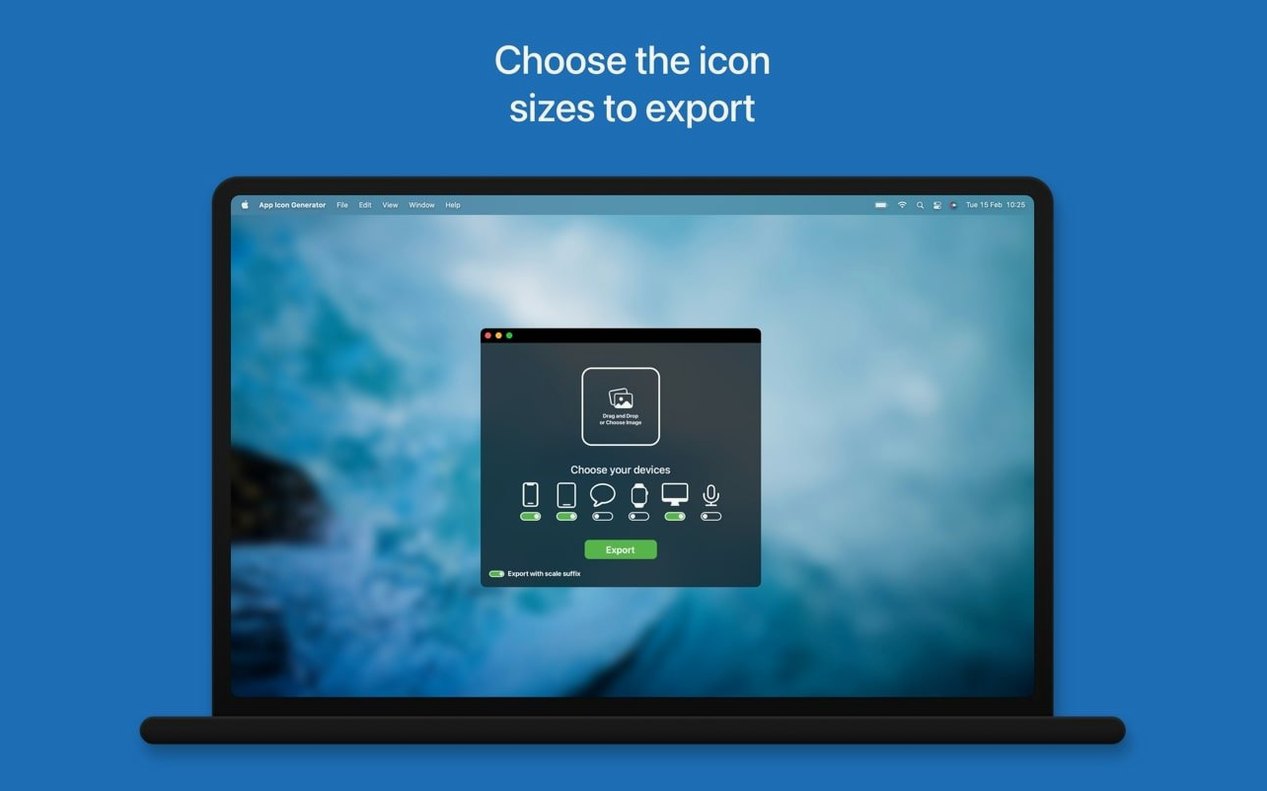
When you pick your target devices — iPhone, Apple Watch, Mac, whatever — App Icon Generator automatically resizes your image, names each file, and slots it into the right folder. All exports come out as PNG, ready to drop into Xcode or wherever you need them.
Who is this for?
Anyone who builds apps and dreads hunting down the right icon dimensions. Designers, indie developers, repair-café volunteers turning side projects into real apps — if you’ve got one good square image and need twenty sizes, this saves the headache.
What’s changed in version 1.7?
Version 1.7, released 27 May 2025, added support for Xcode 16’s latest icon sizes and improved compatibility with iOS 18. Keeps up with Apple’s moving target, basically.
Early snags you might hit
A few things catch people out, especially if you're new to making app assets. Here's what usually trips folks up and how to fix it.
Your image won't drag in
App Icon Generator expects a square image. If your source image is rectangular, the app might not accept it. Crop it square in Preview or any photo editor first. Doesn't need to be huge — 1024×1024 is fine for most jobs.
The export folder seems empty
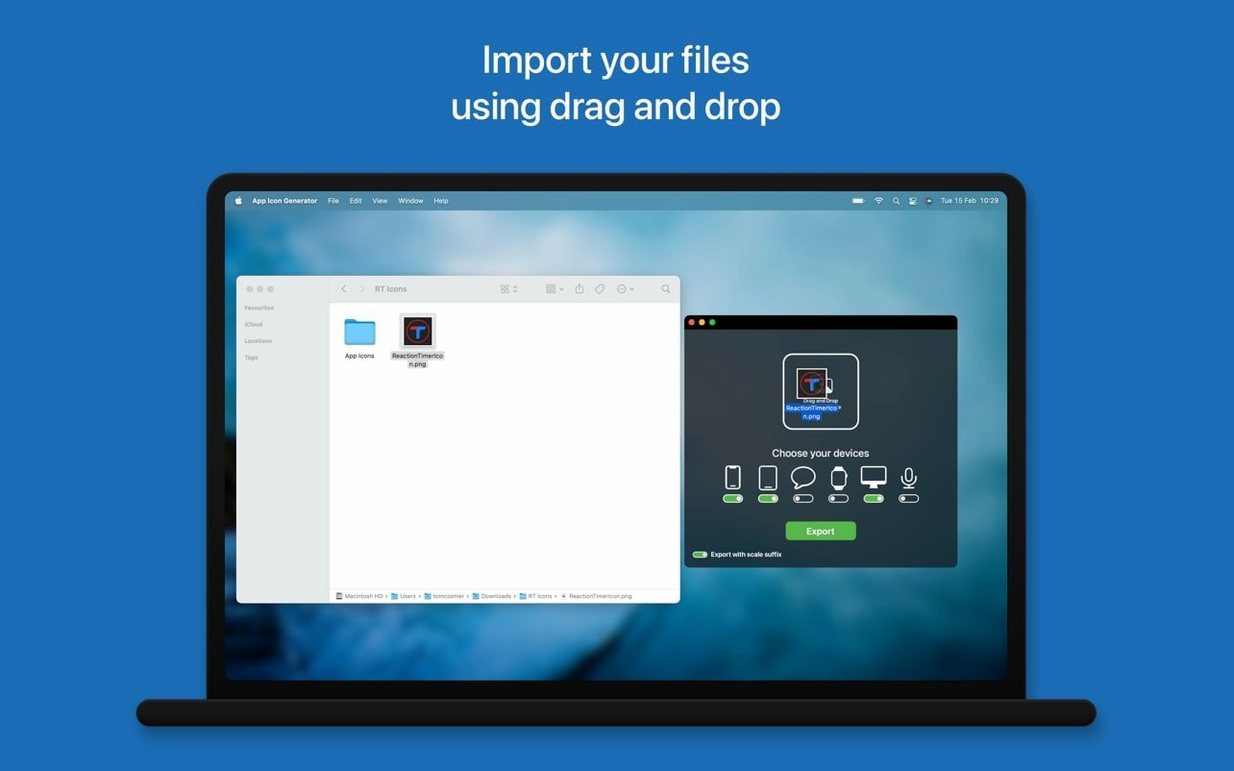
Check you've selected at least one device before dragging your image in. If no device is ticked, the app has nothing to do and won't create any folders. Pick your targets, then drag.
Gatekeeper won't let you open the app
This is the usual one on newer Macs. After you mount the disk image, you'll see a message about an unidentified developer. Open Terminal, type the command shown on the install screen, and press Enter. It bypasses Gatekeeper for that session. Then drag the app into Applications as normal.
Files are there but Xcode won't import them
Make sure the folder structure hasn't been moved or renamed. App Icon Generator names folders by size and files by slot. If you've rearranged things, Xcode might not match them up. Best to export straight into your project's asset folder.
A full workflow: building a launcher icon for a repair-café app
Say you're making a simple app for your bike library — a digital sign-in sheet. You've got a hand-drawn logo scanned in as a PNG. Here's the route from that scan to a working Xcode project.
- Open your scan in Preview and crop it to a square. Save as PNG, maybe 512×512.
- Launch App Icon Generator. Tick the devices you're targeting — for a test app, probably iOS and macOS to start.
- Drag your square PNG into the drop zone. The app shows a preview of how it'll look at each size.
- Click Export. A folder appears, named by size (for example,
iOSinside that,macOSinside that). Each contains correctly named PNGs. - In Xcode, open your asset catalog. Drag the whole exported folder in. Xcode recognises the naming and slots everything into the right fields.
That's it. From scan to ready-to-build in under two minutes. No measuring, no renaming, no guessing what Apple changed this year.
First few days: tips to make it stick
- Keep a square master image handy. If you've got one good 1024×1024 source file saved somewhere safe, you can regenerate all your icons whenever Apple updates their sizes. Version 1.7 already handles Xcode 16's latest, but you'll be ready next time too.
- Test one export before you do the full batch. Drag in a quick placeholder image, export to a temp folder, then check the sizes look right in Xcode. Saves re-exporting twenty files later.
- Name your source files clearly. Something like
app-icon-square-1024.pngis better thanfinal.png— you'll thank yourself in six months when you're updating the same app. - If you share your work with a team, drop the exported folder into your project's version control. Means everyone gets the same icon set without anyone having to run the generator themselves.
- Added support for the latest icon sizes in Xcode 16.
- Improved support for iOS 18.
- macOS 14 or later
- Intel or Apple Silicon
Questions from the bench
Does it support the latest Apple devices?
Yes, version 1.7 added support for the icon sizes in Xcode 16 and improved support for iOS 18.
What file formats does it export?
All exported icons are automatically converted to PNG.
Which platforms can I make icons for?
iOS, watchOS, iMessage apps, macOS, and other apps are all supported.



 Back up
Bench talk (0)
Sign in or get a library card to pin up a note.
Nobody has chimed in on this card. If you have used it on an old Mac, say which one.