gTasks Pro 1.3.27 — Mac version
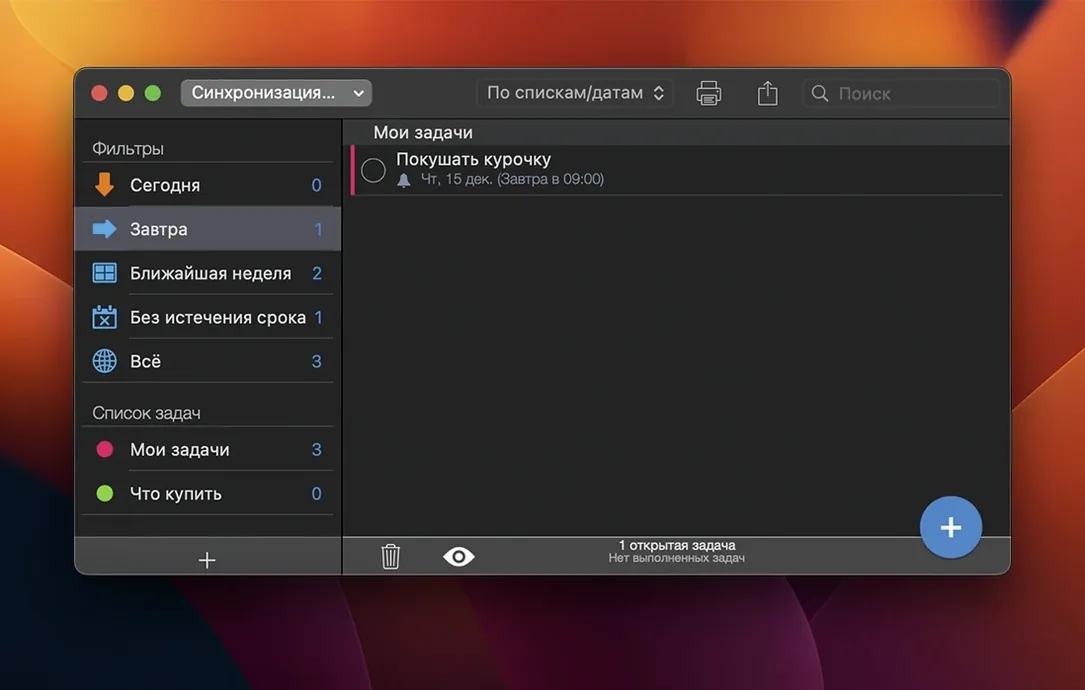
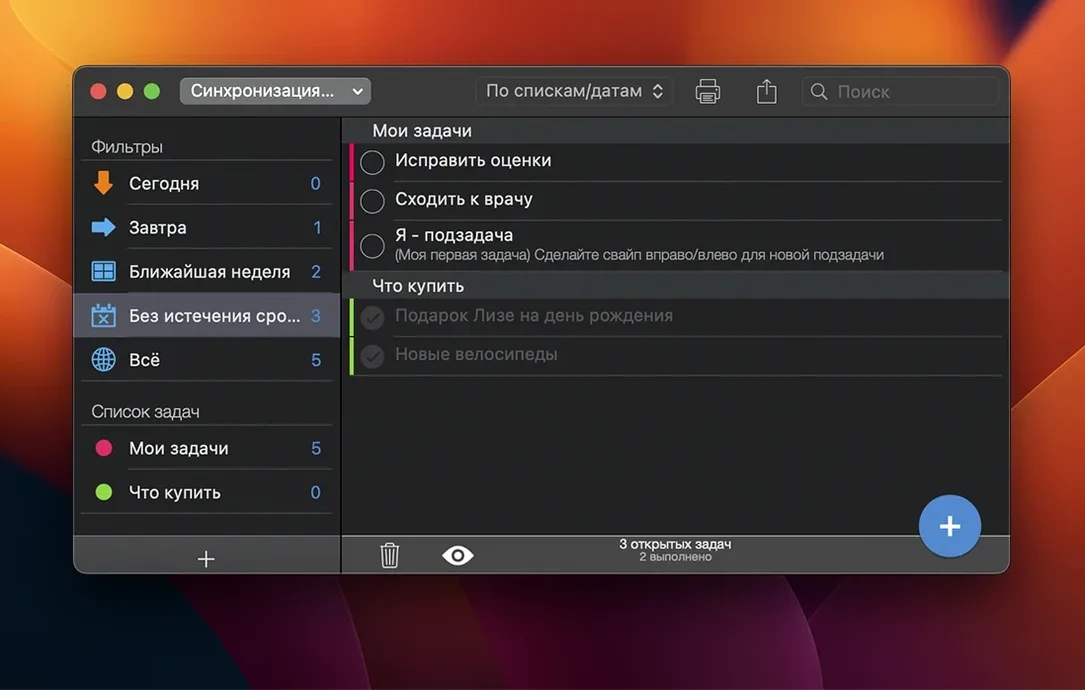
Google Tasks holds 2,000 items per list. That's plenty for most of us. But the Google website isn't always handy when you're at the bench fixing a bike. gTasks Pro for Mac brings your tasks to your desktop — and syncs them across your Mac, iPhone, and iPad.
- Works directly with Google Tasks — no extra account needed
- Syncs tasks when you're back online, so nothing falls through the cracks
- Supports repeating tasks for regular jobs like weekly shop or monthly checks
- Share tasks with colleagues — handy for repair-café team rosters
- Available in 17 languages, including English, German, French and Spanish
- Built for 64-bit Intel Macs with macOS 10.14 or later
If you're already using Google Tasks on your phone, gTasks Pro is a straightforward way to have the same lists on your Mac. No fuss, no extra cloud service — just your tasks where you need them.
Works offline with local task storage
Will it work if I'm offline?
gTasks Pro stores a local copy of your tasks. You can add, edit and tick things off without an internet connection. When you connect again, it syncs the changes in the background. Good for workshop basements with patchy Wi-Fi.
Does it mess with my existing Google Tasks?
No. It reads and writes to the same Google Tasks lists you already have. Nothing gets duplicated or rearranged. The first sync might take a minute if you have a lot of items, but after that it's quick.
Can I put it on more than one Mac?
Yes. Install it on as many machines as you like — home desktop, laptop, the library's iMac. They all sync through your Google account. Just make sure you've got the same account signed in on each.
What happens if I delete a task on my phone?
Next time gTasks Pro syncs, it'll disappear from the Mac too. Same the other way. It's a proper two-way sync, not a one-off import.
Does it need Google Calendar turned on?
The calendar integration is optional. You can use gTasks Pro for tasks only and never open the calendar tab. But if you do link it, tasks with due dates show up as calendar events, which some people find useful for planning their week.
Sync conflict handling improved
The latest version (1.3.27) is a maintenance release. Nothing flashy, but the sort of update that keeps things running smoothly. The main change is better handling of sync conflicts — when you edit the same task on two devices at once. Older versions could get confused and duplicate the task. Now it picks the most recent edit and keeps the other one in a backup folder, just in case.
There's also a fix for a glitch where subtasks sometimes lost their indentation after a sync. If you organise tasks with a lot of indented subtasks, you'll notice this one. The app feels a bit snappier when opening large lists too, though that might just be the placebo effect of a fresh install.
People searching for gtasks pro tasks for google mac torrent might find older versions floating around, but 1.3.27 is the one you want — it's the most stable release yet.
Set auto-sync and start at login first
Before you dive in, open Preferences and tweak these three things:
- Set sync to automatic. It's the default, but check it's on. Manual sync means you'll forget to do it.
- Turn on "Start at login". Then gTasks Pro sits in the menu bar and syncs in the background. You don't have to think about it until you need it.
- Enable backup. There's a simple backup option that saves your tasks as a local file. You'll thank yourself the one time Google decides to eat a list.
The rest of the defaults are sensible. Font size and column width are personal preferences — adjust those as you go. The calendar integration is off by default, so turn it on only if you actually use Google Calendar alongside your tasks.
- macOS 10.14 or later
- 64-bit Intel Mac
Questions from the bench
Does gTasks Pro work with Apple Silicon Macs?
The app is built for 64-bit Intel Macs and requires macOS 10.14 or later. It may run under Rosetta 2 on Apple Silicon, but the developer hasn't listed native support.
Can I share tasks with someone who doesn't use gTasks Pro?
Yes — sharing works through Google Tasks itself, so anyone with a Google account can see shared lists in their own Google Tasks app or website.



 Back up
Bench talk (0)
Sign in or get a library card to pin up a note.
Nobody has chimed in on this card. If you have used it on an old Mac, say which one.