
Icon Maker Pro 2.6 — Mac version
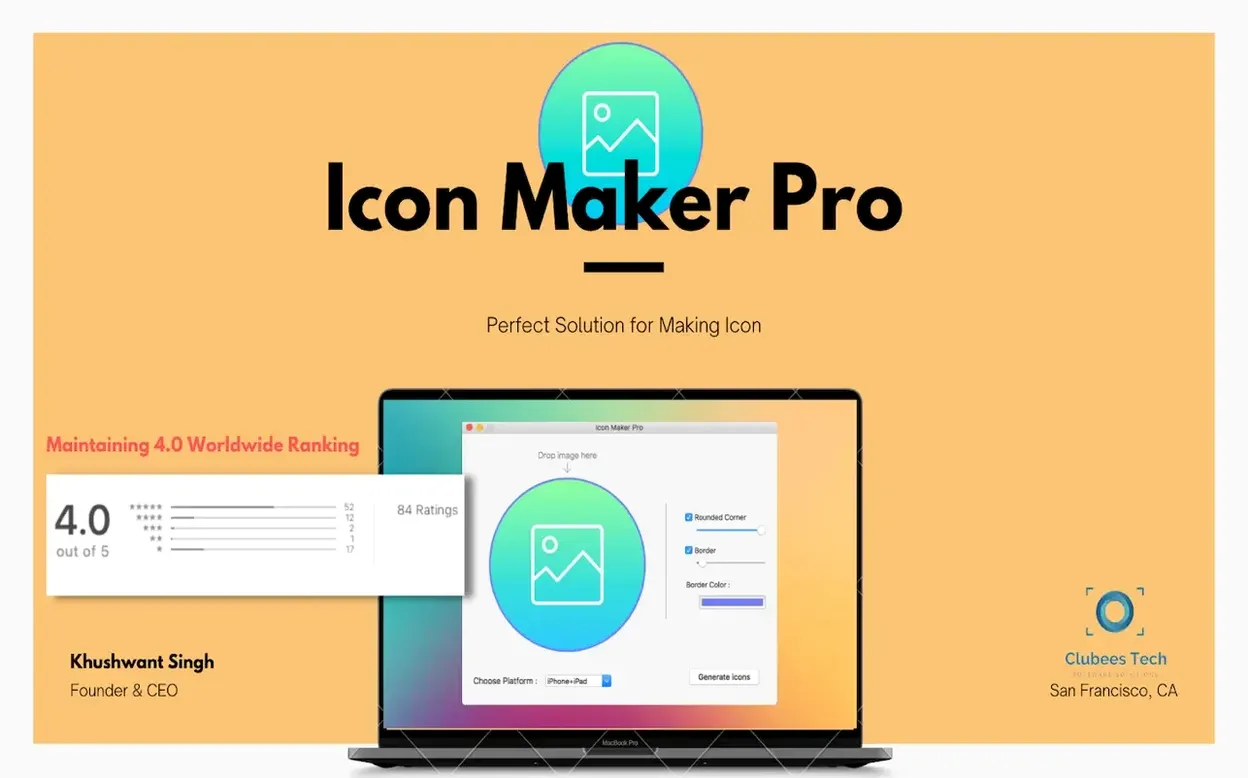
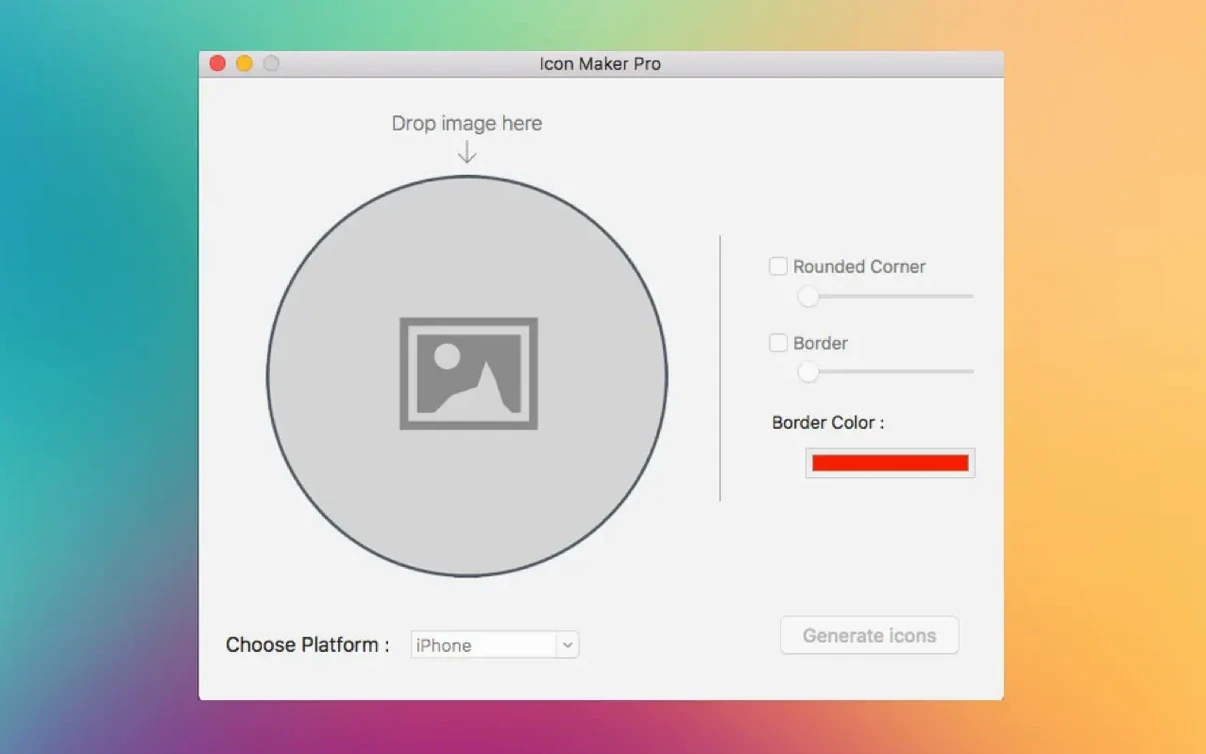
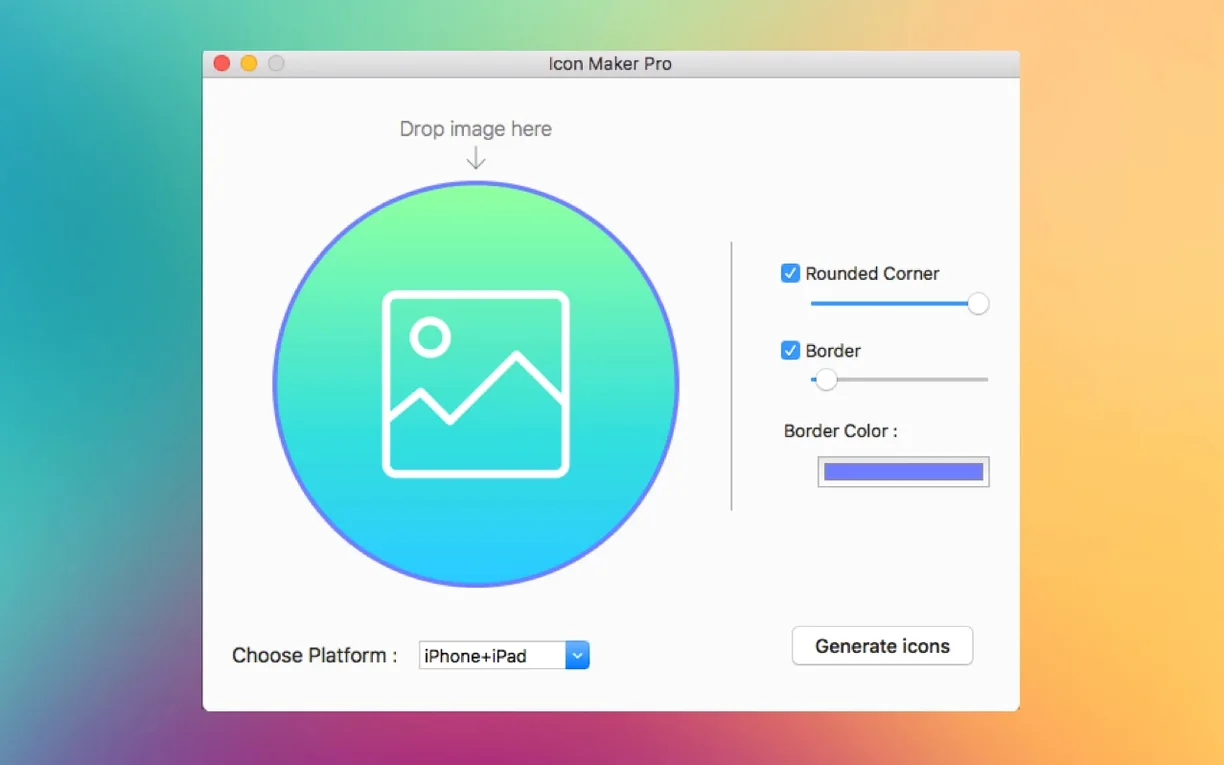
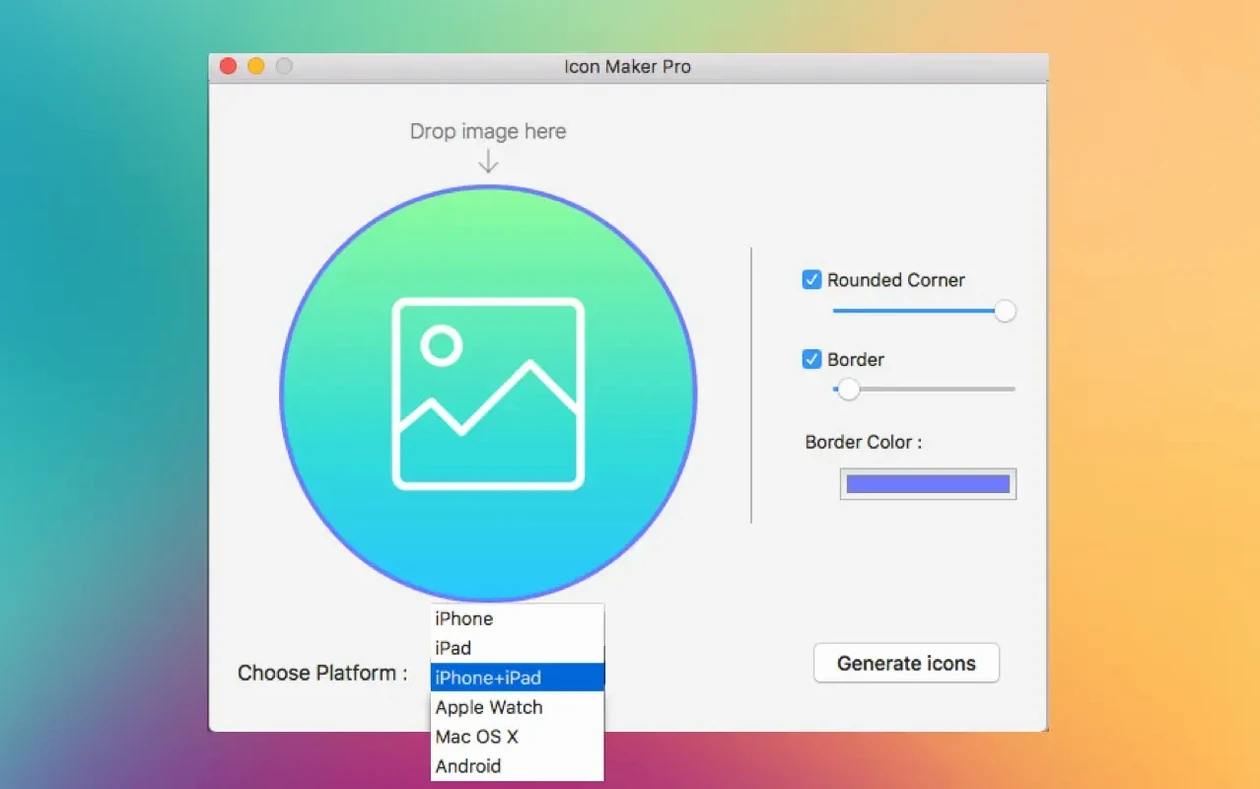
You’ve finished your app and now you need icons for every Apple device. Icon Maker Pro handles that job in one go.
What formats does it support?
It exports icons for iPhone, iPad, Mac, and Apple Watch — all the sizes an Apple developer needs.
Can I tweak the icon look?
Yes. You can round corners, add a border around the edges, or adjust the icon colour. No need to jump between other tools.
How does it fit with what I already use?
Common mistakes beginners make
When you first start with Icon Maker Pro, it’s easy to rush and miss a few things. Here are the ones I see most often at the bike library’s repair café, when someone’s trying to sort out their app icons:
- Forgetting to check all device sizes. You tweak the icon for the iPhone, but the Apple Watch version still has the old colour. Always flip through the resolutions before export.
- Adding a border that’s too thick. A fat border looks fine on a 1024-pixel Mac icon, but on a tiny watch face it swallows the whole thing. I’d test the smallest size first.
- Skipping the corner round. The app defaults to sharp corners. If you want rounded ones, you have to set it — it doesn’t guess.
- Not rotating or flipping before exporting. You can spin the icon right inside the app. Doing it in another program later means another export round.
- Overlooking the ICNS export. For Mac developers, ICNS is the native format. Beginners sometimes export PNGs and wonder why the Finder shows a white square.
Making a timer app's clock icons
Let me walk you through how I used it last week, making icons for a little timer app I’ve been tinkering with.
I’d already drawn the main artwork in a pixel editor — a simple clock face with a red hand. I opened Icon Maker Pro and dragged the square PNG into the window. Within a second, the preview showed two versions side by side: the full-res icon and a smaller thumbnail.
First, I wanted rounded corners. I slid the corner-radius slider to about 12 pixels and watched both previews update instantly. Then I added a thin grey border — 2 pixels, so it wouldn’t disappear on the watch screen.
The icon started life as a warm orange. The app’s colour adjustment let me shift it towards a cooler blue-green without leaving the window. I like that it’s live preview, no guesswork.
Next came rotation. The clock hand pointed to twelve, but I wanted it tilted for a more dynamic look. A quick 30-degree spin in the rotation control did the trick. The previews kept up with no lag.
Finally, I set the export. I ticked iPhone, iPad, Mac, and Apple Watch. The app generated all the sizes in one folder — no resaving each one by hand. I also grabbed the ICNS file for the Mac build, slapped it in the project folder, and the Finder showed the icon straight away.
Whole session took maybe ten minutes. I’d spent longer doing it manually in the past.
Launches in three seconds on a 2015 MacBook Pro
It launches in about three seconds, and the previews update as fast as you move a slider.
It’s stable, too. I’ve thrown a few 4000-pixel source images at it, and it didn’t choke or crash. The only time I saw a hiccup was when I tried to round corners to an extreme value — the preview flickered once, then settled. A restart fixed it, and I haven’t seen it since.
If you’re running a Mac with 8 GB of RAM, you’ll barely notice it’s there. It feels like a tool that was built for real work, not for impressing a benchmark.
It sits alongside your design app of choice. Build the artwork there, then bring it into Icon Maker Pro to produce the final icon set.
- macOS 10.10 or later
- Intel or Apple Silicon Mac
Questions from the bench
Can I make icons for an Apple Watch app with Icon Maker Pro?
Yes. The app supports all formats needed for Apple Watch, iPhone, iPad, and Mac apps.




 Back up
Bench talk (0)
Sign in or get a library card to pin up a note.
Nobody has chimed in on this card. If you have used it on an old Mac, say which one.